
Managing users
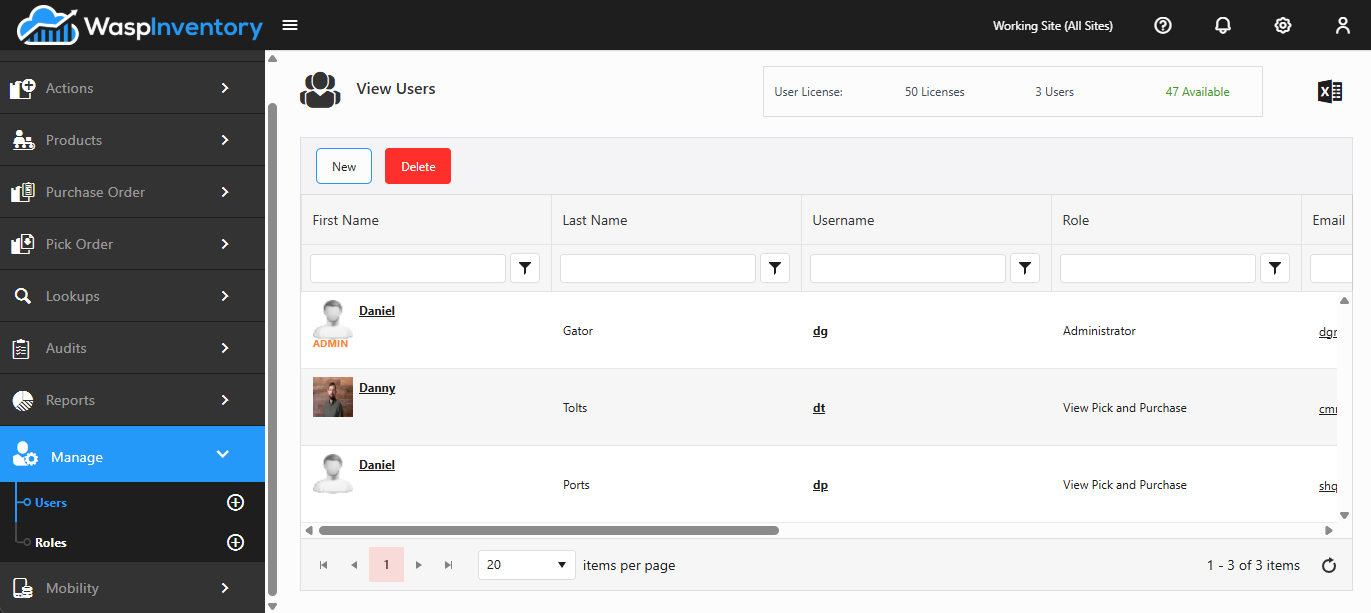
The Users page is where you manage everyone who can sign in to Wasp Inventory. From here you can see your current users, invite new ones, assign each person a role, update their details, and deactivate accounts that are no longer needed.
Open it from Manage → Users in the left sidebar.
Before you begin
Section titled “Before you begin”- Managing users needs the matching rights on your role: viewing, creating, and editing users are separate permissions. If Users isn’t in your sidebar, an administrator can grant access under Roles & permissions.
- Roles should exist before you invite people, so you can assign the right one as you go. Set them up first under Roles & permissions.
- Each active user consumes a license; check your available count near the top of the page before adding several people.
Viewing your users
Section titled “Viewing your users”The Users grid lists everyone on your account with their name, username, role, email, and status. Application administrators are highlighted so they’re easy to spot. You can filter, sort, and search the list, and export it to Excel using the icon at the top right.
Near the top you’ll also see your license counts: how many user licenses you have, how many are in use, and how many are still available.
Inviting or adding a user
Section titled “Inviting or adding a user”- Click New at the top of the Users grid.
- Enter the person’s first name, last name, and email. Email is required: it’s both their login and where the invitation goes.
- Choose a Role to control what they can see and do (see Roles & permissions). A role is required unless you mark the person an application admin.
- Optionally add a title or attach a photo.
- Click Invite User.
The new user receives an email invitation to finish setting up their account. Until they accept, they show as Pending in the grid.
Assigning a role
Section titled “Assigning a role”Every user has a role that decides what they can access. You choose it when you invite them, and you can change it later by opening their profile. Prefer to give people the least access they need to do their job; you can always grant more.
Users can also be marked as application admins, which gives them full access. Assign this sparingly.
Editing a profile
Section titled “Editing a profile”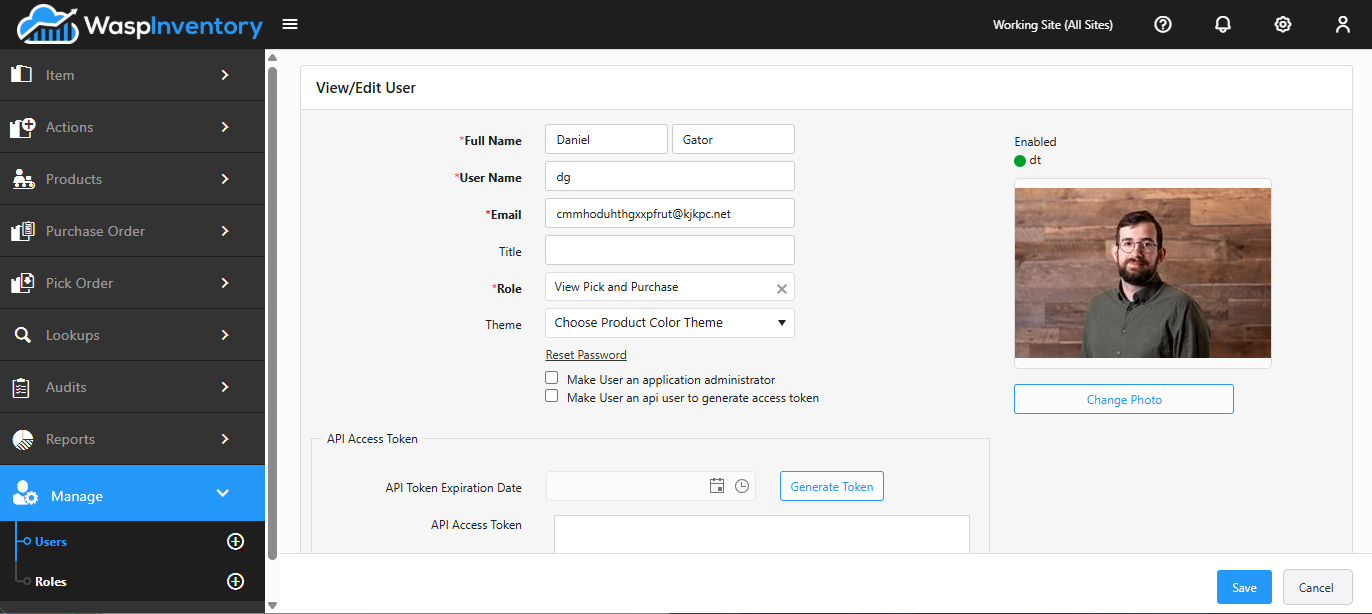
Click a user’s name (or username) in the grid to open their profile, where you can update:
- Name, username, email, and title — the person’s basic details.
- Role — see Assigning a role above.
- Theme — the product color theme this user sees when they sign in.
- Reset Password — send the user a password reset.
- Make User an application administrator — grants full access; see Assigning a role above.
- Make User an api user to generate access token — reveals the API Access Token section below, where you can set an expiration date and generate a token for that user.
- Photo — update the picture shown next to their name.
Save when you’re done.
Deactivating a user
Section titled “Deactivating a user”To keep a user’s history but stop them signing in, deactivate the account instead of deleting it. In the grid, click the user’s status to switch them between enabled and disabled. Disabling frees up their license for someone else.
Troubleshooting
Section titled “Troubleshooting”- The invitation never arrived. Have the person check spam first. If no one is receiving invitations, your email (SMTP) settings likely need attention in Settings.
- I can’t add another user. You’re probably out of licenses. Deactivate someone who no longer needs access to free a license, or add more licenses.
- The Application admin checkbox is disabled. Only an existing application admin can grant admin, and users in a Read-Only role can’t be made admins. Assign a non-read-only role first.
- A user still shows as Pending. They haven’t accepted their invitation yet. Reopen their profile to confirm the email, or resend the invitation.
Related
Section titled “Related”- Roles & permissions — define what each user can do
- Settings — configure the email used for invitations
- Changing the theme — a per-user display preference
- Wasp Inventory public API — authenticate and integrate with your data programmatically