
Creating a purchase order
Creating a purchase order is how you place an order with a vendor. You choose who you’re buying from, list the items and quantities, confirm costs and shipping, then save and send the order.
Before you begin
Section titled “Before you begin”- Purchase orders require the Complete edition (not available on Basic) and a role with permission to create them. If the New button isn’t available, check with an administrator.
- The vendor you’re ordering from must already exist under Vendors: you choose it first, and it unlocks the rest of the order.
- To email the PO, the vendor (or the order) needs at least one valid email address on file.
- If your company uses automatic PO numbering, it’s configured under Number series.
Start a new order
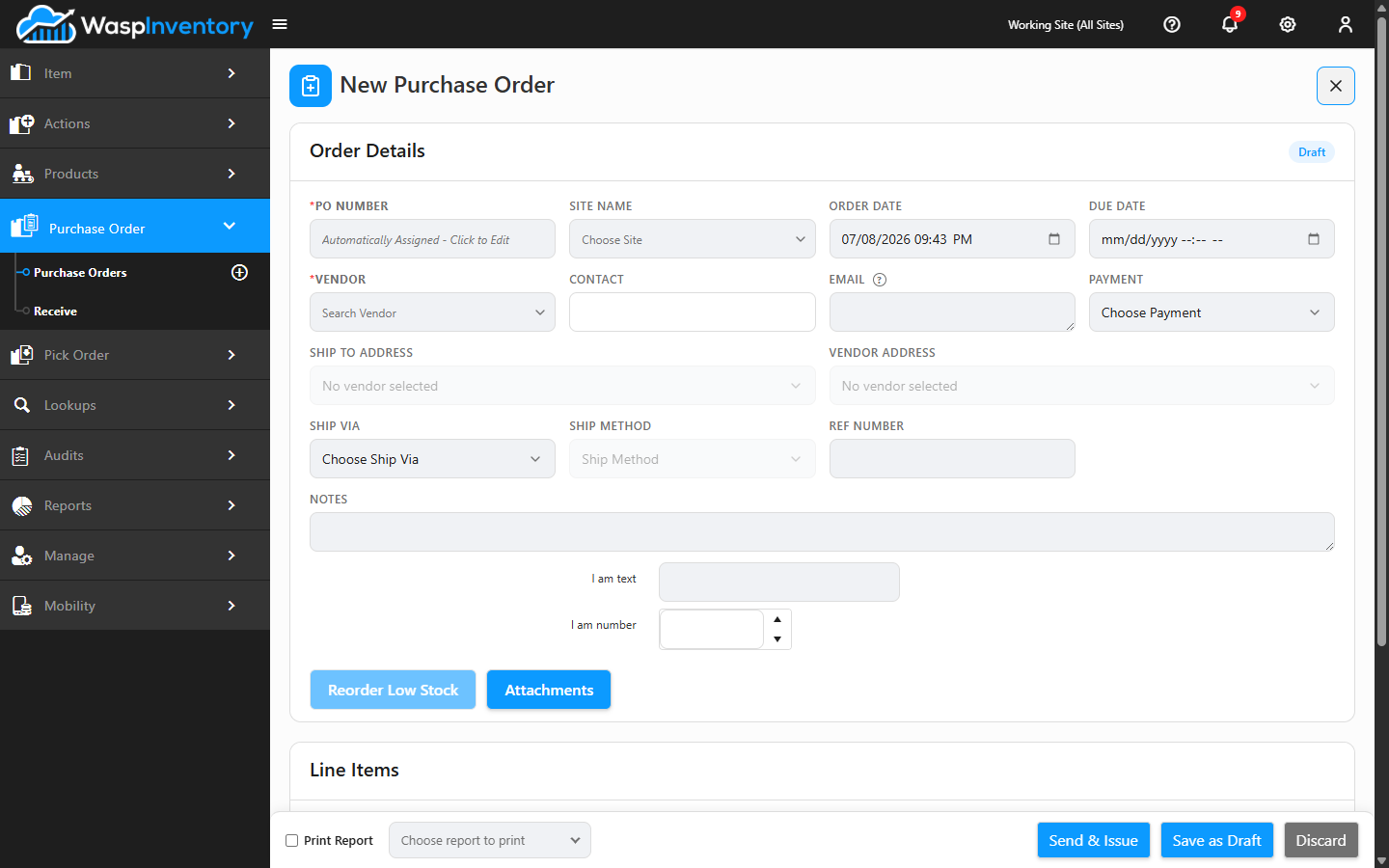
Section titled “Start a new order”Open Purchase Order → Purchase Orders and click New. A blank purchase order opens with an Order Details section at the top and a Line Items section below.
The PO Number
Section titled “The PO Number”If your company uses automatic numbering, the PO Number field shows a placeholder and fills in a number for you when you save. You don’t need to type anything, but if you’d rather assign your own number, just click the field and type the order number.
Choose the vendor
Section titled “Choose the vendor”In Order Details, start typing in the Vendor box and pick your vendor from the list. Choosing a vendor pulls in that vendor’s saved contact details and addresses.
Once a vendor is selected, you can fill in the surrounding fields:
- Site — the site the stock is being ordered for. Start typing to search, or open the list to browse. Received stock lands at this site.
- Order Date and Due Date — when the order is placed and when you expect it. Order Date defaults to today; the Due Date can’t be earlier than the Order Date.
- Contact and Email — the vendor contact (read-only, pulled from the vendor) and the address the PO will be emailed to. You can enter several email addresses separated by commas.
- Payment — the payment method for the order.
- Ship Via and Ship Method — the carrier and service. Ship Method stays disabled until you pick a Ship Via, because the available methods depend on the carrier.
- Ref Number — your own reference for the order.
- Notes — anything you want recorded on the order. Existing notes are kept as history; typing here adds a new note rather than overwriting the old ones.
Set the addresses
Section titled “Set the addresses”Two address dropdowns sit in the middle of Order Details. They activate once you’ve chosen a vendor:
- Ship To Address — where you want the goods delivered. This lists your own company’s addresses (from Company Details), so you can pick the receiving site.
- Vendor Address — the vendor’s address the order is going to, drawn from the vendor’s address book.
Add line items
Section titled “Add line items”In the Line Items section, click Add Line Item to add a row, then:
- Item: start typing the item number or name and pick it from the list.
- Vendor SKU: if the vendor has more than one SKU for the item, choose the right one; otherwise it fills in automatically.
- Quantity: how many you’re ordering.
- Unit: the unit of measure you’re buying in (for example, each, box, or dozen).
- Price: the cost per unit. The line Total is calculated for you.
Add as many rows as you need. Each row also shows the item’s Available quantity so you can see current stock while you order.
Shipping, tax, and totals
Section titled “Shipping, tax, and totals”Below the line items you’ll find the order totals:
- Item Total — the sum of all line items.
- Shipping Cost — any freight or shipping charge you want to add.
- Tax (%) — the tax rate applied to the order.
- Grand Total — the final total the vendor will bill.
As you edit quantities, prices, shipping, and tax, the totals update automatically.
Save and send the order
Section titled “Save and send the order”When the order is ready you have a couple of ways to save it, shown as buttons at the bottom of the page:
- Send & Issue — saves the order, marks it as issued, and emails it to the vendor.
- Save as Draft — saves your work without sending it, so you can come back later.
Once an order has already been issued, the buttons change to Save (save your edits quietly) and Save and Resend (save and email the updated order to the vendor again).
You can also attach files to an order with the Attachments button, found in a small toolbar between the Order Details and Line Items cards.
Print the order
Section titled “Print the order”Printing doesn’t happen instantly. It rides your next save:
- Tick the Print Report checkbox (near the bottom of the page, next to the save buttons).
- Choose a report from the picker that opens.
- Click whichever Save button applies. The report prints once the save completes.
Once an order reaches Closed or Complete status, there’s nothing left to save, so a dedicated Print button appears instead, printing immediately as soon as you pick a report.
Troubleshooting
Section titled “Troubleshooting”The order won’t save. A required field is probably empty: look for fields flagged with a red asterisk (commonly the vendor, site, or a line item). The save toast names the field that needs attention.
Most fields are greyed out. You haven’t chosen a vendor yet. Selecting the Vendor unlocks the rest of the order, the address dropdowns, and Reorder Low Stock.
Ship Method is disabled. Pick a Ship Via (carrier) first: the method list is specific to the carrier.
The vendor didn’t get the email. Confirm the Email field held a valid address when you used Send & Issue. You can add or correct it and use Save and Resend to try again.
The address I need isn’t listed. The dropdowns show saved company/vendor addresses. For a one-off delivery address, choose Custom Address from the dropdown; to reuse it later, add it to the vendor or company address book instead.