
Pricing Tiers
Pricing tiers let you give certain customers special pricing (a discount percentage, a set price, or volume-based rates) without changing your standard prices. This page shows you how to create and apply a tier.
Before you begin
Section titled “Before you begin”- You’ll also need a role with permission to create or edit pricing tiers.
- Know which products and customers the tier should cover, and whether it should be limited by date range or quantity, before you start.
- Have your item prices set up first: a tier adjusts existing prices, so the products need prices to adjust.
Open Pricing Tiers
Section titled “Open Pricing Tiers”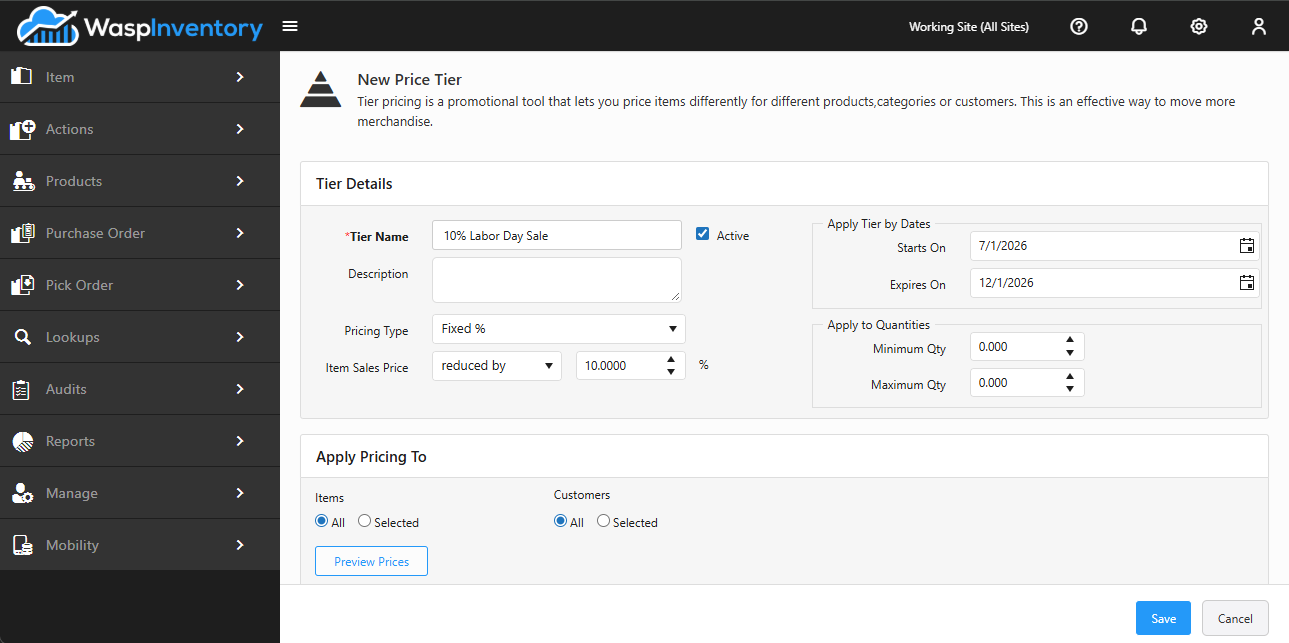
Open the Settings (gear) menu and choose Pricing Tiers. From here you can see your existing tiers and add new ones.
Create a pricing tier
Section titled “Create a pricing tier”- Start a new pricing tier.
- Enter a Tier Name (required) and, optionally, a Description.
- Keep the tier Active so it applies (clear this to keep the tier but pause it).
- Choose the Pricing Type and set the price level and value: this controls how the tier changes the price, whether as a percentage or a set amount. When the type is a percentage, a % symbol appears next to the value.
Choose when and how much the tier applies
Section titled “Choose when and how much the tier applies”You can limit a tier so it only kicks in under certain conditions:
- Apply by dates — set a Start Date and End Date so the tier is active only during a promotion or contract period. The end date can’t be earlier than the start date.
- Apply by quantities — set a Minimum and Maximum quantity so the tier only applies to orders within that range (useful for volume discounts).
Choose who and what it applies to
Section titled “Choose who and what it applies to”Decide which products and customers the tier covers:
- Under Items (products), choose All or Selected and pick the specific items.
- Under Customers, choose All or Selected and pick the specific customers.
Click Preview Prices at any time to see the resulting prices before you commit, so you can confirm the tier does what you intend.
Save the tier
Section titled “Save the tier”When everything looks right, click Save. The tier now applies automatically to the customers, products, quantities, and dates you specified.
Troubleshooting
Section titled “Troubleshooting”- The page says I don’t have a license for this. Pricing tiers aren’t available on the Basic edition. Contact your account manager to upgrade.
- My tier isn’t affecting prices. Confirm the tier is Active, that today’s date falls within any start/end range you set, and that the order quantity is within the min/max range. Also check the item and customer are covered by the tier’s Selected lists.
- My dates or quantities won’t save. The end date can’t precede the start date, and the maximum quantity can’t be below the minimum. Adjust the values so each range is valid.
- Two tiers seem to conflict. When more than one tier could apply, use Preview Prices with a representative item and customer to see which price wins before saving.
Related
Section titled “Related”- Customers — the customers a tier can target.
- Creating an Item — set the base prices a tier adjusts.
- Creating a Pick Order — where customer pricing is applied on outbound orders.