
Scheduled Reports
Instead of running a report by hand every week, you can schedule it to run automatically and email the results to yourself, your team, or an outside address. This page walks through setting up a schedule.
Before you start
Section titled “Before you start”Scheduling relies on two things being set up:
- Email settings must be valid, so Wasp Inventory can send the report.
- A time zone must be configured, so your schedule runs when you expect.
If either isn’t ready when you try to schedule, Wasp Inventory prompts you and offers a link to the settings page to fix it first.
You’ll also need the Schedule Report permission on your role. If the Schedule Report button doesn’t appear when you open a report, your role or edition doesn’t include scheduling.
Schedule a report
Section titled “Schedule a report”- Open Reports from the left sidebar and select the report you want to schedule.
- Choose any parameters for the report, just as you would when running it normally.
- Click Schedule Report.
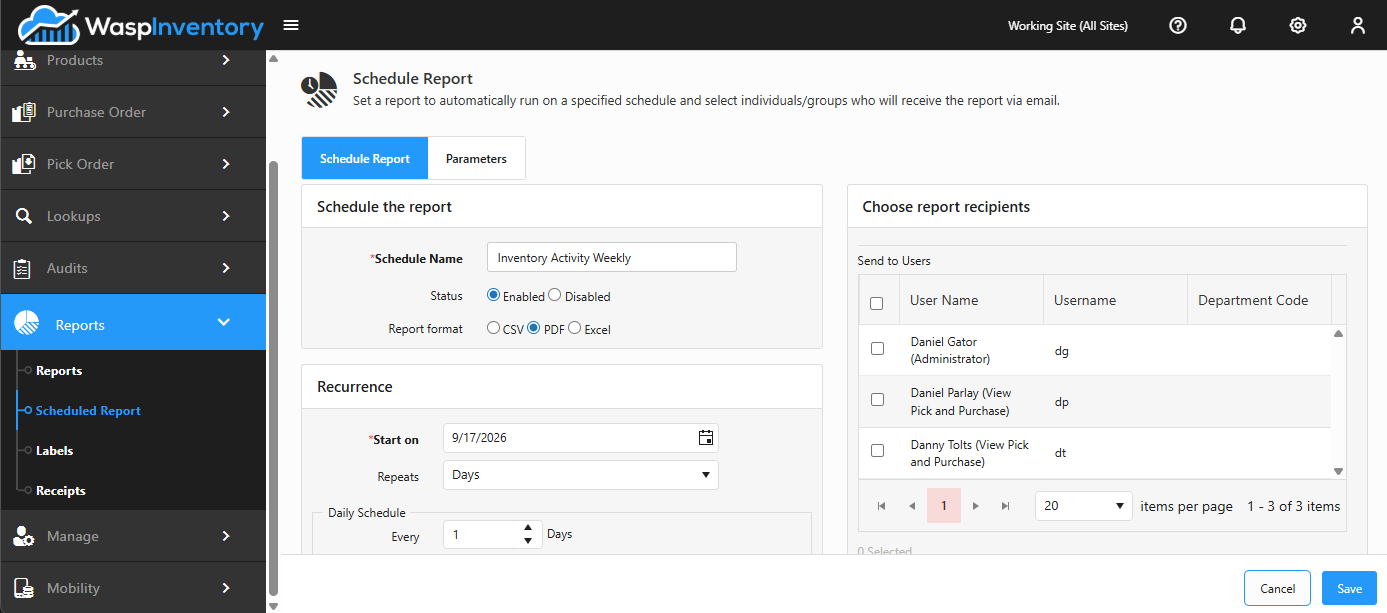
- Give the schedule a Schedule Name so you can recognize it later.
- Set the Status to Enabled (or Disabled to keep the schedule but pause it).
- Choose a Report Format: CSV, PDF, or Excel. CSV and Excel are best when recipients need to sort or crunch the numbers; PDF is best for a fixed, print-ready layout.
Schedule Name is required: everything else has a default (Enabled, CSV).
Set the recurrence
Section titled “Set the recurrence”The recurrence section is where you decide how often the report runs (for example daily, weekly on certain days, or monthly). Set the pattern and the time of day it should run. Wasp Inventory shows you the next time the report is due to run so you can confirm it looks right before saving.
Schedule parameters
Section titled “Schedule parameters”If the report has parameters (a date range, a site, a filter), a Schedule Parameters tab lets you set the values the scheduled run should use each time (for example, always a rolling date range rather than fixed dates). Set these the same way you would when running the report by hand.
Choose who receives it
Section titled “Choose who receives it”You can send the finished report to any combination of recipients:
- Users — check the people in the users list who should receive it.
- Roles — check a role to send it to everyone in that role.
- Email addresses — type one or more addresses in the email box, separated by commas, to reach people who aren’t Wasp Inventory users.
You can also give the email its own subject line.
Save the schedule
Section titled “Save the schedule”When everything looks right, click Save. Your report will now run and be emailed automatically on the schedule you set.
Troubleshooting
Section titled “Troubleshooting”- The Schedule Report button is missing. Scheduling requires the Complete edition and needs the Schedule Report permission on your role. Confirm both.
- I’m blocked at the start with a prompt about settings. Email (SMTP) or time zone isn’t configured yet. Click the link in the prompt to open Settings and complete them, then return to scheduling.
- A recipient didn’t get the report. Check that the address is spelled correctly and, for typed addresses, that they’re separated by commas. Also confirm the schedule’s Status is Enabled.
- The report arrived at the wrong time. Schedules run on the account time zone; adjust it in Settings.
Related
Section titled “Related”- Reports — find and run reports on demand
- Settings — configure email and time zone
- Managing users and Roles & permissions — who can receive scheduled reports