
Vendors
A vendor is a company you buy stock from. Vendors are the “buy” side of your inventory: when you create a Purchase Order, you choose the vendor you’re ordering from.
Before you begin
Section titled “Before you begin”- You need a role that allows managing vendors. If New is missing, ask your administrator to check your role.
- If you want vendor numbers assigned automatically, set that up first under Number series. Otherwise you’ll type each vendor number yourself.
- Have the vendor’s payment terms handy: setting a default Payment method saves a step on every purchase order.
View your vendors
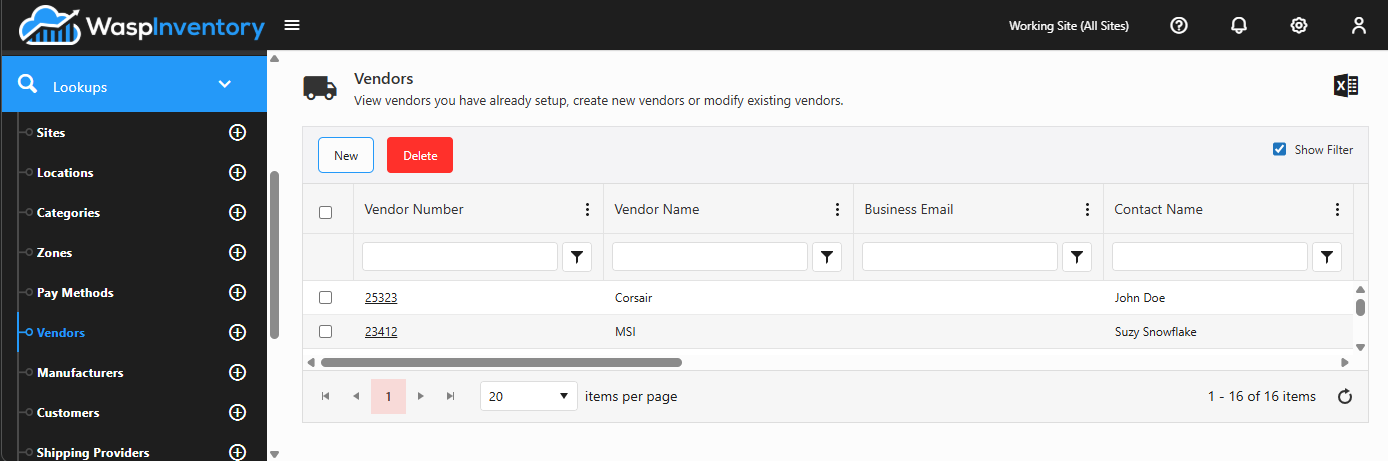
Section titled “View your vendors”Open Lookups → Vendors to see the list of vendors you’ve created. Click any vendor to open its details.
Add a vendor
Section titled “Add a vendor”- From the Vendors list, click New.
- Enter a Vendor Number and Vendor Name. If your system is set to assign numbers automatically, leave the number blank. It fills in for you when you save.
- Choose a default Payment method if you have standard terms with this vendor. The choices come from your Pay Methods.
- Fill in Business Details: phone, email, fax, and website.
- Add a Contact for your regular point of contact, and one or more addresses. Label each address by type (for example, billing or shipping) so the right one is picked up on orders.
- Fill in any custom fields your administrator has added, then click Save.
Edit a vendor
Section titled “Edit a vendor”Open the vendor from the list, use the edit (pencil) controls on each card to change its details, contacts, or addresses, and Save.
Contacts, addresses, and notes
Section titled “Contacts, addresses, and notes”- Contacts — record the person you deal with, including their phone, cell, fax, and email.
- Addresses — add as many as you need and label each by type (for example, billing or shipping). These addresses are available when you raise a purchase order.
- Notes — jot down anything worth remembering about the vendor; notes are kept as a running history.
Custom fields
Section titled “Custom fields”If your administrator has set up custom fields for vendors, they appear on the vendor form so you can capture extra details specific to your business.
Troubleshooting
Section titled “Troubleshooting”- The Vendor Number field is empty and won’t let me type. Your system is set to assign vendor numbers automatically. Leave it blank; the number is generated when you save. To change this behavior, see Number series.
- The Payment drop-down is empty. You haven’t set up any pay methods yet. Add them under Pay Methods and they’ll appear here.
- I can’t delete a vendor. A vendor referenced by a purchase order can’t be removed, because that would break the order’s history. Leave the vendor in place, or rename it if you’ve stopped buying from them.
Related
Section titled “Related”- Purchase orders — where vendors are used
- Pay Methods — the Payment choices
- Manufacturers — who makes the items
- Number series — automatic vendor numbering
- Lookups overview