
Roles & permissions
A role is a reusable set of permissions you assign to users. Instead of setting access one person at a time, you define what a role can do once, then give that role to as many people as you like. Change the role and everyone who has it updates automatically.
Open the Roles page from Manage → Roles in the left sidebar.
Before you begin
Section titled “Before you begin”- Managing roles needs the matching rights on your own role: viewing, creating, and editing roles are separate permissions. Application admins always have full access.
- A new role opens with two tabs: Role Details (name, description, sites, assigned users) and Permission (the rights grid). Fill in the name on Role Details, then set rights on Permission.
- Plan the access level before you build a role; it’s easier to start narrow and widen it than to discover a role could do more than intended.
What a role controls
Section titled “What a role controls”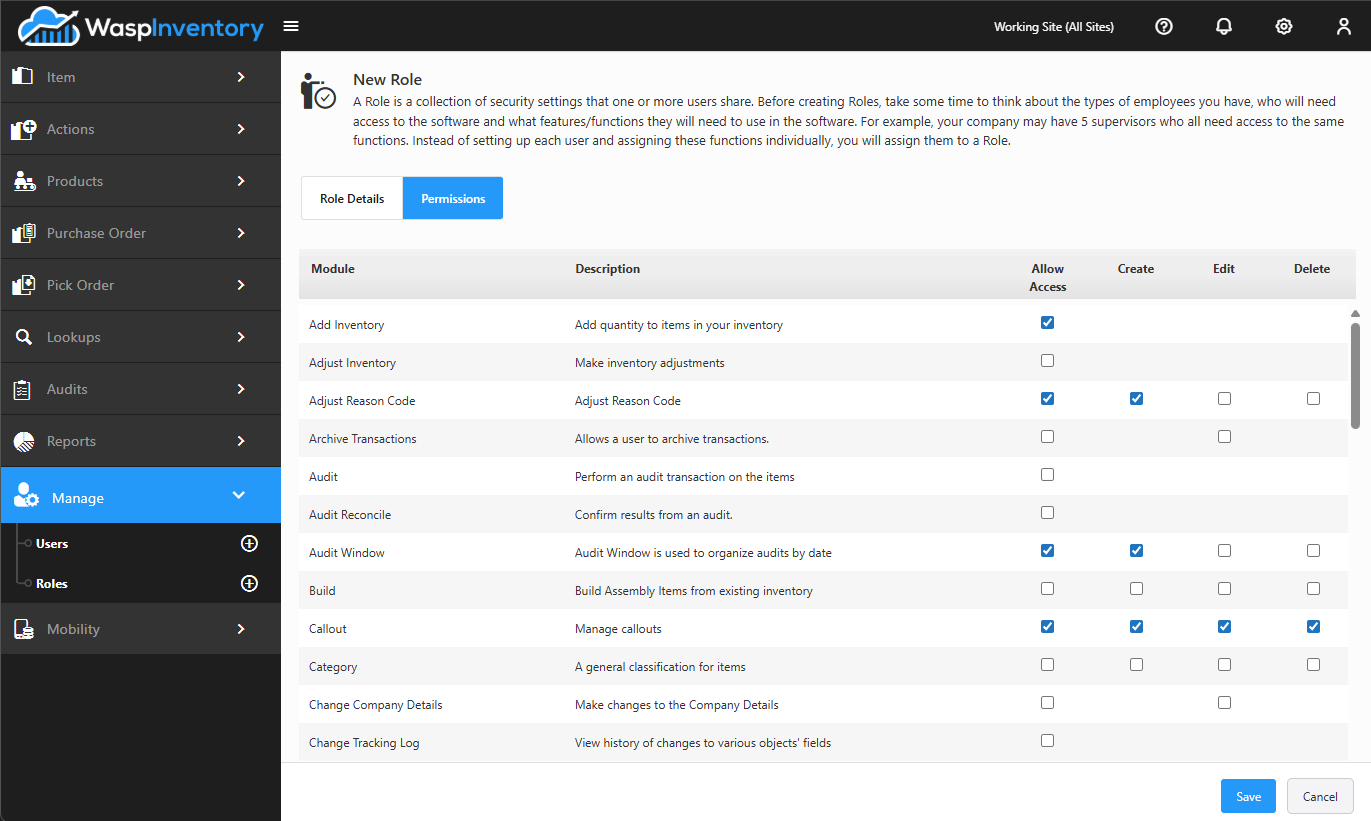
Each role has a name and description, plus a grid of permissions covering every area of the app. For each area, you can turn on four separate rights:
- Allow Access — whether the role can open that part of the app at all. This controls what appears in the menus.
- Create — whether they can add new records.
- Edit — whether they can change existing records.
- Delete — whether they can remove records.
This lets you build roles as broad or as narrow as you need: a receiving clerk who can add and edit but not delete, a viewer who can look but not change anything, or a manager with full rights.
Assigning users to a role
Section titled “Assigning users to a role”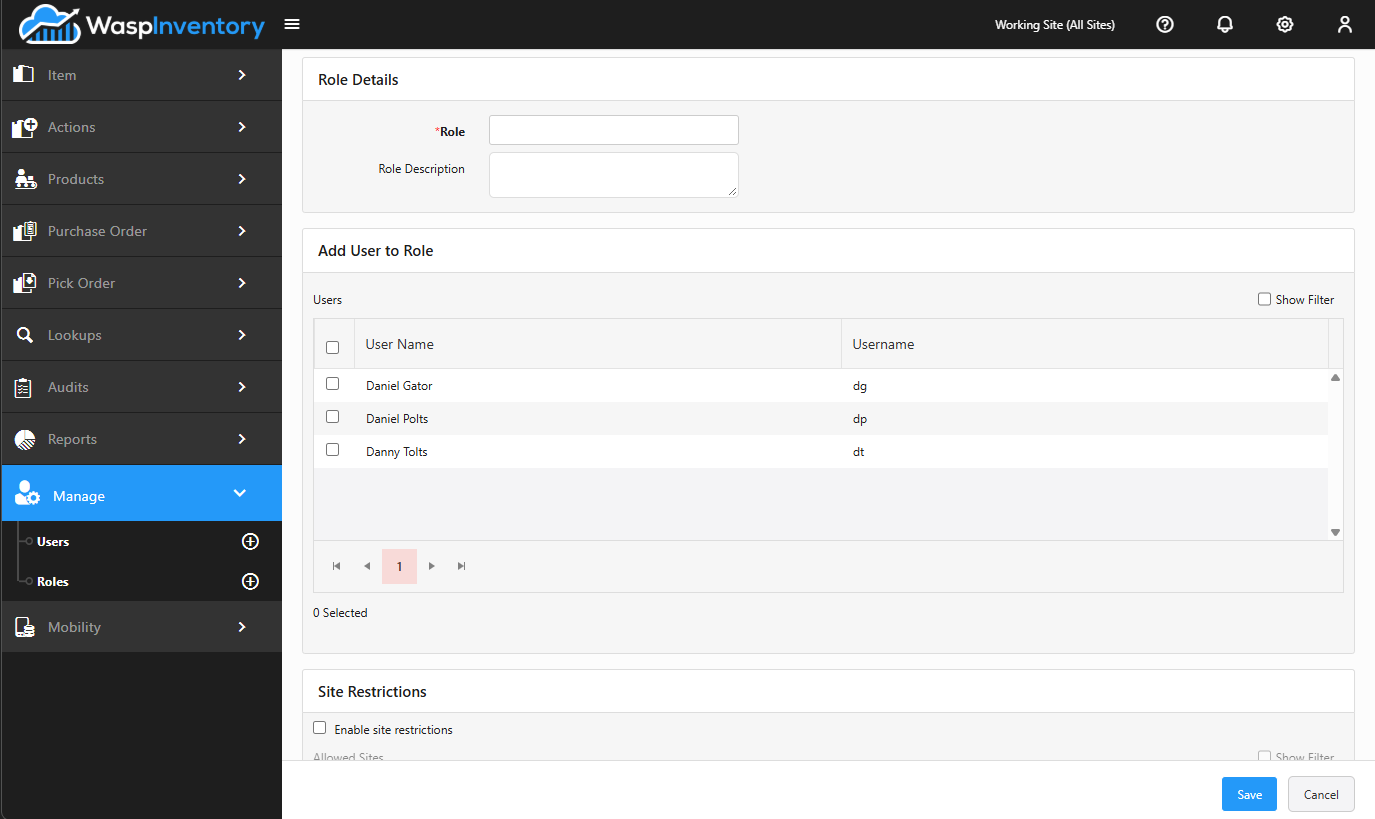
On the role’s page you’ll find an Available Users list. Check the people who should have this role and save. You can also assign a role to someone from their own profile on the Users page, whichever is easier.
Assigning sites to a role
Section titled “Assigning sites to a role”Roles can also limit which sites a user works with. In the role’s Site section:
- Leave All Sites selected to give the role access to every site.
- Or clear it and pick specific sites from the Available Sites list to restrict the role to just those locations.
There’s also an option to automatically grant the role access to any sites created in the future, so you don’t have to revisit the role every time you open a new warehouse.
Troubleshooting
Section titled “Troubleshooting”- A user can’t see a menu I expected them to. Menus are driven by Allow Access on their role. Turn on Allow Access for that area, or move the user to a role that has it.
- A user can open a page but can’t add, change, or remove anything. They have Allow Access but not Create, Edit, or Delete for that area. Grant the specific right on their role.
- A role can’t see certain sites’ data. Its Site access is restricted. Select All Sites, or add the needed sites from Available Sites, and turn on future-site access so new warehouses are included automatically.
- My permission change didn’t reach a user. Changes apply to everyone in the role, but a signed-in user may need to sign out and back in to pick them up.
Related
Section titled “Related”- Managing users — assign roles to people
- Sites — the sites a role can be scoped to
- Settings — other account-wide access-gated settings