
Company details
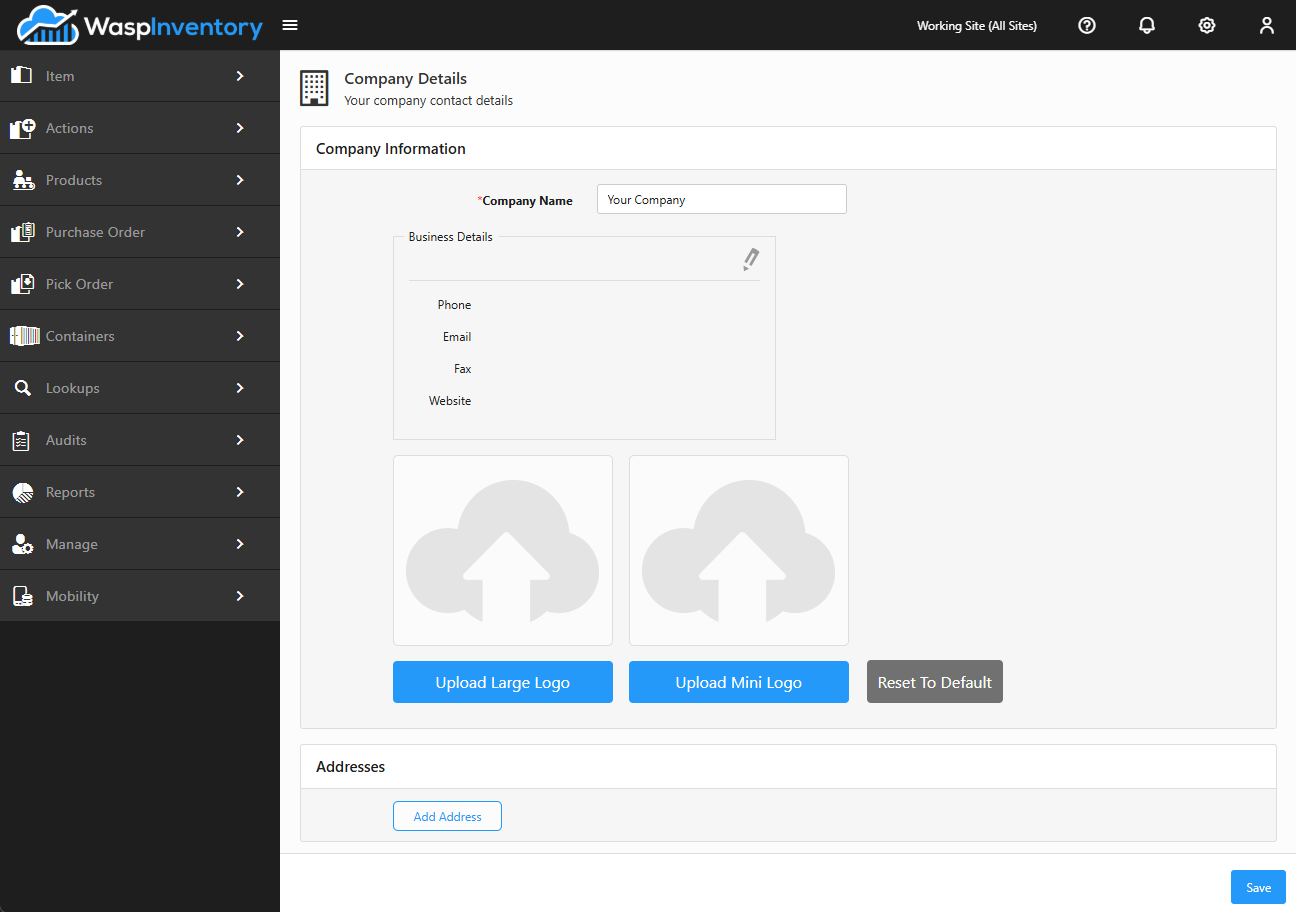
Your Company Details are the profile Wasp Inventory uses to represent your business: the name, addresses, and contact information that appear on purchase orders, pick tickets, receipts, and other printouts, plus the logo shown in the top-left of the app. Setting this up once means every document you generate looks polished and consistent.
Open Company Details from the Settings (gear) menu at the top of the app.
Before you begin
Section titled “Before you begin”- Editing here needs the edit right for Company Details on your role. If the fields are read-only, an administrator can grant access under Roles & permissions.
- Company Details apply to the whole account: everyone shares one company profile, and it appears on every document the account generates.
- Have your logo file ready (a clear image on a plain background looks best) before you start the logo step.
Business details
Section titled “Business details”The main section holds your Company Name and the core business contact information: Phone, Email, and Fax. These identify your company on the documents you send out and give vendors and customers a way to reach you.
To make a change, click the pencil (edit) icon next to a section, update the fields, and save. If the fields are read-only for you, your role doesn’t include edit access; an administrator can grant it.
Addresses
Section titled “Addresses”You can record the addresses that represent your company, such as your main business address and any billing or shipping addresses. These flow onto orders and printed documents so the right address shows up in the right place automatically.
Your logo
Section titled “Your logo”Adding your company logo personalizes the app itself: it appears in the top-left corner of the layout wherever you’re signed in. It doesn’t appear on purchase orders, receipts, or other printouts, which use your company name and address instead.
Troubleshooting
Section titled “Troubleshooting”- The fields are read-only. Your role doesn’t include edit access for Company Details. An administrator can grant it under Roles & permissions.
- My old address still shows on new orders. Company Details are copied onto a document when it’s created. Update the details here, then create the order again. Already-issued documents keep the address they were made with.
- The logo looks stretched or pixelated. Use a higher-resolution image with a plain background, and re-upload it.
- The wrong address appears on a document. Confirm you’ve filled in the specific billing or shipping address, not just the main business address: each flows to its matching spot on orders.
Related
Section titled “Related”- Creating a purchase order — where your company details appear on POs
- Receipts — printouts that carry your company details
- Settings — other account-wide preferences
- Roles & permissions — control who can edit the company profile