
Receipts
Receipts give you a printable record of a transaction or order (handy for paperwork, proof of receiving, or handing to a customer). This page shows you how to find, view, and print them.
Before you begin
Section titled “Before you begin”- Access to Reports must be granted to your role: Receipts lives in the Reports section. If it’s missing, an administrator can enable it under Roles & permissions.
- The order or transaction you want a receipt for should already be saved, since the receipt pulls its details from that record.
- Receipts open in a new browser tab, so allow pop-ups for Wasp Inventory.
- The receipt designer (the Design button) is a Complete feature.
Find a receipt
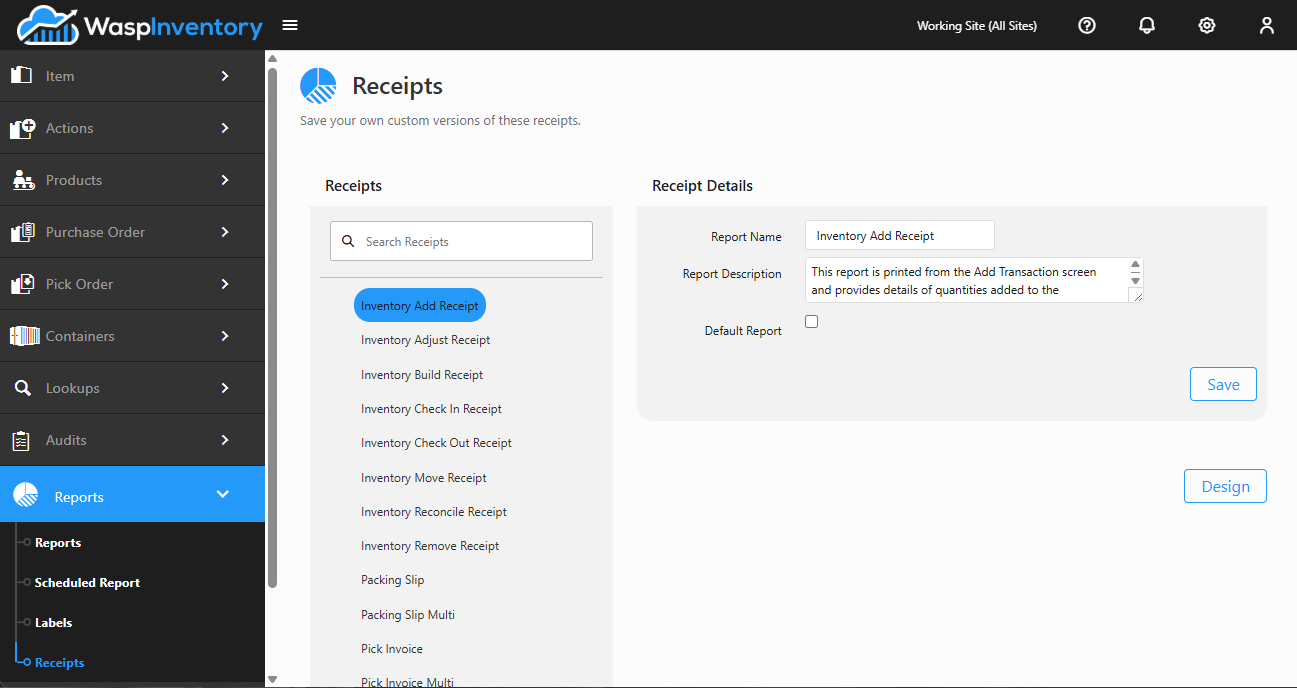
Section titled “Find a receipt”Open Receipts from the Reports section of the left sidebar. The available receipt formats appear in a list on the left of the page:
- Browse the list to find the receipt you want.
- To search, type part of a receipt’s name in the search box and press Enter.
- Click a receipt to load its options on the right.
Customize a receipt
Section titled “Customize a receipt”If your edition includes the receipt designer, a Design button appears when you select a receipt. This lets you adjust the receipt’s layout (for example, adding your company details or changing which fields appear).
Troubleshooting
Section titled “Troubleshooting”- The receipt is blank or missing details. The underlying order or transaction is probably incomplete or unsaved. Finish and save that record, then generate the receipt again.
- My company details aren’t on the receipt. Fill them in under Company details (they flow onto printouts automatically), or add them with the receipt Design button.
- Nothing opens. Receipts open in a new tab; allow pop-ups for Wasp Inventory.
Related
Section titled “Related”- Reports — run built-in and custom reports
- Labels — print barcode labels
- Company details — the business info printed on receipts
- Receiving — receipts are a common proof-of-receiving document