
Removing inventory
Use Remove when stock leaves for a reason that isn’t a sale or an order: things like damage, spoilage, loss, or internal consumption. You pick the item and where it’s leaving from, enter how much, and record who it went to if needed. This page shows you how.
Before you begin
Section titled “Before you begin”- Your role needs access to Remove. If Actions → Remove is missing, an administrator can grant it on the Roles & permissions page.
- There has to be stock on hand at the location you’re removing from: you can’t remove more than is Available there.
- For serial-, lot-, or date-code-tracked items, know which specific units are leaving so you can pick them out.
- If an administrator has switched on Audit Mode Lockdown, Remove is unavailable until they switch it back off. See Audit Mode Lockdown.
When to use Remove
Section titled “When to use Remove”Remove is for stock that genuinely left your shelves outside the normal order process:
- Damaged or broken goods.
- Items used internally or given away as samples.
- Shrinkage or loss you’ve confirmed.
Remove stock from an item
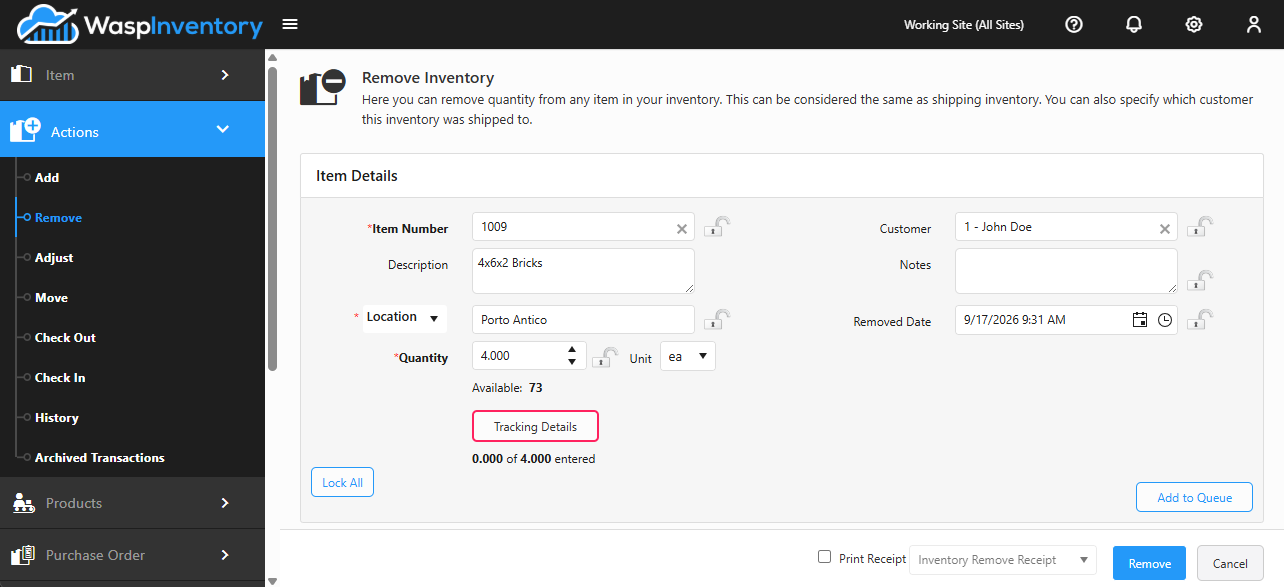
Section titled “Remove stock from an item”- Open Actions → Remove.
- In Item Number, type an item number or description and select the item.
- Choose the Location the stock is leaving from. The page shows how much is Available there so you don’t remove more than you have.
- Enter the Quantity to remove and confirm the Unit.
- Add any details you want on record: a Customer, Notes, or the Date Removed.
- Click Add to Queue to stage the item, then repeat for any other items.
- When the list is complete, click Remove to save.
Items that are tracked
Section titled “Items that are tracked”If the item is tracked by serial number, lot, or date code, use the Tracking Details button to choose exactly which units are leaving. You can also scan tracked units directly. The tracked quantity must match the quantity you’re removing.
Handy extras
Section titled “Handy extras”- Lock All holds field values between items so you can remove several items from the same location quickly.
- Turn on the receipt option before saving if you’d like a printed record of the removal.
Troubleshooting
Section titled “Troubleshooting”- “Not enough available” or the quantity is capped. You’re trying to remove more than the location holds. Check the Available figure, and remember stock for one item can be split across several locations: pick the one that actually has it.
- The removal didn’t save. Make sure each item is staged with Add to Queue before you click Remove, and that any required field (asterisk) is filled in.
- The count was just wrong, nothing left. Use Adjust instead: it corrects the record and asks for a reason, rather than logging stock as having left.