
Adding inventory
Use Add when stock arrives and you want to bring it into the system quickly, without creating a purchase order. You choose one or more items, say where they go and how many, and save. This page walks you through it.
Before you begin
Section titled “Before you begin”- Your role needs Create rights for Add. If Actions → Add is missing, ask an administrator to grant it on the Roles & permissions page.
- The item you’re adding must already exist, along with the site and location it’s going into.
- If the item is tracked by serial number, lot, or date code, have those numbers ready: you’ll be asked for one per unit.
- If an administrator has switched on Audit Mode Lockdown, Add is unavailable until they switch it back off. See Audit Mode Lockdown.
When to use Add
Section titled “When to use Add”Add is the fastest way to increase your on-hand quantity. It’s a great fit for stock you didn’t formally order: found inventory, samples, opening balances when you’re first setting up, or small receipts you don’t need a purchase order for.
Add stock to an item
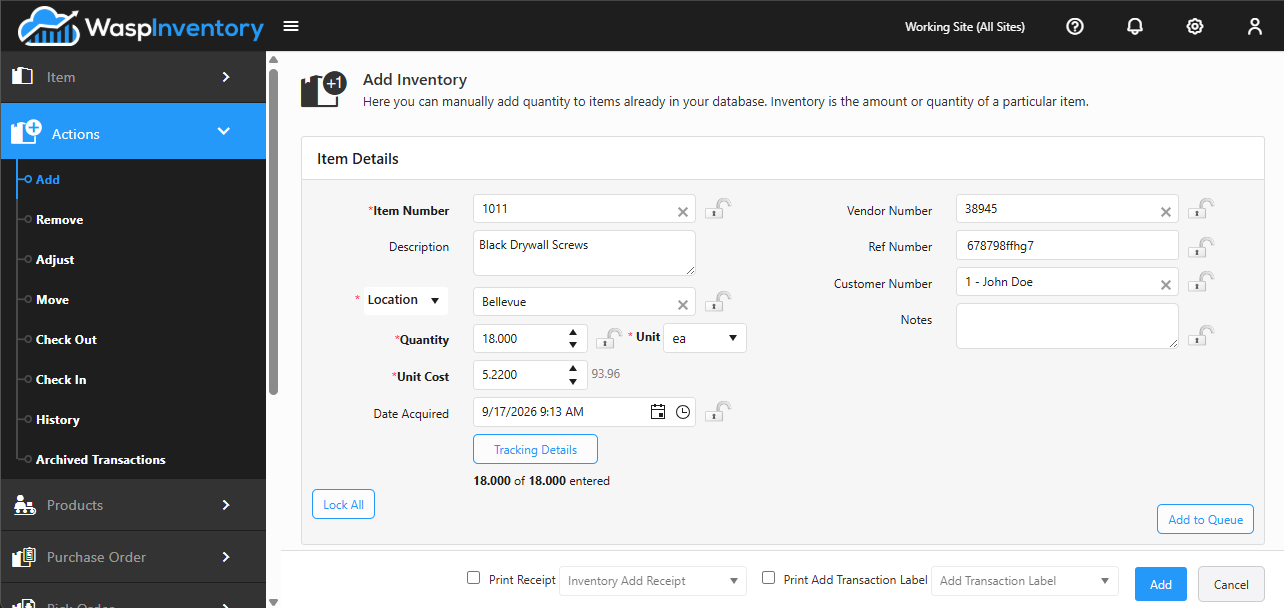
Section titled “Add stock to an item”- Open Actions → Add.
- In Item Number, start typing an item number or description and pick the item from the list.
- Choose the Location where the stock will live.
- Enter the Quantity you’re adding and confirm the Unit of measure.
- Fill in any of the optional details you want to record:
- Unit Cost — what each unit is worth; it feeds your inventory valuation.
- Date Acquired — defaults to today; change it if the stock arrived earlier.
- Vendor — who the stock came from, for your records.
- Ref Number — a PO number, packing-slip number, or any note you want to trace it by.
- Customer and Notes — anything else worth capturing on the transaction.
- Click Add to Queue to stage the item. It appears in the list below, where you can add more items the same way.
- When everything looks right, click Add to save the whole batch.
Items that are tracked
Section titled “Items that are tracked”If an item is tracked by serial number, lot, or date code, you’ll see a Tracking Details button. Click it to enter those details before adding the item to the queue.
The tracked quantity has to match the quantity you’re adding: if you’re adding 10 serialized units, you need 10 serial numbers. Wasp Inventory reminds you if the numbers don’t line up.
Handy extras
Section titled “Handy extras”- Lock All keeps the values in a field from clearing after each item, so you can add several items to the same location without retyping it. Unlock a single field with the small lock icon beside it.
- Click a staged item in the queue to load it back into the form for editing. Update saves your changes; Cancel discards them and leaves the item in the queue as it was.
Troubleshooting
Section titled “Troubleshooting”- I clicked Add but nothing saved. Check the queue below: items only save once they’re staged with Add to Queue and you then click Add. An unstaged item still sitting in the form is not included.
- It won’t let me save. A required field (marked with an asterisk) is probably empty, or a tracked item’s serial/lot/date-code count doesn’t match the quantity. Fix the highlighted field and try again.
- I can’t find my item. Type the item number or description; if it still doesn’t appear, it may not exist yet (create it first), or your role may not have access to its site.
- The stock was from a vendor order. Use Receiving instead so your purchase-order and cost records stay in sync.