
Receiving stock
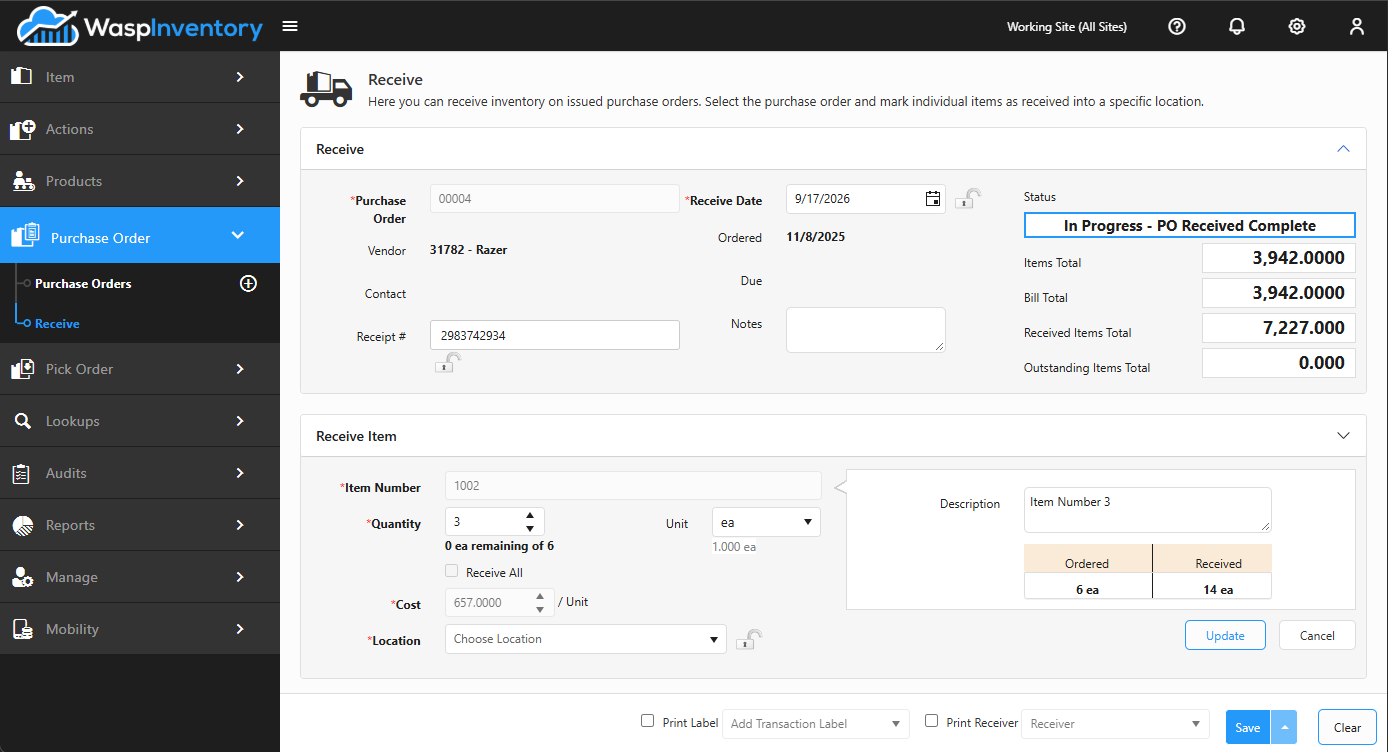
Receiving is how you record stock arriving against a purchase order. As a shipment shows up, you open the Receive page, pull up the matching PO, and enter how much of each item you actually received. Wasp Inventory adds that stock to your on-hand counts and updates the order.
Before you begin
Section titled “Before you begin”- Receiving isn’t available on the Basic edition: it requires Complete.
- You’ll need permission to receive stock. If the Receive page isn’t in the Purchase Order sidebar, ask an administrator to check your role or edition.
- The purchase order you’re receiving against must already exist and be open (not closed). If it isn’t there yet, create it first.
- Know where the stock is going: the receiving location within the site.
- Have any serial numbers, lot/batch numbers, or expiration (date-code) values ready for tracked items; you’ll be asked for them as you receive.
- If an administrator has switched on Audit Mode Lockdown, Receive is unavailable until they switch it back off. See Audit Mode Lockdown.
Open the Receive page
Section titled “Open the Receive page”Go to Purchase Order → Receive. At the top, use the Purchase Order box to search for and select the order you’re receiving: type the PO number and choose it from the list. The page then fills in the order’s details: the Vendor, Contact, order and due dates, and the current Status.
You can also record a few details for this receipt as you go:
- Receipt — a receipt or packing-slip reference number.
- Receive Date — when the goods arrived (defaults to today).
- Notes — anything worth recording about this delivery.
Enter received quantities
Section titled “Enter received quantities”The order’s items appear in a list below. For each line, click into the row and enter the quantity you received into the queue, confirming:
- the quantity received for that line,
- the location the stock is going into (a location within the site),
- and the cost, if your organization has cost editing turned on for receiving; otherwise it’s filled in from the purchase order and can’t be changed here.
Add each received line to the receiving queue. The page keeps a running view of the order’s Received and Outstanding totals so you always know how much of the order is still to come.
Handle partial receipts
Section titled “Handle partial receipts”If an order doesn’t arrive all at once, that’s fine. Receive only what actually arrived: the order stays open with the remaining quantity outstanding, and you come back to receive the rest on the next delivery. Each receipt is recorded separately, so you have a clear history of what came in and when.
Capture tracking details
Section titled “Capture tracking details”If an item is tracked by serial number, lot, or date code (expiration), you’ll be prompted for those details as you receive it. Open the tracking panel for the line and enter the required values (for example, a serial number for each unit, or the lot and expiration date for a batch).
Receiving is complete
Section titled “Receiving is complete”When you’ve entered everything that arrived, save the changes using the buttons at the bottom of the page:
- Save — records the received quantities and keeps the order open for future deliveries.
- Save & Close — records the received quantities and closes the order (use this when the order is finished).
- Save, Close & Create Backorder — closes this order and creates a backorder for anything that never arrived.
Before saving, you can also tick options to print a receiver (a receipt document) or print labels for the items you received, choosing which report or label to use.
Troubleshooting
Section titled “Troubleshooting”I can’t find the purchase order to receive against. Only open orders that still have outstanding quantity appear in the search. Confirm the PO number, and check that the order hasn’t already been fully received and closed.
A line won’t let me complete it. If the item is tracked by serial, lot, or date code, the number of tracking entries must match the quantity received (for example, 10 serial numbers for 10 units). Enter the missing values in the line’s tracking panel.
On-hand counts didn’t go up. Make sure you actually added each received line to the queue and then saved. Quantities typed into a line but not queued and saved aren’t recorded.
I received too much or the wrong quantity. Adjust the quantity on the line before saving. If you’ve already saved, use Adjust inventory to correct the on-hand count.