
Reconciling an audit
Reconciling is the final step of an audit. It’s where you review what was counted against what the system expected, and approve the adjustments that make your recorded stock match the physical count.
Before you begin
Section titled “Before you begin”- Reconciling is permission-controlled and is often restricted to supervisors, because it’s the step that actually changes stock levels. If the Reconcile page is unavailable, ask your administrator to check your role.
- Finish counting first. Reconcile against the same scope you counted under, whether that’s an audit window or the same site, location, and dates set directly on the Audit page, and be sure the count is complete for the area you’re about to commit.
Open Reconcile and fetch the items
Section titled “Open Reconcile and fetch the items”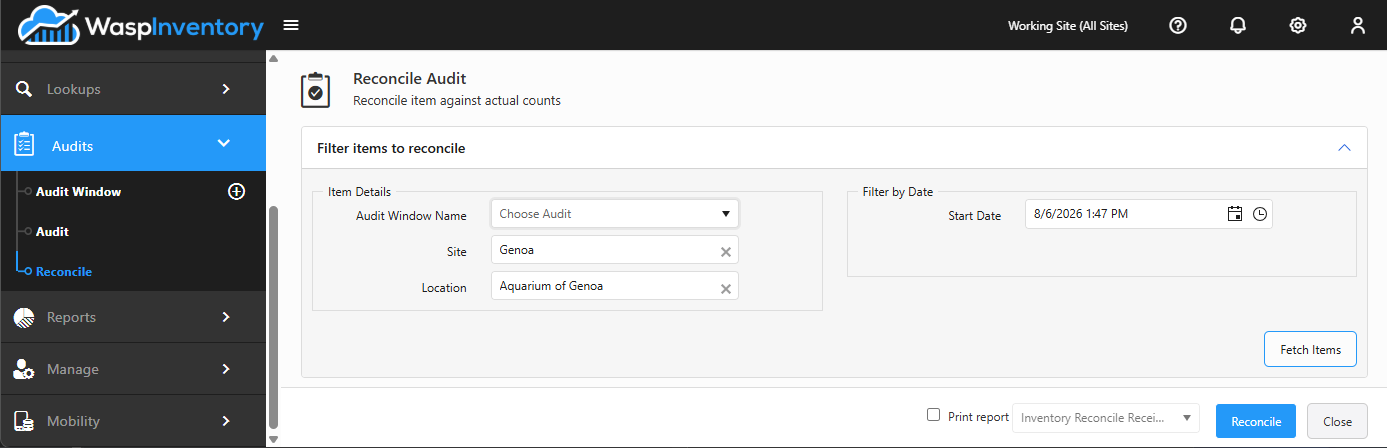
- Open Audits → Reconcile.
- Choose the Audit Window you counted against, or match the same Site and Location and date range you used on the Audit page if you counted without one.
- Click Fetch to load the counted items.
Review counted vs. expected
Section titled “Review counted vs. expected”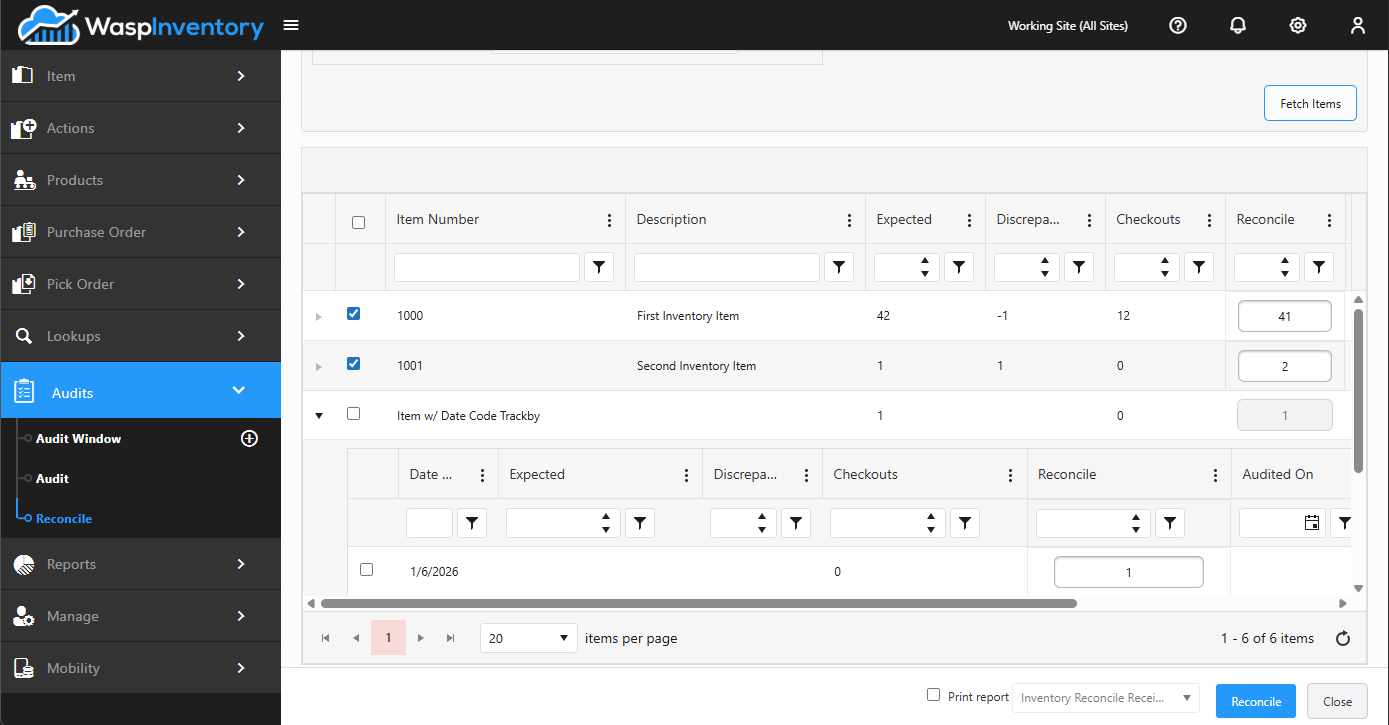
The grid lays the numbers side by side so you can see exactly where reality and records disagree:
- Expected — what the system thought you had.
- Discrepancy — the difference between the count and the expected quantity, so problem items stand out.
- Checked Out — how much of the item is currently issued out.
- Reconcile quantity — the value that will be applied when you reconcile.
You can click a date in the row to open its history if you want to see what happened to an item before committing (a quick way to sanity-check a surprising number).
Approve the adjustments
Section titled “Approve the adjustments”- Tick the items you want to reconcile. Items tracked by serial number, lot, or date code can be expanded to reconcile each tracked detail.
- Review the reconcile quantities one more time.
- Click Reconcile to apply the adjustments.
Once you click Reconcile, Wasp Inventory updates your on-hand quantities so your records match what you counted. That’s the whole point of the audit: your stock levels are now trustworthy again.
Troubleshooting
Section titled “Troubleshooting”- Fetch returns no items. Confirm you’ve matched the same scope you counted under (the same Audit Window, or the same Site, Location, and dates), and that the date filter isn’t excluding your counts. Items only appear here once they’ve been counted.
- A discrepancy looks wrong. Open the row’s history before committing. A large gap is often a mis-scanned location or a transaction that landed after the count rather than a genuine loss: reconciling would then “correct” a number that was actually right.
- I reconciled the wrong quantity. Because reconcile writes directly to your stock, there’s no undo here. Correct it with a separate inventory adjustment, which also lets you record a reason for the change.
- The tracked details won’t reconcile. Items tracked by serial number, lot, or date code have to be expanded and reconciled at the detail level, not just at the top row.
Related
Section titled “Related”- Running an audit — count before you reconcile
- Audits overview — the full workflow
- Adjust inventory — correct a mistaken reconcile