
Transaction history
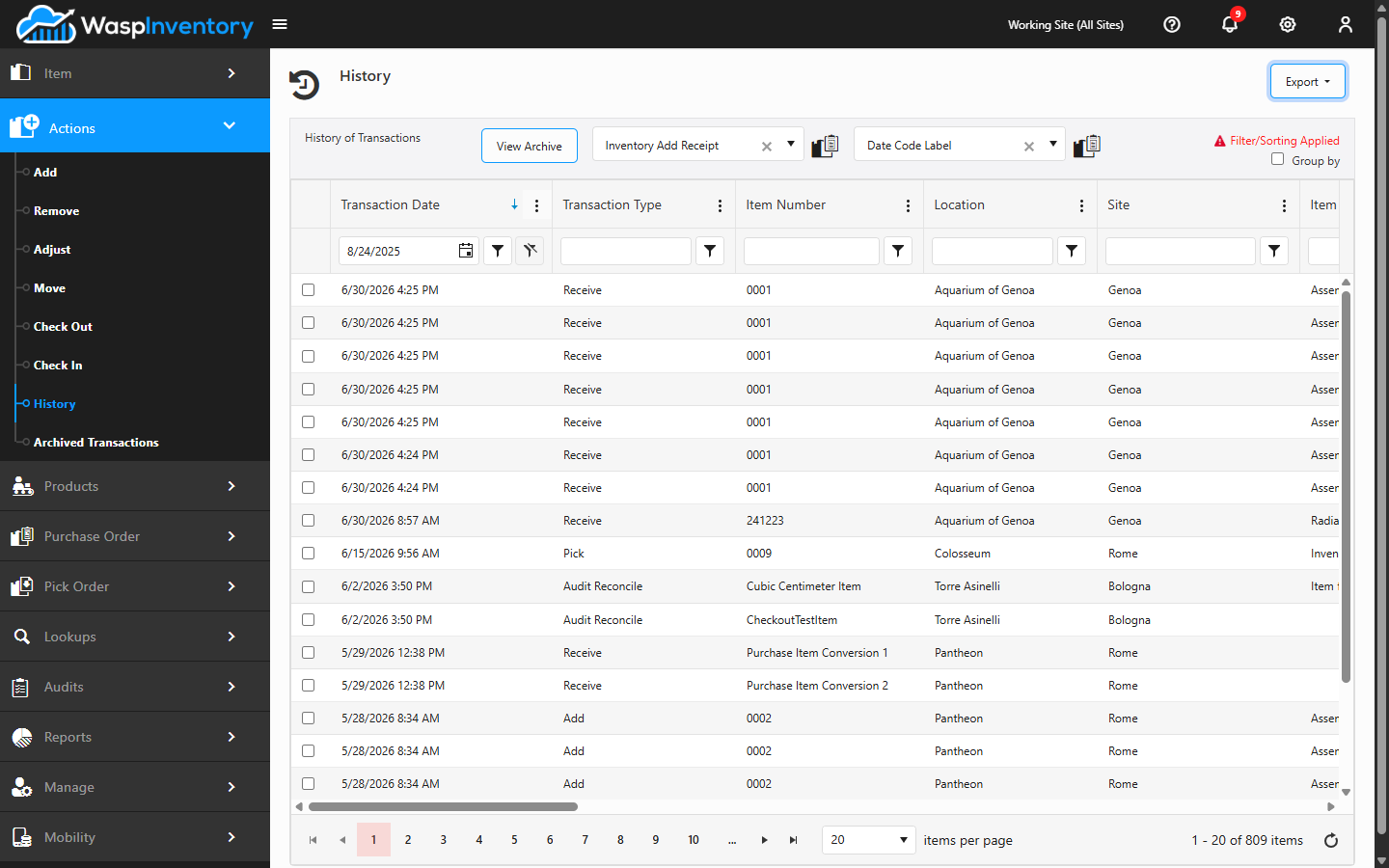
The History page is your complete record of stock movements: every add, remove, adjust, move, check out, and check in, newest first. When you need to answer “what happened, when, and who did it,” this is where you look. Older records live on the Archived Transactions page. This page covers both.
Before you begin
Section titled “Before you begin”- Your role needs access to History. If Actions → History is missing, an administrator can grant it on the Roles & permissions page.
- History respects your role’s site access: you’ll see transactions for the sites your role covers, not necessarily every site in the account.
What History shows
Section titled “What History shows”Open Actions → History to see a running list of every transaction recorded in the system. Each row captures the essentials: what happened, to which item, how much, where, and when. It’s the audit trail behind all your day-to-day activity.
Finding what you need
Section titled “Finding what you need”The History grid gives you several ways to narrow things down:
- Show Filter — turn on the filter row to search within any column, so you can zero in on a single item, location, or transaction type.
- Group By — group the list by a column to summarize activity, such as all transactions by site.
- Sort by clicking a column heading.
Exporting history
Section titled “Exporting history”Need the data outside Wasp Inventory? Use the Excel icon to export the current view. You can choose XLSX for a spreadsheet or CSV for a plain data file. The export respects your filters, so you get exactly the rows you’re looking at.
You can also print a report or labels for selected rows using the print options on the page.
Archived Transactions
Section titled “Archived Transactions”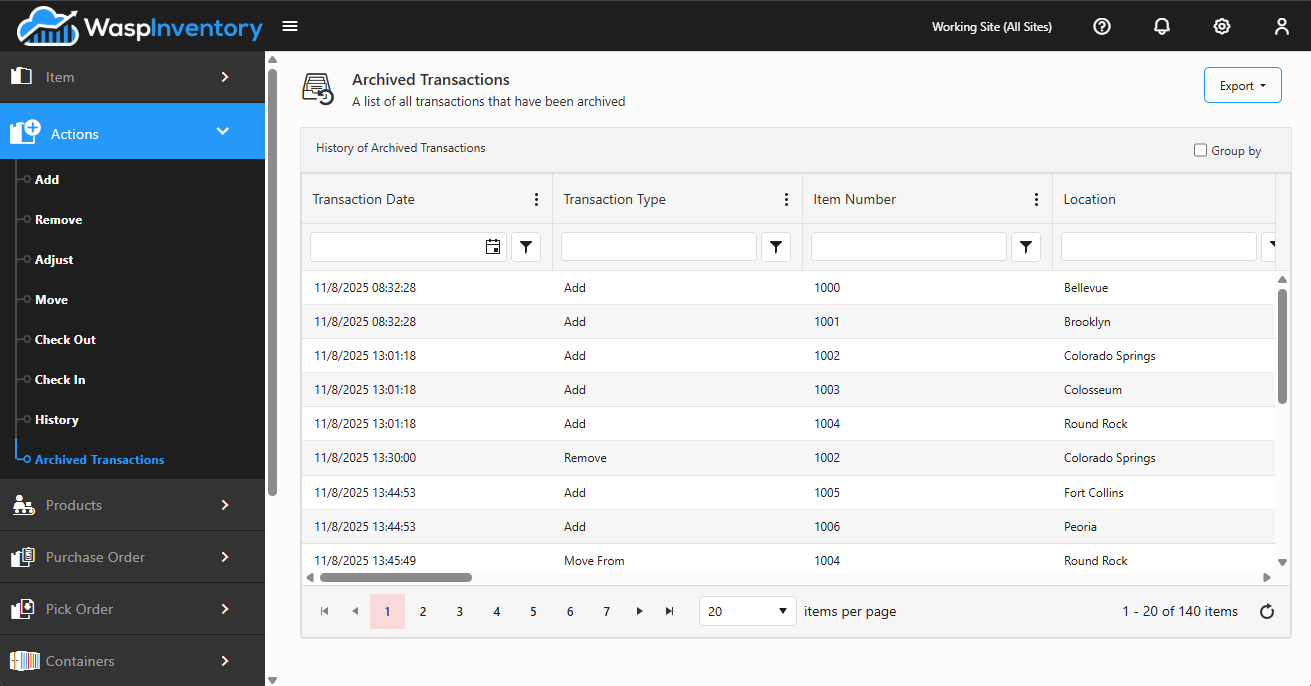
To keep History fast, older records are moved into Archived Transactions. When you need to look further back than the main History covers, click View Archived Transactions on the History page.
Transactions don’t archive on their own: an administrator starts it from Settings → Archive → Archive/Delete old Transactions and Orders. Set an archive cutoff date, and Wasp Inventory moves every transaction dated before it out of History and into Archived Transactions.
The archived list works much like History, with one thing to keep in mind: filtering, sorting, and grouping are limited to a subset of columns rather than every column.
Troubleshooting
Section titled “Troubleshooting”- A recent transaction isn’t showing. Clear any active filters (the filter row narrows what you see), and confirm the transaction was for a site your role can access.
- I can’t find an old transaction. It may have been archived. Click View Archived Transactions and filter by transaction date to look further back.
- My export is missing rows. The export mirrors your current filtered view. Widen or clear the filters first, then export again to include everything.
- Filtering feels limited on the archived list. That’s expected: archived records only support filtering, sorting, and grouping on a subset of columns, not every column.