
A Tour of the Screen
Once you’re signed in, the Wasp Inventory screen has three main parts: the top bar across the top, the left navigation down the side, and the main content area in the middle. Here’s what each one does.
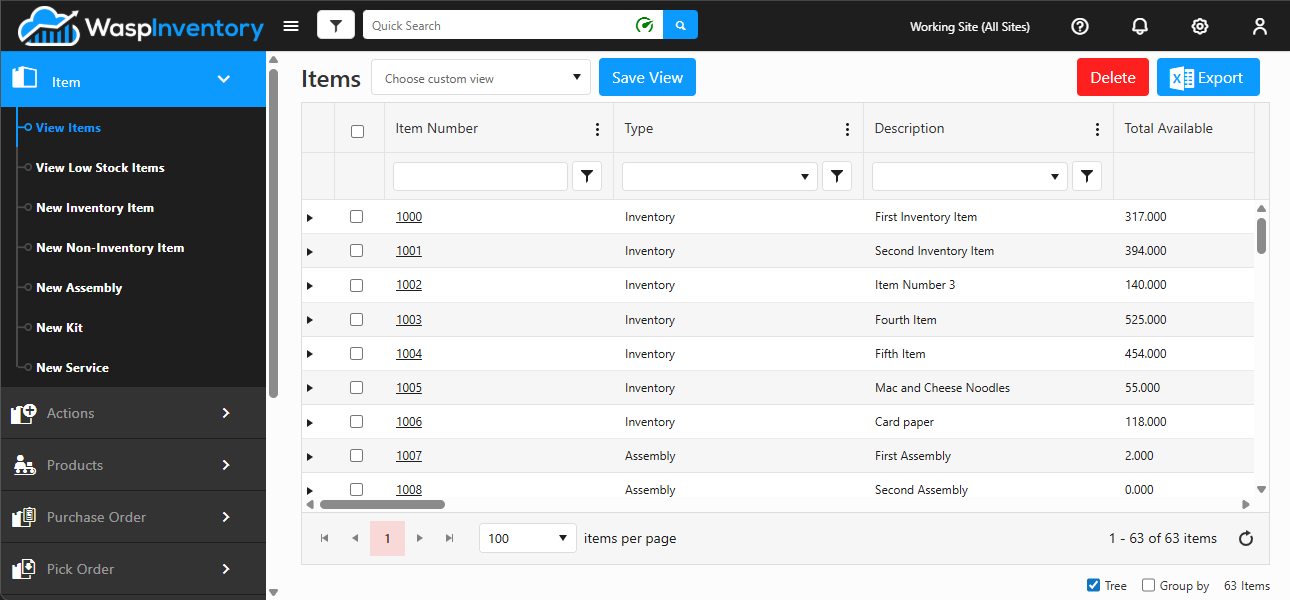
The top bar
Section titled “The top bar”The top bar stays with you on every page, keeping your settings and account always within reach.
- Logo — click the Wasp Inventory logo at the top-left to return to your item grid at any time. This can also be a custom logo, set from the Company Details page.
- Collapse button (☰) — click to narrow the left navigation for a wider working area, and click again to widen it back.
- Working Site — shows and switches the site (or All Sites) you’re currently working with.
- Help (?) — opens the help menu, with links to Help, About, Support, Getting Started, Product Tutorials, and What’s New.
- Notifications (bell) — shows in-app alerts in a news feed; a badge appears when you have something new.
- Settings (gear) — opens configuration and setup options such as Company Details, Settings, Notifications, Units of Measure, Form Customization, Manage Views, and Import Data.
- Profile — click your name to open Edit Profile, choose a Theme, Change Password, or Log Off.
The left navigation
Section titled “The left navigation”The left navigation groups the app into sections. Click a section to expand it and reveal its pages.
- Item — view, search, and create the products you track (including low-stock items and the change log).
- Actions — everyday stock transactions: Add, Remove, Adjust, Move, Check Out, Check In, plus History and Archived Transactions.
- Products — build and take apart made-to-order items: Build Orders, AutoBuild, and Disassemble.
- Purchase Order — order stock from vendors and Receive shipments.
- Pick Order — create pick orders and Pick items for customers.
- Lookups — the reference lists everything else is built on: Sites, Locations, Zones, Categories, Pay Methods, Vendors, Manufacturers, Customers, Shipping Providers, and Adjust Reason.
- Audits — count and reconcile stock: Audit Window, Audit, and Reconcile.
- Reports — Reports, Scheduled Report, Labels, and Receipts.
- Manage — set up Users and Roles.
- Mobility — mobile device setup and error logs.
The main content area
Section titled “The main content area”The center of the screen is where the work happens. Most pages show your data in a grid: a table of rows you can sort and filter.
- Column filters — click a column heading’s filter control to narrow the list to just the rows you want.
- Tree view — group related rows into an expandable, collapsible outline.
- Group by — organize rows into sections by a field you choose.
- Item count — a running total shows how many rows match your current view, so you always know how much you’re looking at.
Troubleshooting
Section titled “Troubleshooting”- A section or page is missing from the left navigation. You only see what your role and edition allow. If you expect a section that isn’t there, ask your administrator to check your role’s permissions.
- My data doesn’t look right. Confirm the Working Site in the top bar: the grid only shows the site (or All Sites) you’re currently working with. See Choose your Working Site.
- The grid is filtered and I can’t find an item. A column filter may still be applied from earlier. Clear your column filters to see the full list again.
- The left navigation is too narrow. You may have collapsed it: click the collapse button (☰) in the top bar to widen it back.