
Custom Fields (Form Customization)
Custom fields let you capture information that matters to your business but isn’t part of the standard record (a warranty date, a supplier code, or anything else you want to track). This page shows you how to add and configure your own fields using Form Customization.
Before you begin
Section titled “Before you begin”- You’ll need a role with permission to manage form customization. If you open the page and see an insufficient-permissions message, ask an administrator to grant your role access.
- Decide where the field belongs before you start: which form (for example, an item), which tab, and which section. A field is added to one specific place, so it appears exactly where your team enters that kind of information.
- Have your list of choices ready if you’re building a Pick List, and decide up front whether the field must be filled in (Required).
Open Form Customization
Section titled “Open Form Customization”Open the Settings (gear) menu and choose Form Customization. From here you can see the fields already on a form and add new ones.
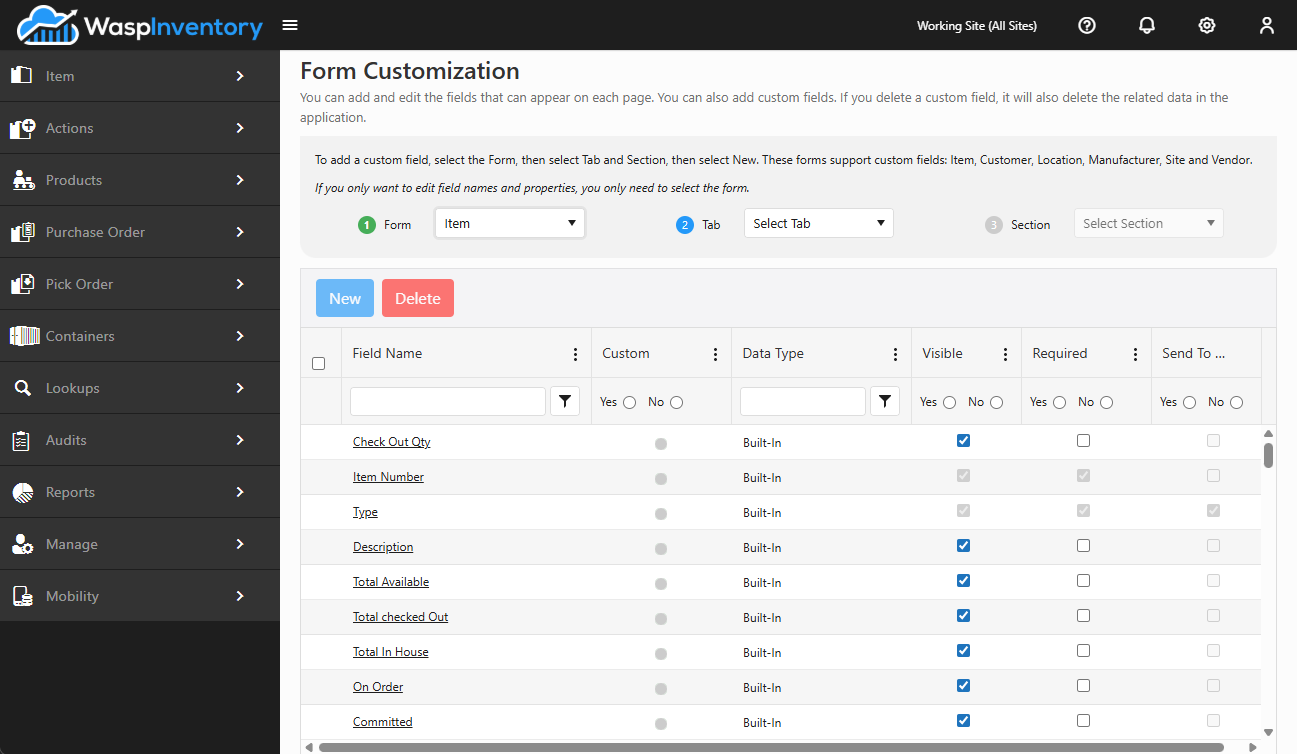
Custom fields are organized by the form, tab, and section they appear in (for example, the General tab of an item). When you add a field, you’re adding it to a specific place on a specific form, so it shows up right where your team enters that information.
Add a custom field
Section titled “Add a custom field”- From Form Customization, choose the form, tab, and section where you want the new field, then click the new button to create a field.
- Choose a Data Type: this controls what kind of value the field accepts (see Field types below). Choose carefully: once a field has data entered against it, its data type can no longer be changed.
- Enter a Label: the text your team will see next to the field. This is required.
- Set the checkboxes for how the field behaves:
- Required — the field must be filled in before the record can be saved.
- Visible — the field shows on the form. (A required field is always visible.)
- Send to Mobile — the field also appears in the mobile app. This option is available for item forms.
- For a Number field, set the number of decimal places allowed. For a Pick List, enter your choices and pick list options (see below).
- Click Save.
Field types
Section titled “Field types”The Data Type you choose determines what a field can hold and what extra options appear:
- Text — free-form text.
- Number — numeric values. You can set how many decimal places are allowed.
- Date/DateTime — a date, entered with a date picker.
- Pick List — a dropdown of values you define. Enter each choice on its own line. You can also choose to use the first value as the default and whether to accept a value that isn’t in the list.
- Extended Text — a longer block of text for notes and descriptions. Extended Text fields can’t be marked Required or sent to mobile.
- Hyperlink — a link to a web page.
Reset a built-in field
Section titled “Reset a built-in field”Some standard fields can be customized (for example, relabeled) but not removed. When you’re editing one of these, a Reset to Default button restores its original label and settings. Standard fields that are required by the system can’t have their Required or Visible setting changed, only their label.
Troubleshooting
Section titled “Troubleshooting”- The Required or Send to Mobile checkbox is greyed out. This is expected for certain fields. Extended Text fields can’t be required or sent to mobile, and system-required fields can’t have those settings changed. Send to Mobile is only offered on item forms.
- I don’t see Send to Mobile at all. You’re editing a field on a form that doesn’t sync to the mobile app, or a mobile form where the option isn’t shown. Send to Mobile appears on item forms.
- My Pick List won’t save. A Pick List needs at least one value, with each choice on its own line. Fill in the values area before saving.
- I can’t change a field’s data type. Once data has been entered for the field, its type is locked. Remove and recreate the field if you truly need a different type.
Related
Section titled “Related”- Custom Views — save the columns and filters you want to see, including your custom fields.
- Creating an Item — where item custom fields appear when adding stock.
- Users and Roles — control who can manage form customization.