
Building & disassembling products
The Products menu is where you turn component items into finished assemblies and, when needed, take them apart again. It has three pages (Build Orders, AutoBuild, and Disassemble), all found under Products in the left navigation. To understand what an assembly is first, see Assemblies, kits & services.
Before you begin
Section titled “Before you begin”- Building is for assembly items, so the assembly you want to produce must already exist and have a bill of materials defined on its detail page.
- You need enough component stock on hand. An assembly’s Buildable figure shows the most you can produce right now from the components you have.
- Building and disassembling need the right permissions. If a Products page won’t open, ask an administrator to check your role on the Roles page.
Build Orders
Section titled “Build Orders”A Build Order produces finished assemblies from their component items. When you build, Wasp Inventory follows the assembly’s bill of materials, consumes the component stock the recipe calls for, and adds the completed assemblies to your on-hand quantity.
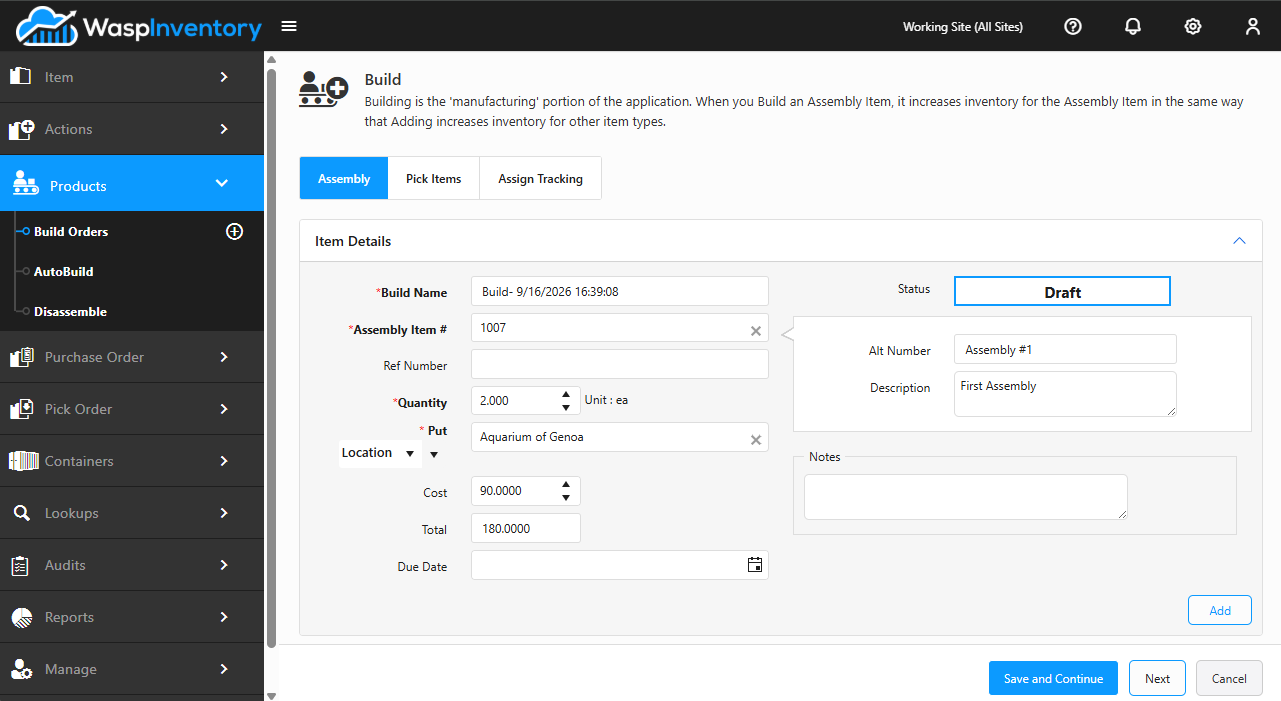
To build:
- Open Products → Build Orders and start a new build.
- Choose the assembly you want to produce and the quantity.
- Confirm the components and where the finished stock should go.
- Complete the build. Your component quantities go down and your assembly quantity goes up.
AutoBuild
Section titled “AutoBuild”AutoBuild is a faster path for straightforward builds. Instead of stepping through each component, it assembles the finished product in one go based on the bill of materials, a convenient shortcut when you just need to produce a quantity and the recipe is standard.
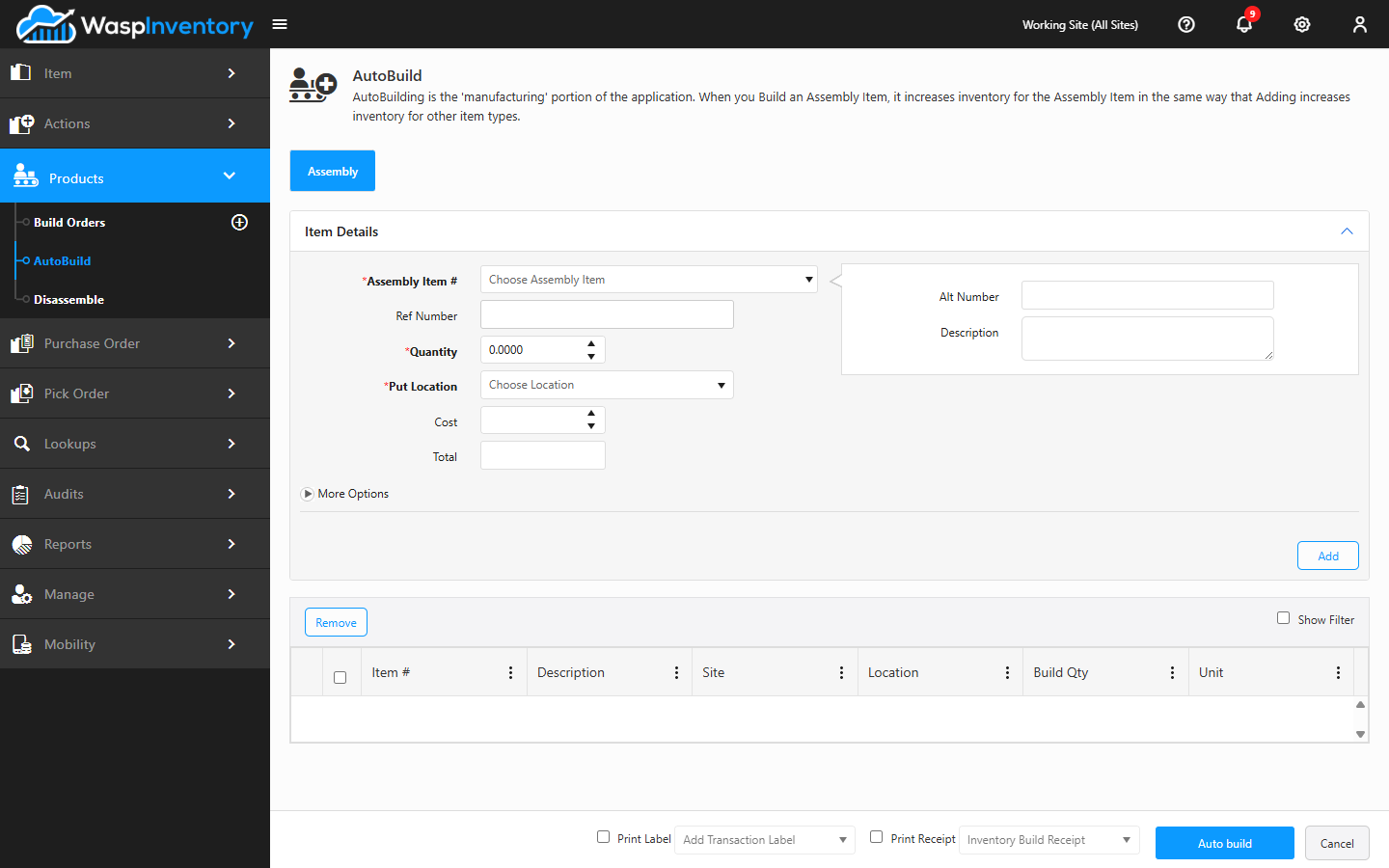
Because AutoBuild makes those choices for you instead of asking, the assembly has to leave nothing open to interpretation:
- The assembly needs a default location. AutoBuild puts the finished units away without prompting, so it needs to already know where they belong. Without one, there’s nowhere for it to send the build.
- No component can be tracked by serial number, lot, or date code. A tracked component means naming the exact units being consumed, and AutoBuild never stops to ask which ones. If the recipe includes one, build the assembly with a Build Order instead.
An assembly that doesn’t meet both conditions is still perfectly buildable; it just has to go through Build Orders, where you confirm each step yourself.
Disassemble
Section titled “Disassemble”Disassemble does the reverse of a build: it breaks a finished assembly back down into its component items. The assembly’s quantity goes down, and the components it was made from are returned to stock.
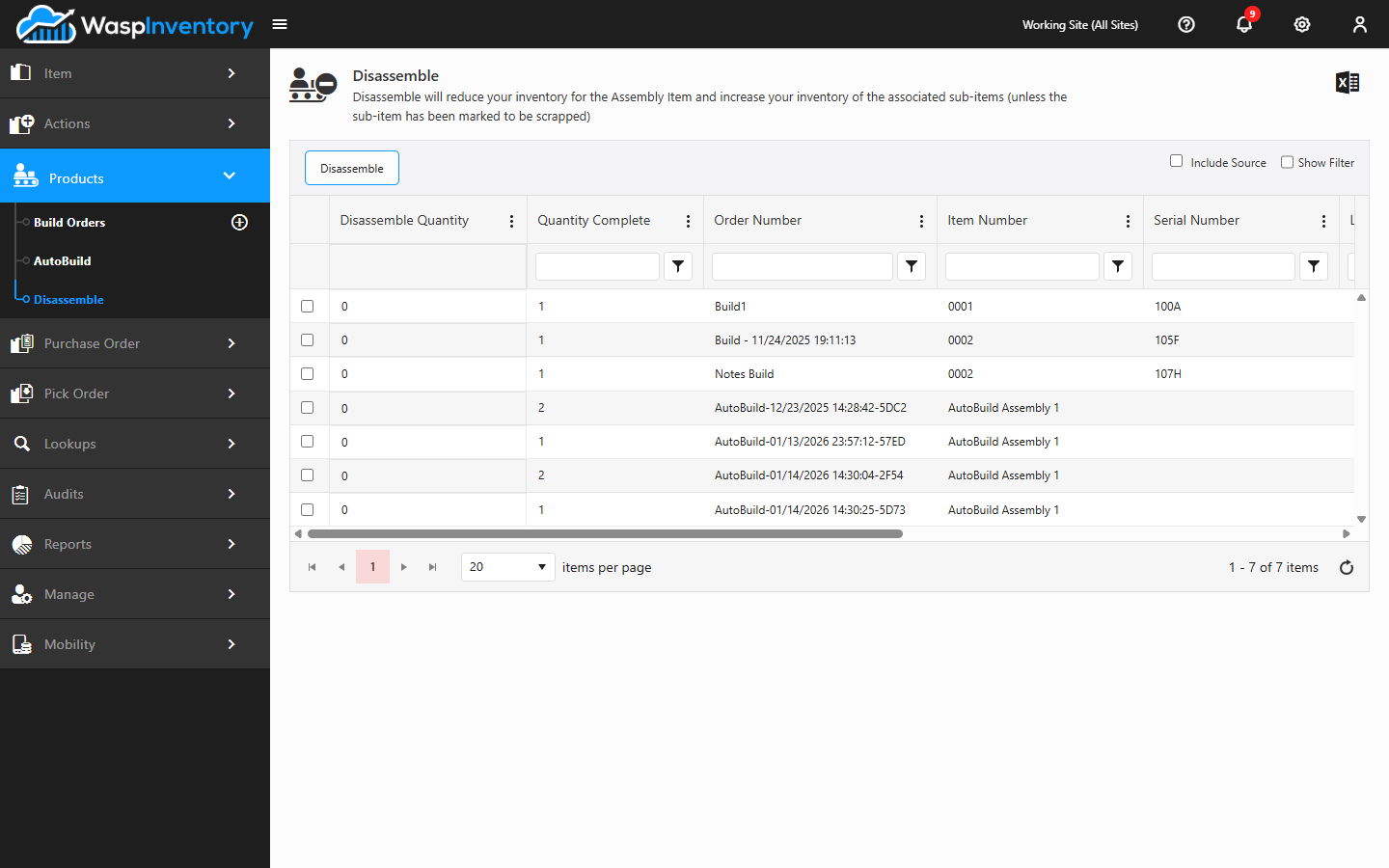
Use disassemble when you’ve built more than you need, when you want to recover parts for another purpose, or to correct a build.
Troubleshooting
Section titled “Troubleshooting”- The Products menu is missing. Build Orders, AutoBuild, and Disassemble require the Complete edition, plus the Build permission on your role. Ask an administrator to check both.
- I can’t build as many as I want. The build is capped by whichever component runs out first. Check the assembly’s Buildable figure and restock the limiting part, then build again.
- The assembly isn’t available to build. Only assembly items with a bill of materials can be built. Confirm the item’s type and that its Bill of Materials tab lists components.
- The assembly won’t AutoBuild. AutoBuild needs a default location to put the finished units in, and it can’t consume components tracked by serial number, lot, or date code. If either applies, use Build Orders instead.
- Disassembly didn’t return a component to stock. That component is likely marked as scrap on the bill of materials, so it isn’t recovered when the assembly is taken apart. See Assemblies, kits & services.
- The finished stock landed in the wrong place. Where completed assemblies go is set during the build; double-check the destination site or location before you complete it.
Related
Section titled “Related”- Assemblies, kits & services — what assemblies are and how bills of materials work.
- Item details & tabs — set up the assembly’s Bill of Materials.
- Adding a new item — create an assembly item.
- Transaction history — trace the stock changes a build or disassembly made.