
Viewing your items
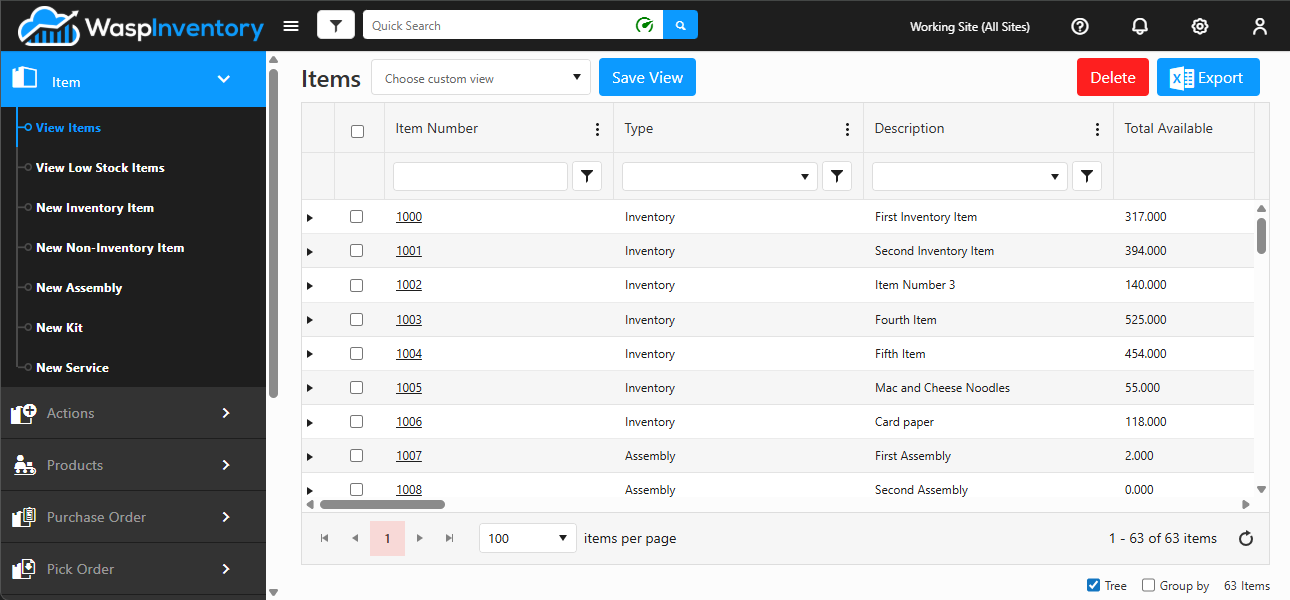
The Item Grid is your home base for everything you track. It shows every item in one place, and gives you quick ways to find, sort, group, and export exactly what you need. Open it from Item → View Items in the left navigation.
Before you begin
Section titled “Before you begin”- You need permission to view items. If you don’t have it, the page shows an “insufficient permissions” message instead of the grid; ask an administrator to grant your role access on the Roles page.
- Some controls only appear if your role allows them: Delete, and the Add, Remove, Check Out, Check In, and Move buttons that appear when you select items. If a button is missing, it’s controlled by a permission setting.
Open an item
Section titled “Open an item”Every row is one of your items. Click an item’s Item Number to open its full detail page, where you can review or edit its information across all of its tabs. See Item details & tabs for a tour of what’s inside.
Read the columns
Section titled “Read the columns”Each column tells you something about the item at a glance. Common columns include:
- Item Number — the unique number or code you use to identify the item.
- Type — the kind of item it is (Inventory, Non-Inventory, Assembly, Kit, or Service). See Understanding item types.
- Description — a short description of the item.
- Total Available — how many units you have on hand and free to use right now.
- Total Checked Out — how many units are currently checked out.
You may see more columns depending on how your account is set up and which custom view you’ve chosen. Use the ⋮ (three-dot) menu on the grid to show or hide columns and rearrange their order.
Sort the list
Section titled “Sort the list”Click any column heading to sort the list by that column. Click it again to reverse the order. Sorting is a fast way to bring the highest or lowest values (or an alphabetical run of descriptions) to the top.
Filter each column
Section titled “Filter each column”Use the per-column filter controls to narrow the list to just the rows you care about, for example only items of a certain type, or descriptions containing a particular word. When a filter is active, a filter applied indicator appears so you always know you’re looking at a subset of your items. Clear the filter to see everything again.
Act on selected items
Section titled “Act on selected items”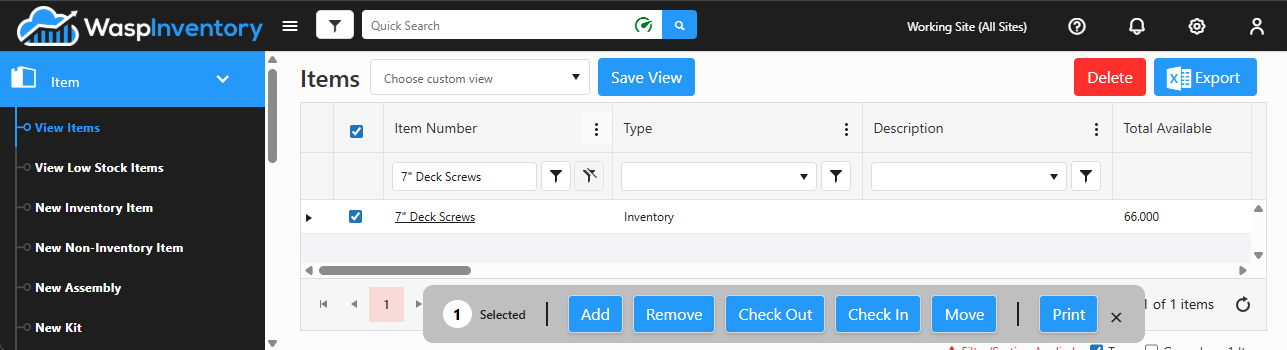
Tick the checkbox on one or more rows and an action bar appears, showing how many items you’ve selected and the actions you can take on them without opening each item:
- Print — print item or inventory labels for the selection.
- Move — relocate stock to another site or location.
- Remove — decrease on-hand quantity.
- Add — increase on-hand quantity.
- Check Out and Check In — hand items out and take them back.
These open a modal with the basics for the action. If an item has required custom fields or is tracked by serial number, lot, or date code, you’re redirected to the full action page instead, since those details need the extra room. Which buttons appear depends on your role’s permissions. Click the × on the action bar to clear your selection.
Choose and save a custom view
Section titled “Choose and save a custom view”The Choose custom view dropdown lets you switch between saved arrangements of columns, filters, and sorting. Pick one to instantly rearrange the grid the way that view was set up.
To keep the current arrangement for next time, click Save View, give it a name and optional description, and save. If your account allows it, you can also make a view available to everyone on your team.
Export to Excel
Section titled “Export to Excel”Click Export to Excel to download the list as a spreadsheet. You can choose an Excel (.xlsx) or .csv file. The export respects your current filters, sorting, and columns, so what you see is what you get.
Delete items
Section titled “Delete items”Select one or more items using the checkboxes, then click Delete to remove them. Deleting is permanent, so double-check your selection first.
Tree view and Group by
Section titled “Tree view and Group by”Two checkboxes below the grid change how items are organized:
- Tree view — turns the flat list into an expandable, collapsible outline so you can drill into related items.
- Group by — gathers rows into sections by a field you choose, with a subtotal for each group.
Keep an eye on the item count
Section titled “Keep an eye on the item count”A running item count shows how many items match your current view. As you filter and search, the count updates, so you always know how much of your catalog you’re looking at.
Troubleshooting
Section titled “Troubleshooting”- The page says I don’t have permission. Viewing items is controlled by your role. Ask an administrator to enable item access for your role on the Roles page.
- I don’t see the Delete button, or an action bar button is missing. Those controls are permission-gated. If you expect to have them, check your role’s permissions with an administrator.
- My filters seem “stuck” and I’m missing rows. A filter is still applied; look for the filter applied indicator. Clear the column filters (or switch to a clean custom view) to see everything again.
- My export is missing rows or columns. Export reflects the current view. Clear filters, add the columns you want, and export again: what you see is what you get.
Related
Section titled “Related”- Understanding item types — what the Type column means.
- Item details & tabs — what’s inside an item when you open it.
- Custom views — build and manage saved grid arrangements.
- Finding low-stock items — a focused list of what needs reordering.