
Finding low-stock items
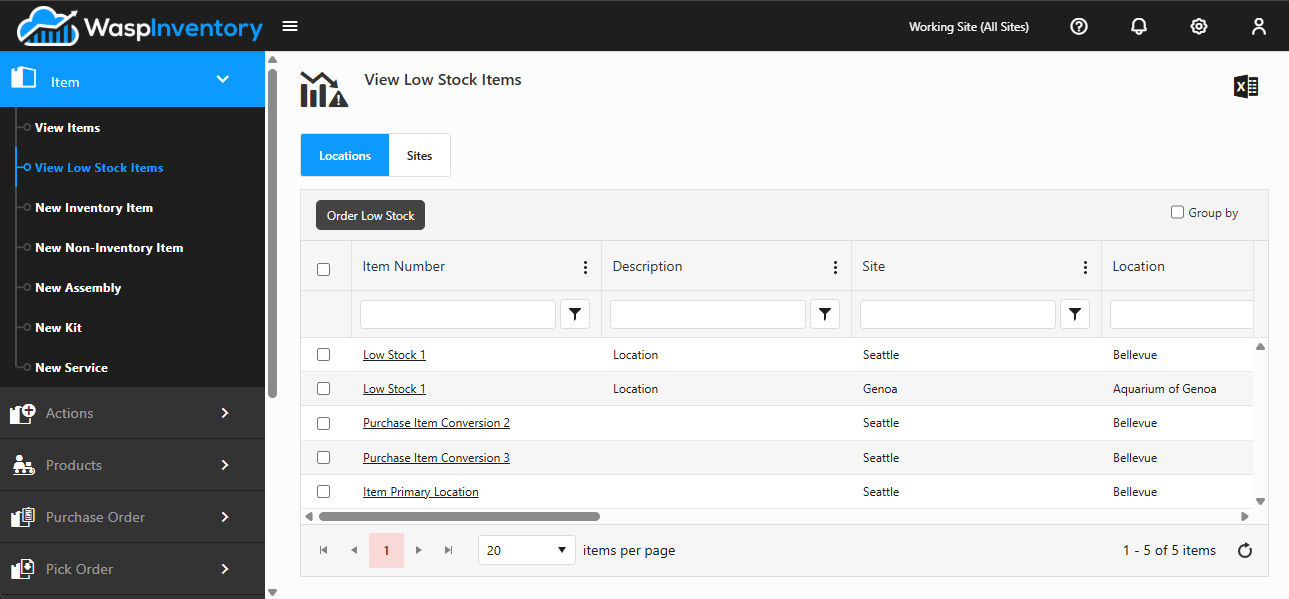
View Low Stock Items gives you a focused list of the items that have run low, so you can spot what needs reordering without scanning your whole catalog. Open it from Item → View Low Stock Items in the left navigation.
Before you begin
Section titled “Before you begin”- You need permission to view items to open this list.
- To turn low stock into a purchase order, you also need permission to create purchase orders. Without it, the Order button is greyed out; an administrator can grant this on the Roles page.
- An item only appears here once you’ve set a minimum quantity for it, so set those thresholds first (see below).
What makes an item low
Section titled “What makes an item low”An item appears here when its available quantity has dropped to or below its minimum quantity: the threshold you set for it. You set this threshold (along with its minimum and maximum) on an item’s Sites or Locations tab, per site or per location. See Item details & tabs for where to set them.
Because low stock is measured against those thresholds, an item is only flagged once you’ve told Wasp Inventory how much of it you want to keep on hand.
Viewing by location or by site
Section titled “Viewing by location or by site”The list has two tabs so you can look at low stock the way that suits you:
- Locations — items that are low at a specific location.
- Sites — items that are low across a whole site.
As with the main Item Grid, you can filter, group, and Export to Excel to work with the list however you like.
Turning the list into an order
Section titled “Turning the list into an order”Once you’ve reviewed what’s low, you can act on it right away: tick the items you want to restock and click the Order button to start a purchase order for them. That takes you straight from “what’s low” to “what’s on the way” without re-entering everything by hand. To finish the order, see Creating a purchase order.
Troubleshooting
Section titled “Troubleshooting”- Nothing appears in the list. An item is only flagged once its available quantity falls to or below a minimum quantity you’ve set. If the list is empty, either everything is well-stocked or you haven’t set minimum quantities yet; set them on an item’s Sites or Locations tab, per site or per location.
- The Order button does nothing / is greyed out. Either no items are selected (tick a row first), or your role can’t create purchase orders. Check your permissions with an administrator.
- An item I expected isn’t here. Confirm its minimum quantity is set for the right site or location: the Locations and Sites tabs measure low stock differently.
Related
Section titled “Related”- Item details & tabs — where to set an item’s minimum and maximum quantities, and its optional reorder quantity, per site or per location.
- Creating a purchase order — finish the order you start here.
- Purchase orders overview — how ordering works end to end.
- Viewing your items — the full Item Grid.