
Audits
An audit is a check that the stock physically on your shelves matches what Wasp Inventory says you have.
Before you begin
Section titled “Before you begin”- The three audit steps are each governed by your role. You may be able to count but not reconcile, for example. If a page under Audits is missing or read-only, ask your administrator to review your role.
- Have your sites and locations set up: an audit is scoped by site (and optionally location), so you’re counting against the places your stock already lives.
- Decide what you’re counting before you start. Auditing one site, or a single location such as a shelf or bin within it, is far more manageable than the whole building at once.
The audit workflow
Section titled “The audit workflow”Auditing centers on two required pages, Audit and Reconcile, plus an optional Audit Window page for formalizing scope ahead of time. Each has its own page under the Audits section of the sidebar:
1. Create an Audit Window (optional)
Section titled “1. Create an Audit Window (optional)”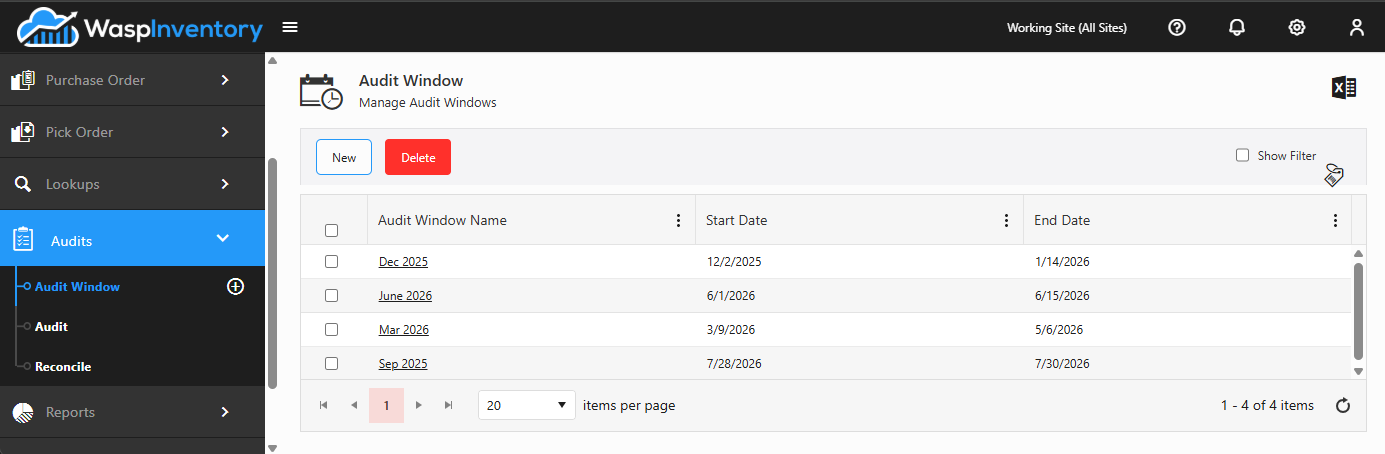
Formalize your count’s scope ahead of time: give it a name and dates, and choose which site or sites it covers. This step is optional: you can set the same scope (site, location, and dates) directly on the Audit page instead. A saved audit window is handy when you want to reuse the scope later or keep it consistent across a team counting together.
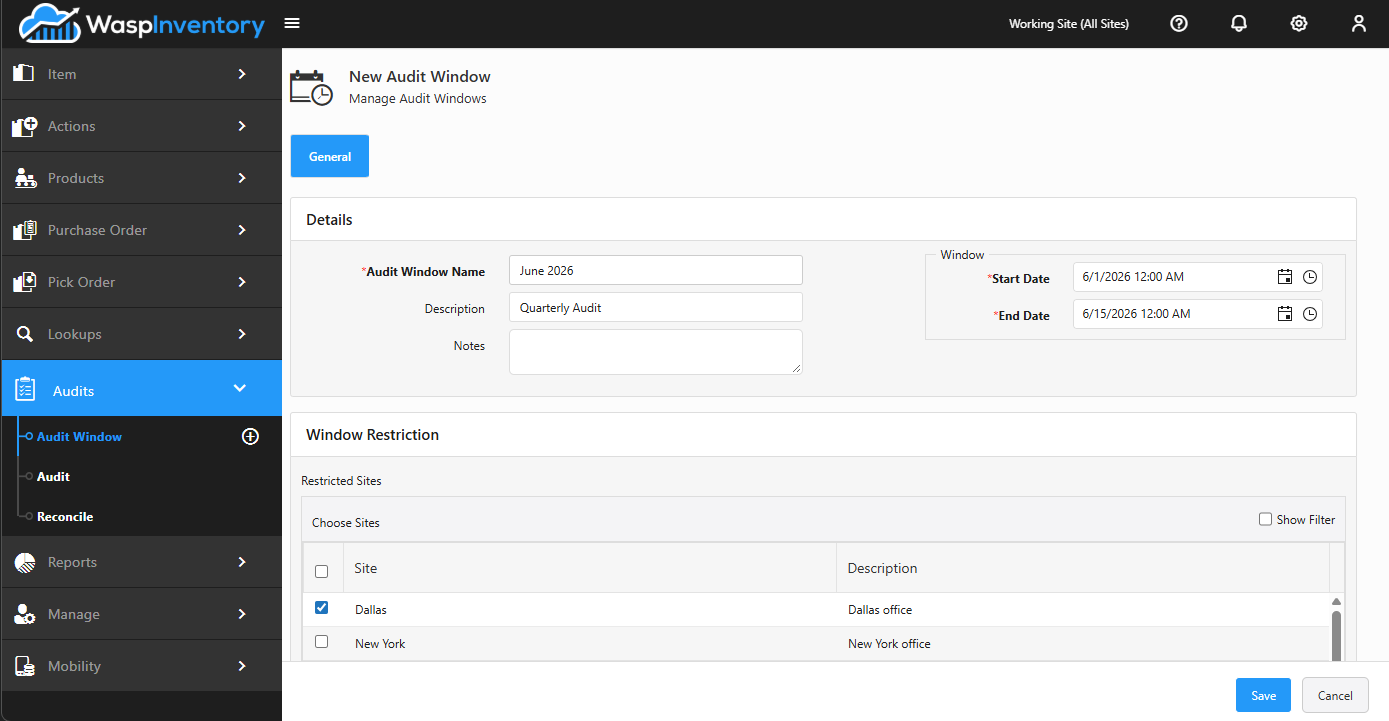
See Running an audit.
2. Count in Audit
Section titled “2. Count in Audit”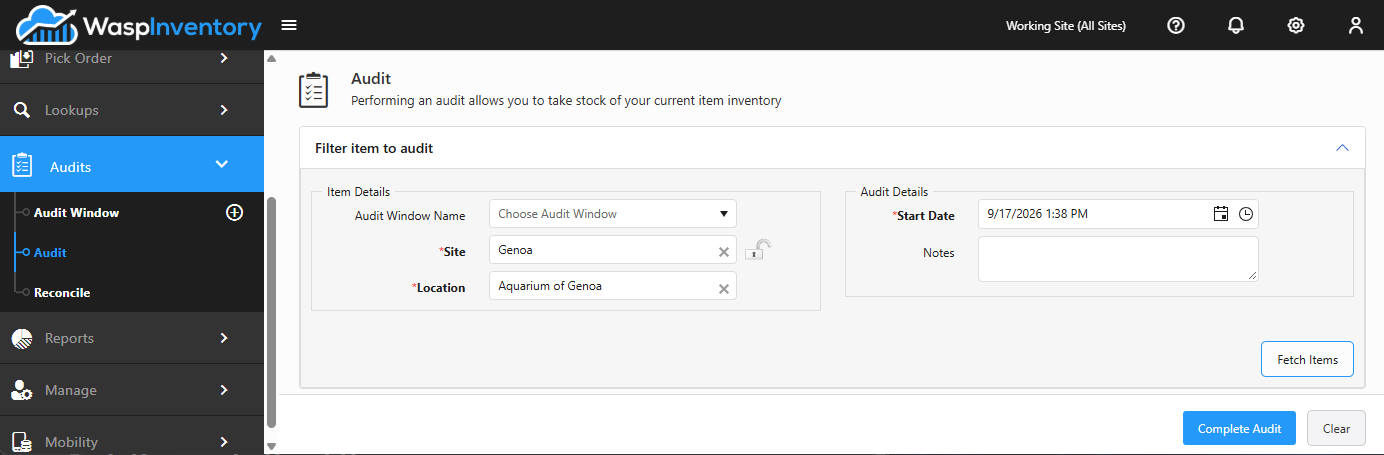
Open the Audit page, choose an audit window or set the scope directly, pull in the items to count, and enter the quantity you physically find for each.
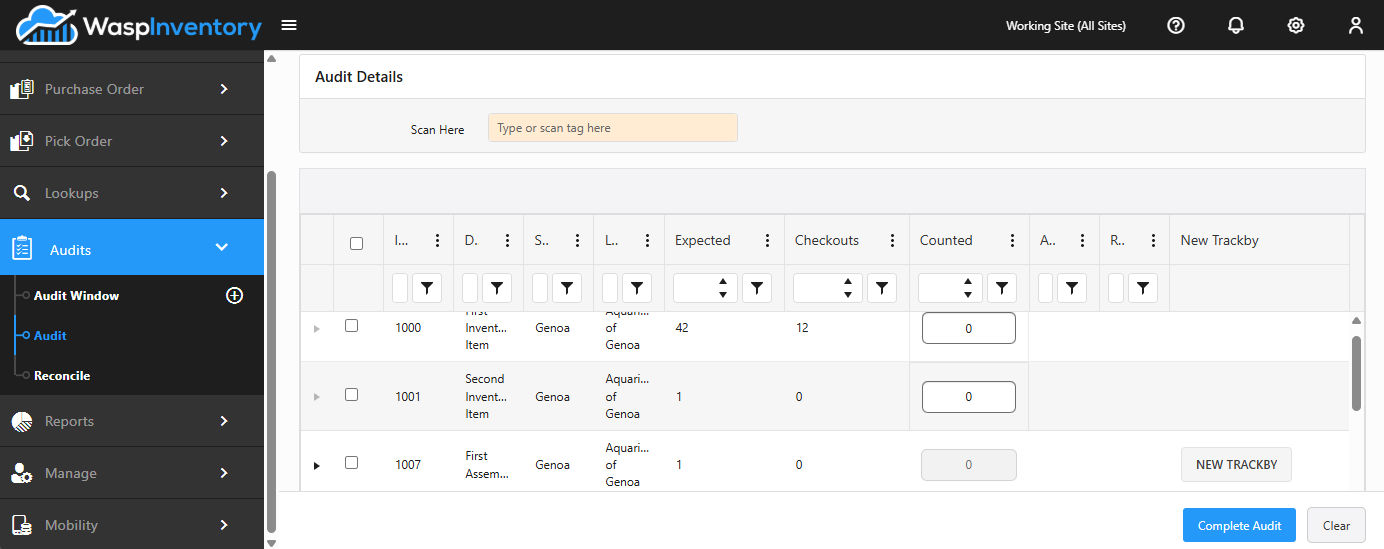
See Running an audit.
3. Reconcile the differences
Section titled “3. Reconcile the differences”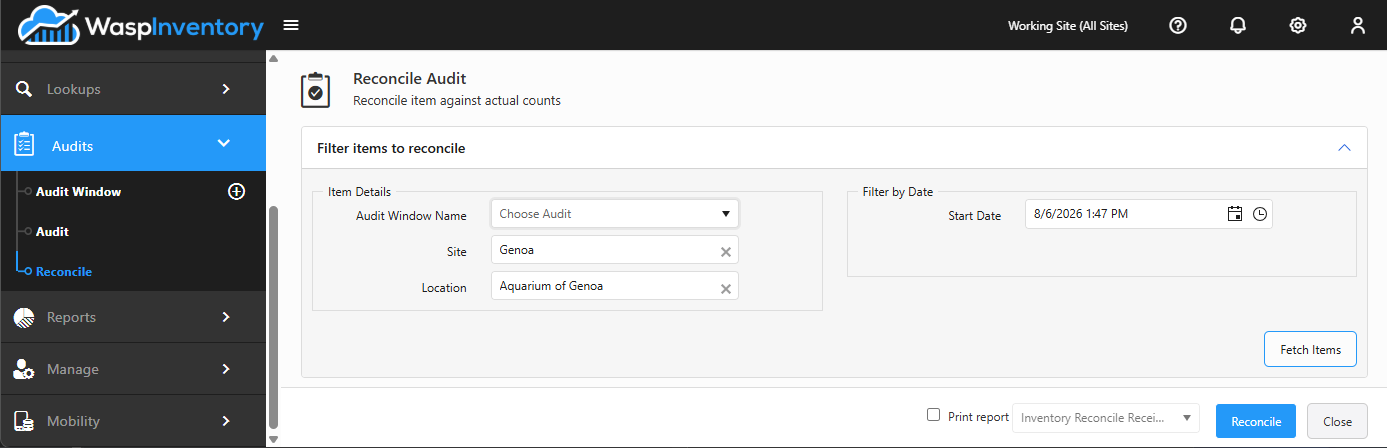
Open the Reconcile page to review counted-versus-expected quantities and approve the adjustments that bring your records in line with the count.
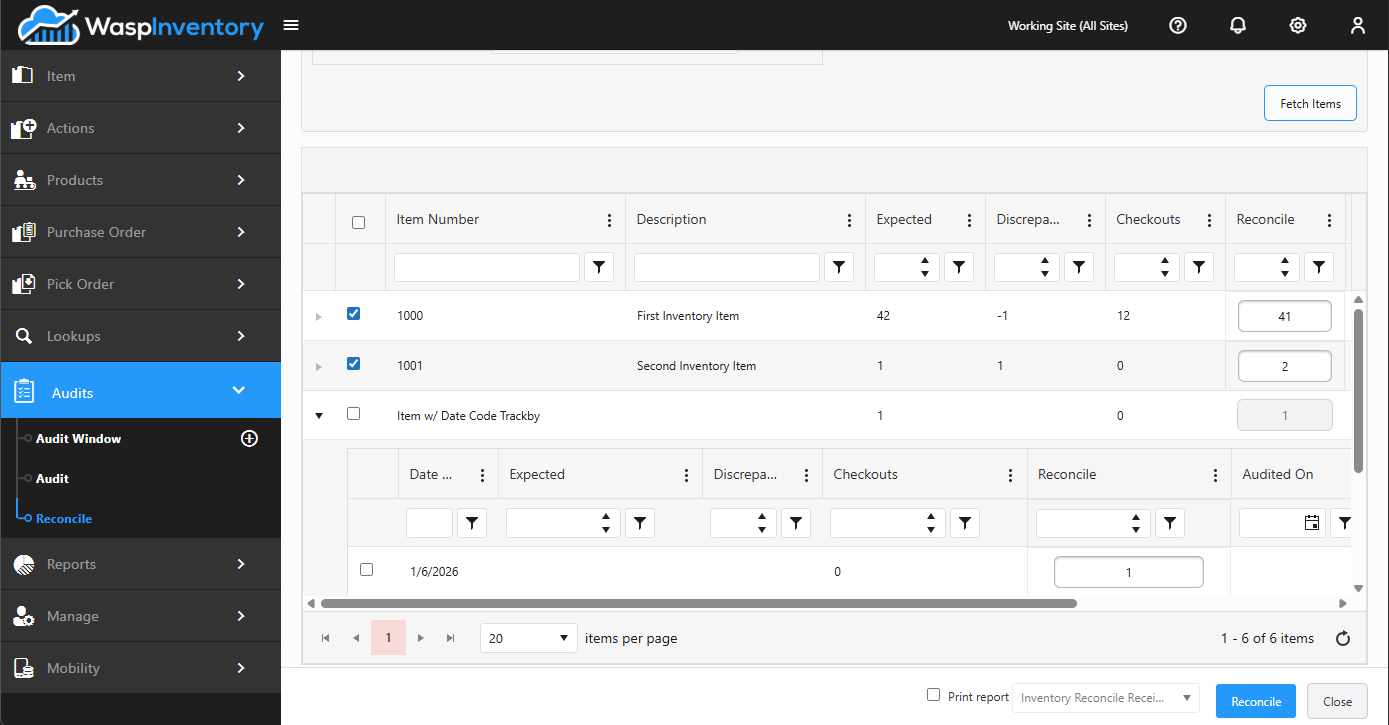
See Reconciling an audit.
Why the steps are separate
Section titled “Why the steps are separate”Counting and reconciling are deliberately kept apart. Counting simply records what you find: nothing about your stock changes yet. Reconciling is the moment you review those results and decide to update your records. That separation lets you count first, review carefully afterward, and only then commit the corrections.
Audit Mode Lockdown
Section titled “Audit Mode Lockdown”While a count is underway, stock moving in and out from under you makes the numbers harder to trust. Audit Mode Lockdown is the setting that stops that: with it on, the only transactions anyone can record are audit counts and reconciles.
An administrator switches it on under the Settings gear, and switches it back off when the count is done. A few things are worth knowing before you use it:
- It isn’t automatic. Creating an audit window or starting a count doesn’t switch it on, and finishing one doesn’t switch it off. Someone has to do both by hand.
- It applies to your whole account, not one site. There’s no per-site version, so turning it on for a count at one warehouse stops transactions everywhere.
- It covers every stock action. Add, Remove, Adjust, Move, Check Out, Check In, and Receive are all unavailable while it’s on. Anyone who opens one of those pages sees a message telling them to ask an administrator to turn the lockdown off.
Common questions
Section titled “Common questions”- Does counting change my stock? No. Counting only records what you find. Nothing about your on-hand quantities changes until you reconcile.
- Can several people count at once? Yes: counts are saved as you work, so a team can count different areas within the same scope (using a shared audit window, or the same site and dates set directly on the Audit page) and you can reconcile the combined results afterward.
- Why can’t anyone record transactions during our count? An administrator has probably switched on Audit Mode Lockdown, which limits the whole account to audit and reconcile transactions. It stays on until it’s switched back off.
- What’s an audit window for? It’s an optional, named plan that ties a count together: its dates and the sites it covers. Setting one up lets you reuse the same scope later or keep a team’s count consistent, but you can just as easily set the site, location, and dates directly on the Audit page without ever creating one.
Related
Section titled “Related”- Running an audit — set the scope and count
- Reconciling an audit — review and apply the adjustments
- Sites and Locations & zones — the scope of a count