
Shipping providers, pay methods & adjust reasons
Alongside the bigger lookups, Wasp Inventory keeps a few smaller reference lists that feed the rest of the app. Each works the same simple way: a list to view what you have, and an add/edit form to change it.
Before you begin
Section titled “Before you begin”- You need a role that allows managing lookups. If the New button is missing on any of these lists, ask your administrator to check your role.
- These three lists feed choices elsewhere: shipping providers and pay methods become the Ship Via and Payment options on vendors, customers, and orders, and adjust reasons appear when you adjust inventory. Setting them up first makes those screens smoother.
Shipping Providers
Section titled “Shipping Providers”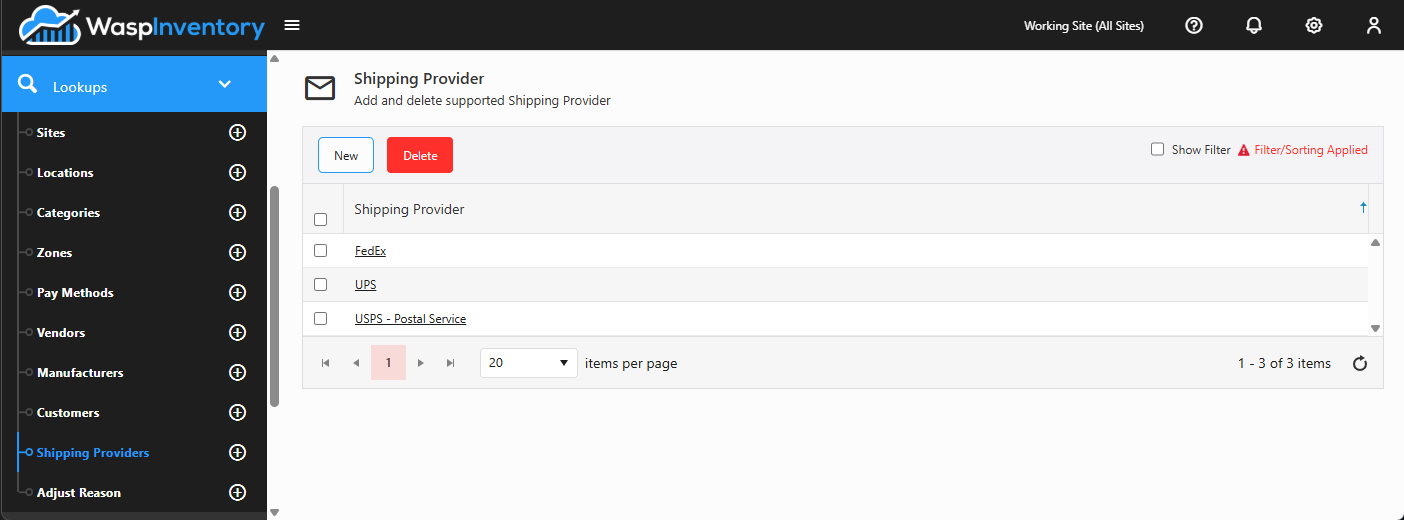
Shipping Providers are the carriers you ship with, and each provider can have one or more shipping methods (for example, a carrier’s ground, express, and overnight services). These become the Ship Via choices on orders.
To set one up:
- Open Lookups → Shipping Providers and click New (or open an existing provider).
- Enter the Shipper Name.
- Under Shipping Methods, click Add to add each method the carrier offers, giving each a name. Edit or remove methods here too.
- Click Save.
Pay Methods
Section titled “Pay Methods”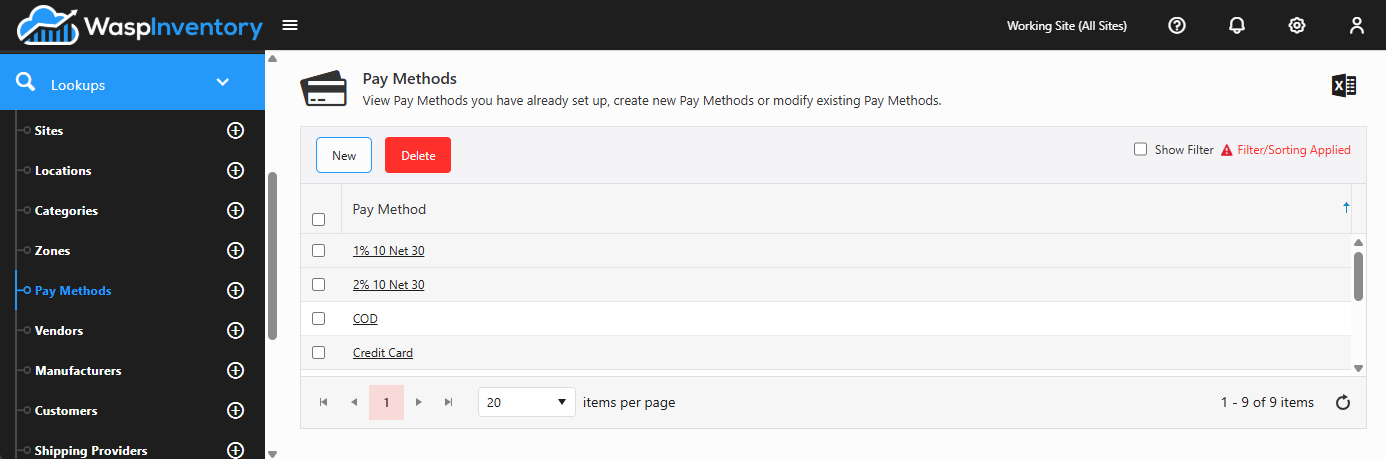
Pay Methods are the payment terms you use on orders, for example cash, credit card, or net terms. They appear as the Payment choices on vendors, customers, and orders.
To set one up:
- Open Lookups → Pay Methods and click New (or open an existing one).
- Enter the Pay Method name.
- Click Save.
Adjust Reason
Section titled “Adjust Reason”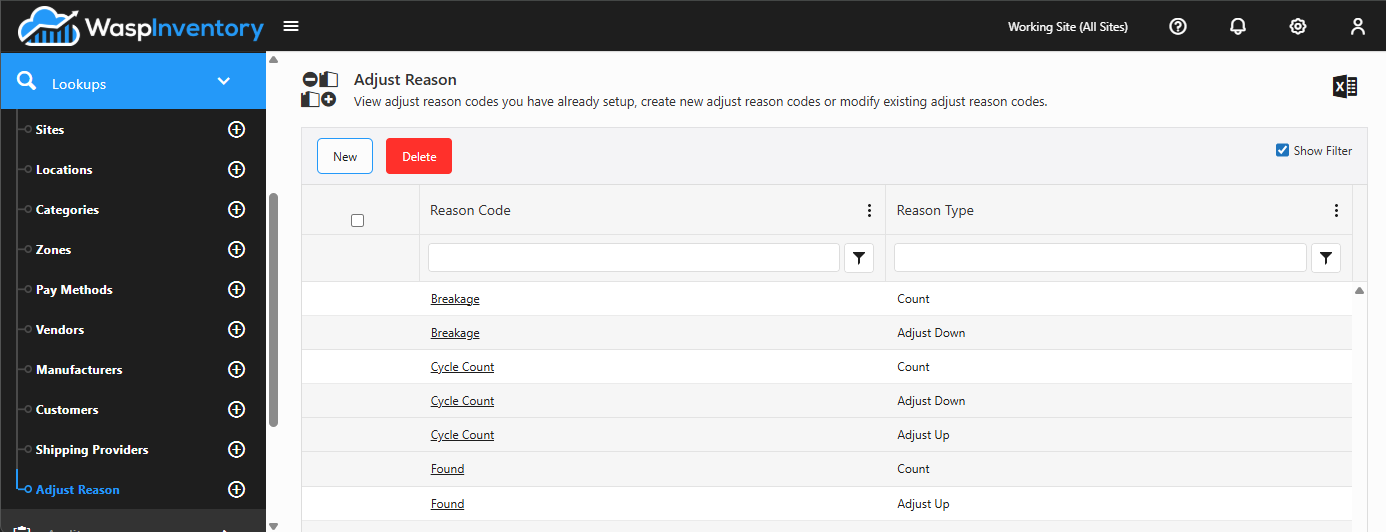
Adjust Reason codes explain why a stock quantity changed when you use the Adjust action. Choosing a reason keeps your history clear and makes reports more meaningful.
To set one up:
- Open Lookups → Adjust Reason and click New (or open an existing code).
- Enter the Adjust Reason Code: a short, clear label such as
DamagedorFound. - Choose how the reason applies to a count:
- Adjust Inventory Count — set the quantity to an exact counted number.
- Adjust Down — reduce the quantity (for example, breakage or loss).
- Adjust Up — increase the quantity (for example, stock found).
- Click Save.
Troubleshooting
Section titled “Troubleshooting”- A shipping method or pay method isn’t showing on an order. These lists supply the Ship Via and Payment drop-downs. If a choice is missing, confirm it was saved here, and for shipping, that the method is listed under the right provider.
- My adjust reason doesn’t limit the count the way I expected. Each reason is tied to a direction: Adjust Inventory Count sets an exact figure, Adjust Down only reduces, and Adjust Up only increases. If a reason behaves unexpectedly during an adjustment, open it here and check which option is selected.
- I can’t delete a reason or method that’s in use. Anything already referenced by history or an order generally can’t be removed. Leave it in place or rename it if it’s retired.
Related
Section titled “Related”- Vendors and Customers — where Ship Via and Payment are used
- Adjust inventory — where adjust reasons are used
- Lookups overview