
Importing Data
Importing lets you bring lots of records into Wasp Inventory at once (items, customers, vendors, and more) instead of adding them one at a time. There are two tools: the classic Import Data and the newer Import Data 2.0 wizard. This page covers both.
Before you begin
Section titled “Before you begin”- You’ll need a role with permission to import data. Without it, the import pages show an insufficient-permissions message.
- Always download the template for the record type you’re importing and fill in your data on it; the template’s columns line up with the fields Wasp Inventory expects.
- Know which fields are required for your record type; the import won’t finish rows that are missing required values.
- Import a small sample first when you’re trying a new file, then run the full batch once it comes through cleanly.
Which import should I use?
Section titled “Which import should I use?”- Import Data 2.0 (the wizard) — a guided, step-by-step experience that imports from Excel files and helps you map and check your data before it lands. This is the default experience for most accounts today.
- Import Data (classic) — the established tool. It imports from a CSV or text file and works with a wide range of record types. It’s still there if you prefer it, or if your account hasn’t moved to the wizard yet.
Both are found in the Settings (gear) menu. You can switch between them at any time: Go back to legacy from the wizard, or Try the new experience from the classic page.
Import Data 2.0 (the new wizard)
Section titled “Import Data 2.0 (the new wizard)”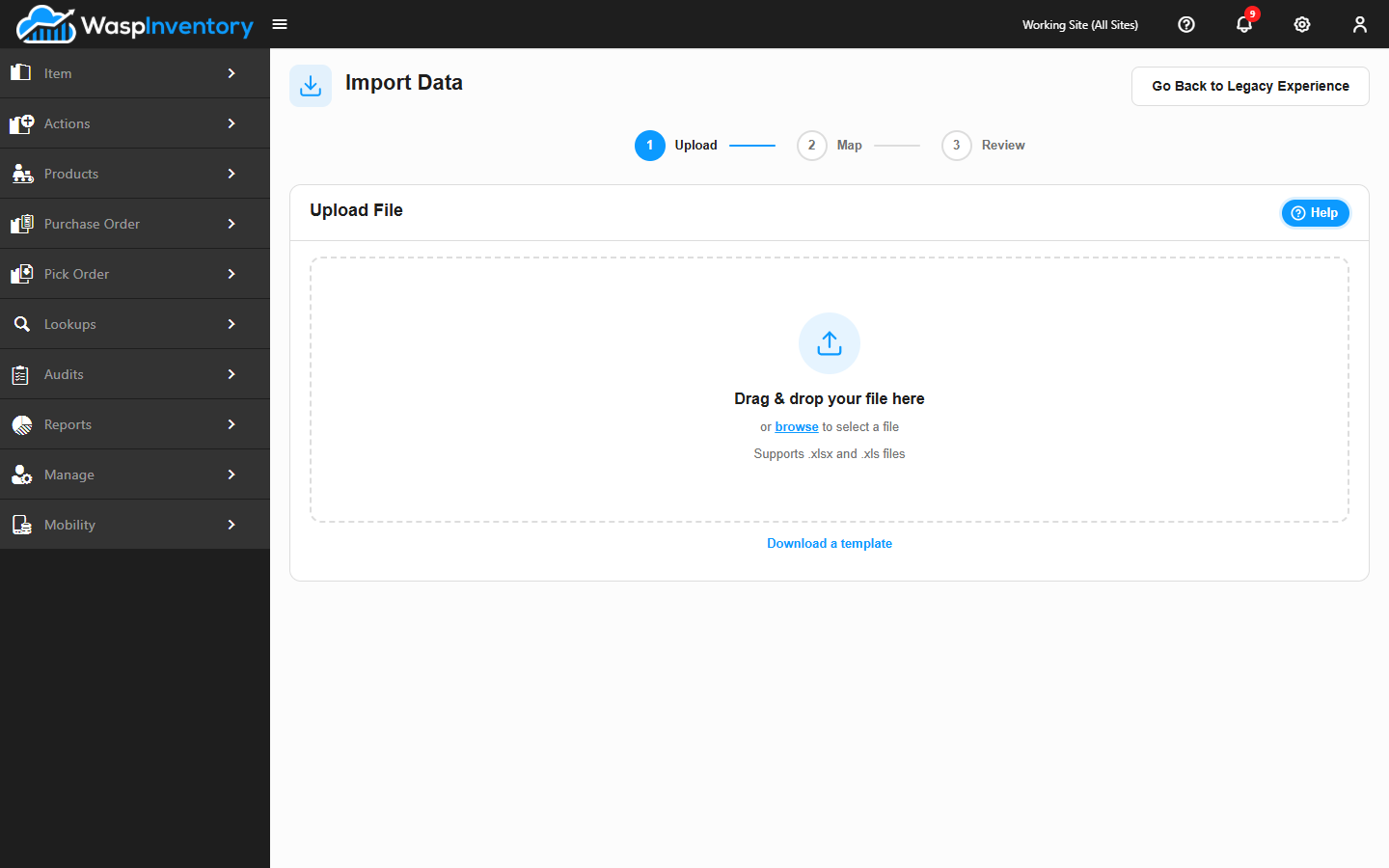
Open the Settings (gear) menu and choose Import Data 2.0, or click Try the new experience on the classic Import Data page. The wizard guides you through three steps.
Step 1: Upload
Section titled “Step 1: Upload”Drag an Excel file (.xlsx or .xls) onto the drop zone, or click Browse to pick one. You can also download a template to start from. Once uploaded, the wizard shows your file’s details and the data it detected, such as how many sheets and rows it found, and what type of record each sheet looks like. If a sheet doesn’t match a known record type, the wizard warns you that it will be skipped. Then click Continue.
Step 2: Map
Section titled “Step 2: Map”The wizard suggests how each column in your file maps to a field in Wasp Inventory. Review the suggestions, adjust any that aren’t right, and confirm the mapping. A preview helps you see how your data will come in, and required fields are clearly marked. Confirm each object before you proceed.
Step 3: Review
Section titled “Step 3: Review”The wizard validates your data and shows you Ready, Errors, and Info counts so you can see what’s about to happen before anything is saved. Address any issues it flags (for example, a required value that’s missing), then run the import.
Once you start the import, a progress view shows the run happening in real time, and you can Cancel if something looks wrong. When it finishes, you’ll see a results screen with Import Errors and Skipped Rows broken out separately, and you can download each as a CSV to review or fix and re-import.
Import Data (classic)
Section titled “Import Data (classic)”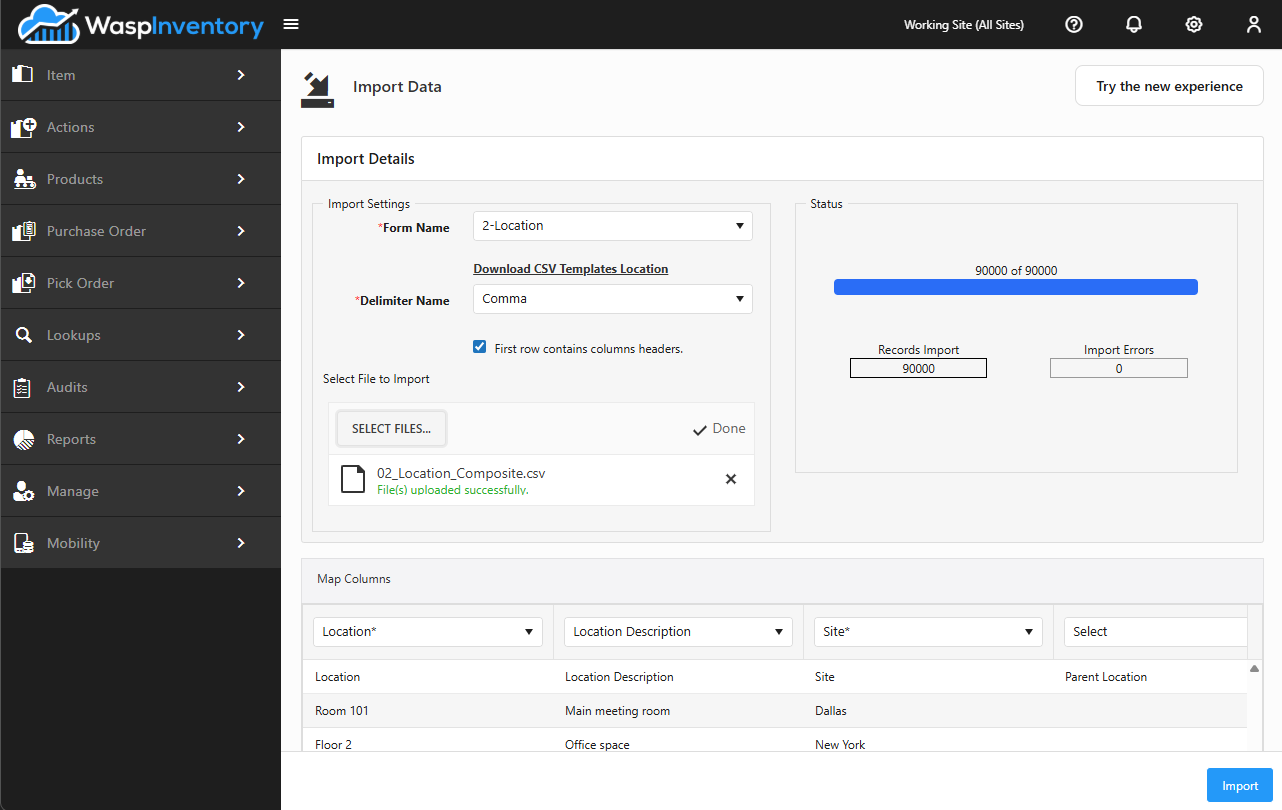
Open the Settings (gear) menu and choose Import Data.
- Choose the type of record you’re importing from the Select From dropdown (for example, items or customers).
- Click the template link to download a CSV template for that record type, then fill it in with your data.
- Choose the delimiter that matches your file (usually a comma). Pick Custom if your file uses a different single character.
- If your file’s first row contains column headings, tick Row has header.
- For some record types (such as customers) you can tick Only update existing records to change existing records rather than add new ones.
- Choose your file to upload it (
.csvor.txt). - Click Map Column and match each column in your file to the right field in Wasp Inventory. Required fields must be mapped before you can continue, and each field can only be mapped once.
- Start the import. A progress area shows how many records were imported and how many had errors.
If there are errors, click View Error Log to see exactly which rows had problems and why, so you can fix your file and try again. You can Cancel an import that’s still running.
Troubleshooting
Section titled “Troubleshooting”- The Map Column / Continue button is disabled. Every required field must be mapped, and each field can be mapped only once. Resolve any duplicate mappings and fill in the required ones.
- Rows came in with errors. Open View Error Log (classic) or download the details (wizard) to see which rows failed and why: usually a missing required value or a value that doesn’t match an existing record. Fix your file and re-import just those rows.
- A sheet was skipped in the wizard. The sheet’s name didn’t match a known record type. Rename the sheet to match a template, or pick the object type manually if the wizard offers it.
- The wizard isn’t available. It’s on by default, so this means it’s been turned off for your account. Use the classic Import Data tool instead, or ask an administrator to contact support about re-enabling it.
- My delimiter isn’t listed. Choose Custom and enter the single character your file uses to separate columns.
Related
Section titled “Related”- Creating an Item — understand the item fields before importing them in bulk.
- Custom Fields (Form Customization) — custom fields can be mapped during import too.
- Customers and Vendors — common record types to import.