
Checking out
Use Check Out when you’re giving items to a customer or vendor but you still want to track them and expect them back. It’s perfect for tools, equipment, and loaned stock.
Before you begin
Section titled “Before you begin”- Your role needs access to Check Out. If Actions → Check Out is missing, an administrator can grant it on the Roles & permissions page.
- Whoever you’re checking out to should exist first. Add a customer under Customers or a vendor under Vendors.
- There must be stock Available at the location the items are leaving from.
- If an administrator has switched on Audit Mode Lockdown, Check Out is unavailable until they switch it back off. See Audit Mode Lockdown.
When to use Check Out
Section titled “When to use Check Out”Check Out keeps items on your books as “out” rather than gone, so you always know who has what. Use it for:
- Tools and equipment loaned to a customer.
- Stock sent to a vendor, for repair or consignment.
- Anything you hand out and expect to get back.
When those items return, you bring them back with Check In.
Check items out
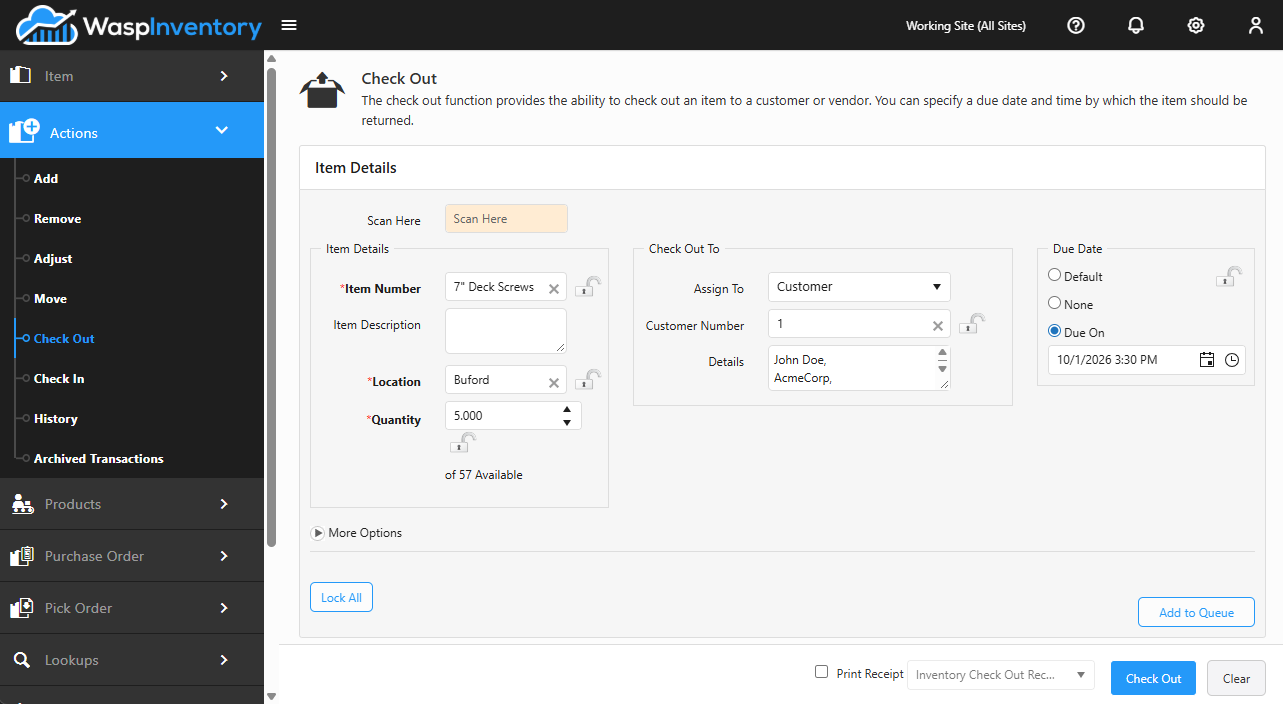
Section titled “Check items out”The page is organized into Item Details (what’s going out), Check Out To (who’s getting it), and Due Date (when it’s expected back).
- Open Actions → Check Out.
- Choose the item: scan it into Scan Here, or type its number or description in Item Number.
- Confirm the Location the item is leaving from and enter the Check Out Quantity. The page shows how much is Available.
- Under Check Out To, pick an Assign To type (Customer or Vendor) and choose who the items are going to.
- Set the Due Date:
- Default — uses your account’s standard checkout length.
- None — no due date.
- Due On — pick a specific date and time from the calendar.
- Need to record more? Click More Options to add Notes.
- Click Add to Queue to stage the item, then repeat for others.
- When the list is ready, click Check Out to complete the checkout.
Items that are tracked
Section titled “Items that are tracked”If the item is tracked by serial number, lot, or date code, use the Tracking Details button to choose exactly which units are going out.
Troubleshooting
Section titled “Troubleshooting”- I can’t pick who to check out to. The Assign To type controls the list. Switch it to the right type (Customer or Vendor); if they still aren’t there, add them under the matching lookup first.
- Checkout won’t save. Make sure each item is staged with Add to Queue, you’ve chosen a Check Out To, and any required field (asterisk) is filled.
- The items came back. Bring them back into available stock with Check In. Don’t use Add, which would double-count them.
Related
Section titled “Related”- Checking in
- Customers
- Vendors
- Creating an item (Check Out Length)
- Transaction history