
Pick orders
A pick order is how you fulfill an order for a customer. It records who the order is for, what they’re buying, how much, and where it ships, then tracks the order as your team pulls (picks) the items from stock and sends them out.
Before you begin
Section titled “Before you begin”- Pick orders aren’t available on the Basic edition: you’ll need Complete. If you don’t see the Pick Order section in the sidebar, your edition or role may not include it.
- Your role needs permission to view, create, and pick orders. An administrator can grant it under Settings → Roles.
- Set up your customers first: every pick order is placed for a customer. You manage them under Customers.
- Make sure the items the customer wants exist in your catalog with stock on hand at the site you’ll ship from.
What a pick order does
Section titled “What a pick order does”Where a purchase order brings stock in from a vendor, a pick order sends stock out to a customer. You create the order for a customer, list the items and quantities they want, then Pick those items from your locations to fulfill it. As you pick, Wasp Inventory reduces your on-hand counts and tracks how much of the order is still outstanding.
Pick orders live under the Pick Order section in the left sidebar, which has two pages:
- Pick Orders — the list of every order, where you create and open them.
- Pick — where you record items as they’re picked and fulfilled.
The Pick Orders list
Section titled “The Pick Orders list”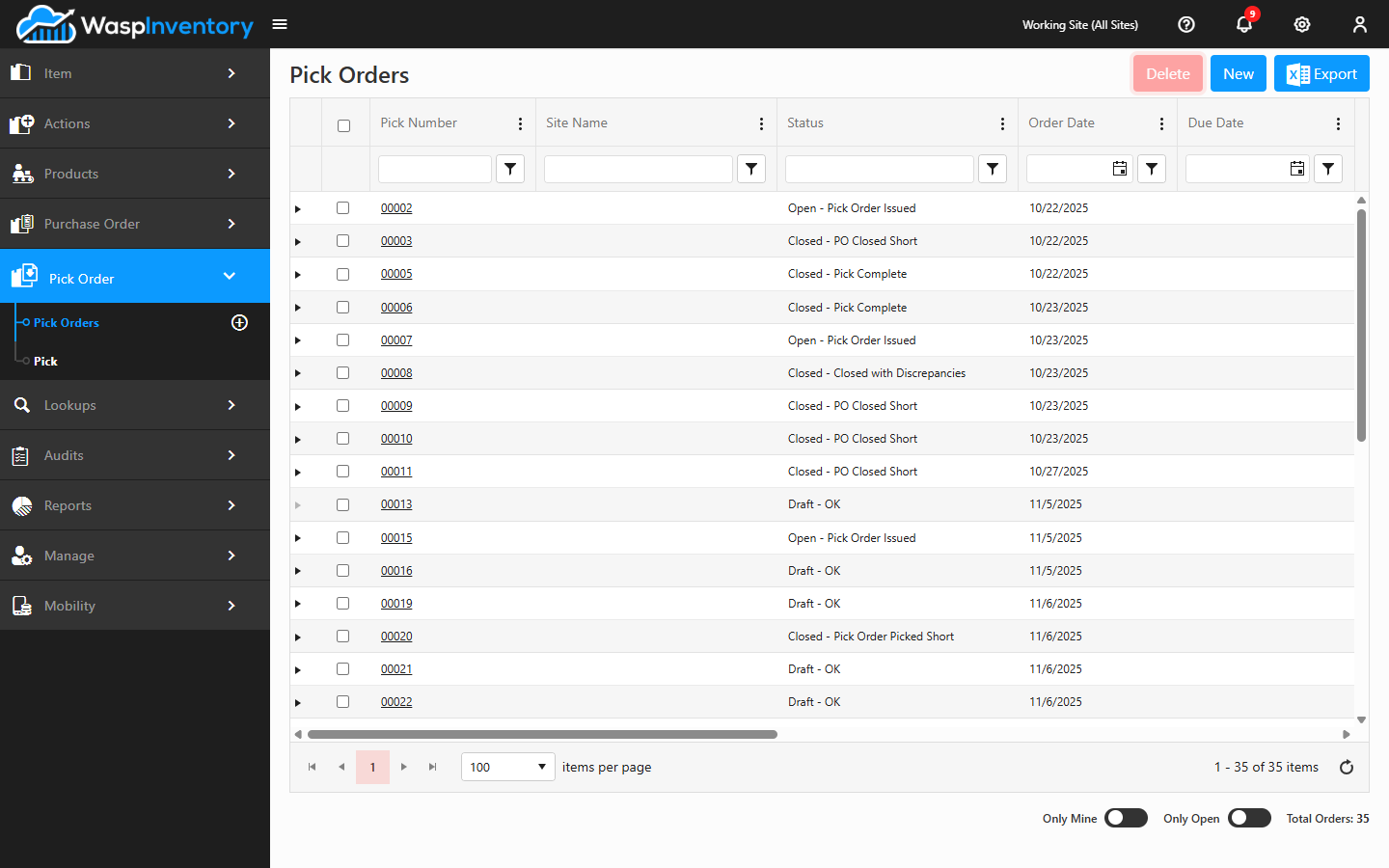
Open Pick Order → Pick Orders to see all of your orders. Each row shows the essentials: the order number, the customer, dates, totals, and the current status. Use the search and column filters at the top to find a specific order, then click a row to open it.
Two toggles at the bottom of the list give you a quick filter without setting up a column filter:
- Only Mine — shows just the orders you created.
- Only Open — hides orders that aren’t in Open status.
To start a new order, use the New button. See Creating a pick order for the full walkthrough.
Act on selected orders
Section titled “Act on selected orders”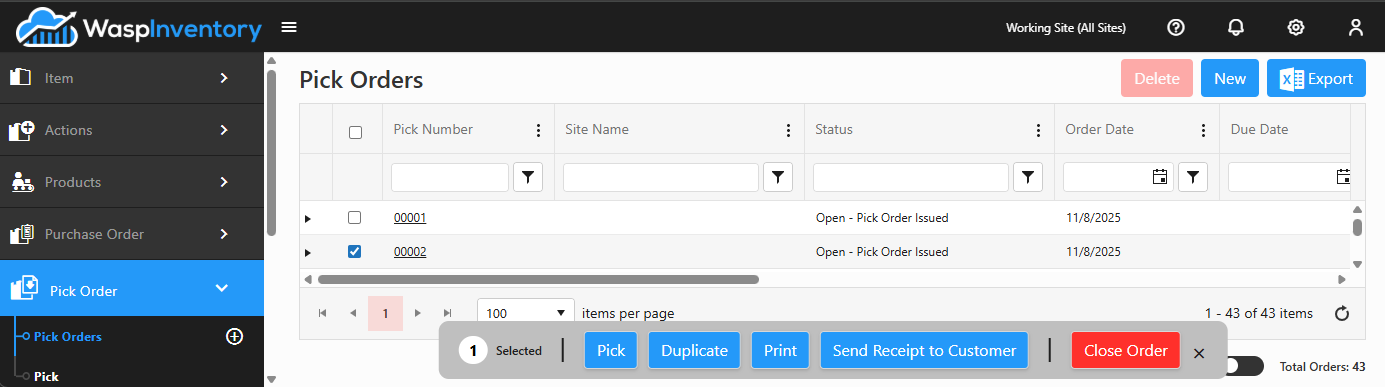
Tick the checkbox on one or more orders to reveal an action bar with more options:
- Pick — jump straight to picking (only enabled for a single Open or In Progress order).
- Duplicate — copy an existing order onto a new one (single order only).
- Print — print the order.
- Send Receipt to Customer — email the pick order receipt to the customer. It’s available for any selected orders that aren’t still in Draft status.
- Close Order — close out the selected order(s).
Delete, New, and Export stay available in the top-right corner regardless of selection; Delete only enables when at least one selected order is a Draft, since that’s the only status you’re allowed to remove.
Payment method
Section titled “Payment method”A pick order records a Payment Method: how the customer is paying for the order (for example, credit card, check, or an account term). It’s set on the order in Order Details and is drawn from the pay methods your company has configured under Lookups → Pay Methods.
The pick order lifecycle
Section titled “The pick order lifecycle”A pick order generally moves through three stages:
- Create: choose the customer, add the items and quantities, confirm pricing, and save the order. See Creating a pick order.
- Pick: pull the items from stock, confirming the picked quantity and location for each line. See Picking an order.
- Close: once the order is fully picked (or you decide it’s done), close it out.
Troubleshooting
Section titled “Troubleshooting”I can’t find an order in the list. Clear any column filters and search by order number or customer. If your view is scoped to a single site, confirm you’re looking at the right one.
An order I opened is read-only. It’s likely Closed. Closed orders are kept for history and can’t be edited. If items still need to go out, create a new order for them.
The Pick Order section is missing entirely. Pick orders require the Complete edition and are also role-gated: check your edition and role permissions with an administrator.