
Checking in
Use Check In to bring back items that were previously checked out. It’s the return trip for Check Out: once items are checked in, they’re available again.
Before you begin
Section titled “Before you begin”- Your role needs access to Check In. If Actions → Check In is missing, an administrator can grant it on the Roles & permissions page.
- The items you’re checking in need to be currently checked out: Check In only recognizes stock that’s out.
- An administrator can switch on Audit Mode Lockdown, which restricts everyone to audit and reconcile transactions only. While it’s on, Check In is unavailable, along with the other stock actions. Running an audit doesn’t switch it on by itself. See Audit Mode Lockdown.
When to use Check In
Section titled “When to use Check In”Check In is for items that are currently out and are now coming back:
- Tools or equipment returned by a customer.
- Stock coming back from a vendor, after repair or consignment.
- Anything you loaned out and want to make available again.
Check items in
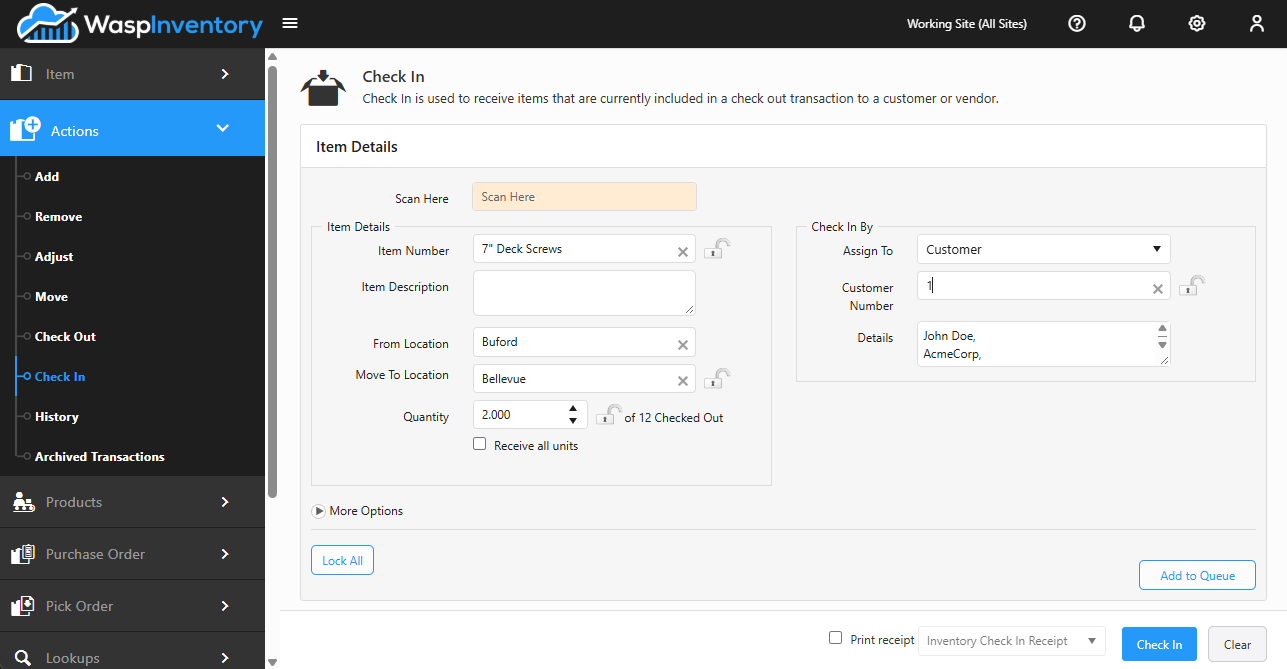
Section titled “Check items in”- Open Actions → Check In.
- Find the checked-out item: scan it into Scan Here, or type its number or name to search. Wasp Inventory recognizes items that are currently checked out.
- Confirm the Location the item is returning to.
- Adjust the Quantity if only part of what was checked out is coming back.
- Click Add to Queue to stage the item, then repeat for others.
- When the list is complete, click Check In to finish checking everything in.
Items that are tracked
Section titled “Items that are tracked”If the item is tracked by serial number, lot, or date code, use the Tracking Details button to scan or select the exact units being returned so the record matches what physically came back.
Troubleshooting
Section titled “Troubleshooting”- The item won’t come up in the search. Check In only finds stock that’s currently checked out. If nothing appears, the item may already be back in. Confirm on the Transaction history page.
- Only part of the quantity came back. Lower the Quantity to what actually returned; the rest stays checked out until it comes back too.
- Check In is greyed out or unavailable. Either your role doesn’t have access, or an administrator has switched on Audit Mode Lockdown, which restricts the whole company to audit and reconcile transactions until they switch it back off. Running an audit doesn’t trigger this by itself.