
Notifications
Notifications let you set up rules that watch for things happening across your inventory (stock dipping below its minimum quantity, an order being created, an item checked out and coming due, and more) and send an alert when they do. Each rule delivers its alert by email, by an in-app alert (the bell in the top bar), or both.
Before you begin
Section titled “Before you begin”- You’ll need a role with permission to create or edit notifications. Without it, you can view existing notifications but not change them.
- Decide who should be alerted (specific users, whole roles, an assignee, or outside email addresses) and how (in-app, email, or both).
- Email delivery needs working email settings. If your company’s outgoing email (SMTP) isn’t set up, email alerts won’t send. See Outgoing email (SMTP).
- For low-stock alerts to be useful, set a minimum quantity on the items you want to watch first. See Low stock.
- Editing the wording and layout of an email or web message requires the report designer, a Complete-edition feature; without it you can still choose from existing templates.
- The Basic edition caps how many active notifications you can have. Once you’re at the limit, New (and Save on a new rule) is hidden until you disable or delete an existing notification.
The bell vs. notification rules
Section titled “The bell vs. notification rules”These are two related but different things:
- Notification rules (this page) are the setup — they define what to watch for and who to alert.
- The bell in the top bar is your personal, live feed of alerts that have actually fired for rules with in-app delivery turned on. Clearing an item from the bell only dismisses that alert; it doesn’t change the rule that created it.
Open Notifications
Section titled “Open Notifications”Open the Settings (gear) menu and choose Notifications. You’ll see a list of the notifications already set up, showing each one’s name, which delivery methods are turned on, its status, and when it last triggered.
Create a notification
Section titled “Create a notification”Click New to open the rule editor, which has two tabs.
Set Triggers
Section titled “Set Triggers”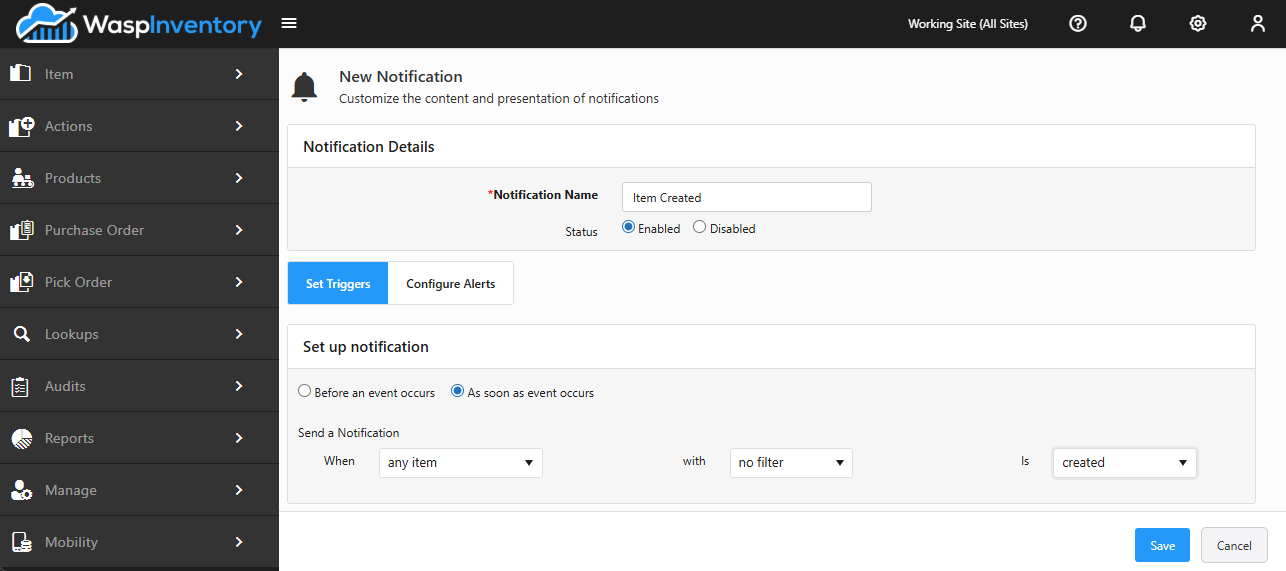
Choose when the rule should fire:
- Give the notification a name and set its status to Enabled so it fires (see Turn a notification on or off).
- Choose the event that should trigger it, for example, stock received, an item checked out, checked in, adjusted, or picked, a purchase or pick order event, or low stock.
- Some timed events let you choose to fire before the event instead of as soon as it happens; set how far ahead (for example, 7 days before a check-out due date).
Configure Alerts
Section titled “Configure Alerts”Choose how the alert is delivered and to whom (see below), then click Save.
To change an existing notification, click its name in the list.
Choose how it’s delivered
Section titled “Choose how it’s delivered”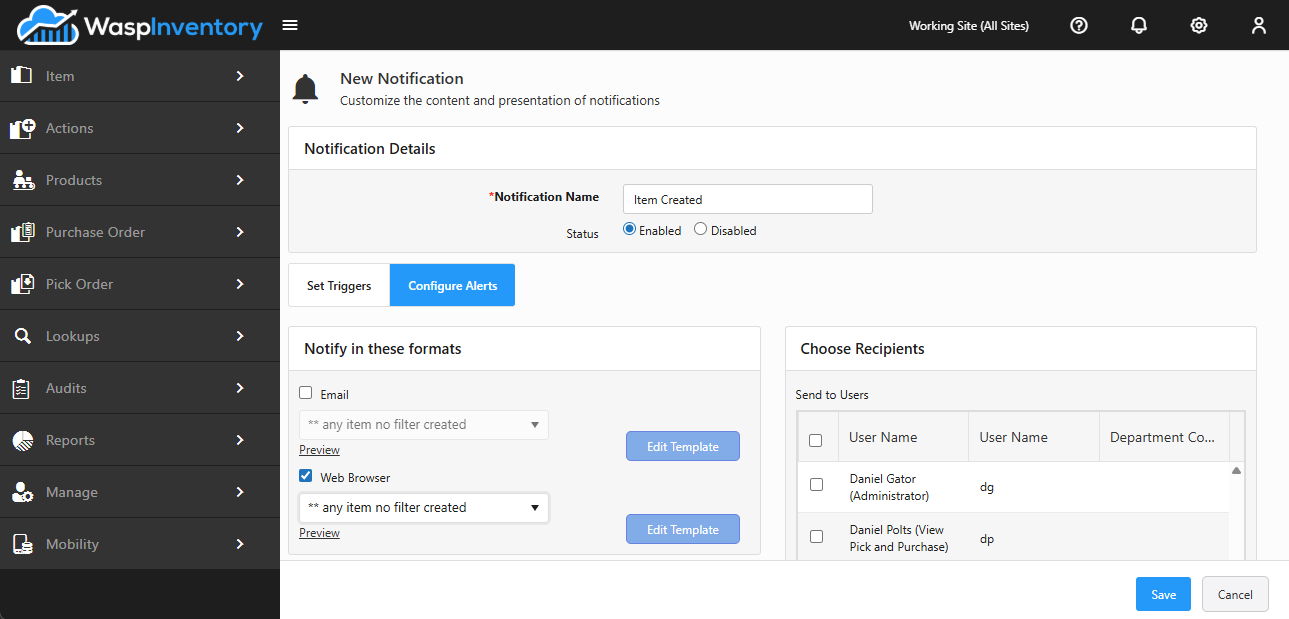
A notification can be delivered in more than one way at once. On the Configure Alerts tab, turn on the methods you want:
- Email — sends an email. You can choose which email template to use and Preview it.
- Web — shows an in-app alert in the Notifications (bell) menu at the top of the screen. You can choose the template and preview it.
If your edition includes the report designer, an Edit Template button lets you adjust the wording and layout of the email or web message.
Choose who receives it
Section titled “Choose who receives it”Pick any combination of recipients:
- Assignee — send to the person responsible for the item or record (shown for events where an assignee applies, such as check-out and pick-order events).
- Users — check the specific people in the users list. A running count shows how many you’ve selected.
- Roles — check a role to notify everyone in it.
- Email addresses — type one or more outside addresses, separated by commas, for people who aren’t Wasp Inventory users.
Turn a notification on or off
Section titled “Turn a notification on or off”Each notification has a status. Set it to Enabled to have it fire, or Disabled to keep the setup but pause the alerts. To remove one entirely, select it in the list and click Delete.
Troubleshooting
Section titled “Troubleshooting”- The New button is missing (or Save is disabled) on a new notification. On the Basic edition, this happens once you’ve reached the maximum number of active notifications; disable or delete one to free up room.
- My notification never fires. Check that its status is Enabled, that at least one delivery method is on, and that it has recipients. The list also shows when each notification last triggered; a blank means it hasn’t fired yet.
- My email alerts aren’t arriving. Confirm your company’s outgoing email (SMTP) is configured and validated under Outgoing email (SMTP), and check the recipients on the rule.
- The Edit Template button is missing. Editing templates requires the report designer, which is included only with the Complete edition. You can still pick from the available templates and preview them.
- Emails to outside addresses aren’t arriving. Confirm the addresses are separated by commas and are valid; an invalid address blocks saving and is flagged on the field.
- I can’t save: it says a recipient is required. Choose at least one recipient: an assignee, users, roles, or one or more email addresses.
- There’s no Assignee option. The assignee recipient only appears for events that have a responsible party (for example, check-out or complete-pick-order events).
- I cleared an alert but it came back. Clearing the bell dismisses that alert instance; the rule keeps running. Edit or disable the rule itself on the Notifications page to stop future alerts.
Related
Section titled “Related”- Callouts — send the same inventory events to external systems over HTTP
- Outgoing email (SMTP) — required for email delivery
- Low stock — set minimum quantities so low-stock notifications have something to watch
- Users and Roles & permissions — the people and groups you can notify
- Company details — your business profile shown on outgoing documents and email