
Categories
A category is a label you use to group similar items together. Categories make it much easier to search, filter, and report on your inventory, for example seeing all your “Fasteners” or “Safety Equipment” at once.
Before you begin
Section titled “Before you begin”- You need a role that allows managing categories. If New is missing, ask your administrator to check your role.
- Categories are assigned to items on the item’s own details page; creating a category here just makes it available to choose there.
View your categories
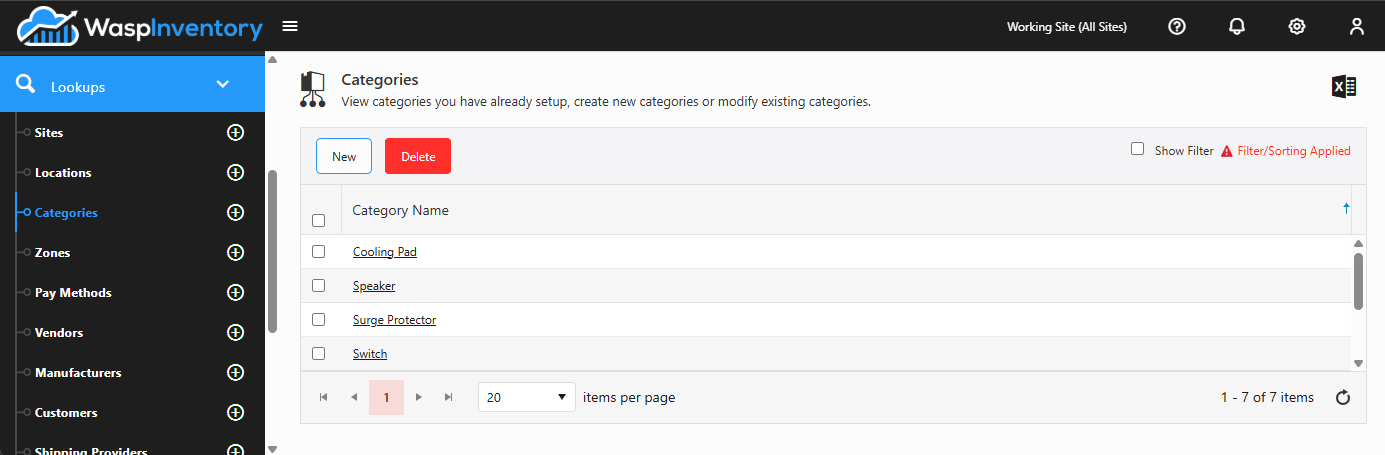
Section titled “View your categories”Open Lookups → Categories to see every category you’ve created. Click one to open and edit it.
Add a category
Section titled “Add a category”- From the Categories list, click New.
- Enter a Category name, keeping it short and descriptive.
- Click Save.
Edit a category
Section titled “Edit a category”- Open the category from the list.
- Change its name.
- Click Save.
Once a category exists, you can assign items to it on the item’s details, and then filter and group by category throughout the app.
Troubleshooting
Section titled “Troubleshooting”- I renamed a category; did it change on my items? Yes. Items reference the category record, so a rename flows through everywhere the category is used. That’s usually what you want, but rename with care if the category is widely assigned.
- I can’t delete a category. A category that’s still assigned to items generally can’t be removed. Reassign those items to another category first, or leave the category in place and simply stop using it.
Related
Section titled “Related”- Creating an item — assign a category to an item
- Viewing items — filter and group by category
- Lookups overview