
Labels
Labels let you print barcodes for your items and locations so they can be scanned throughout your warehouse.
Before you begin
Section titled “Before you begin”- Access to Reports must be granted to your role: Labels lives in the Reports section. If you don’t see it, an administrator can enable it under Roles & permissions.
- A label printer loaded with the right label stock gives the best results. You can print to a regular printer in a pinch, but barcodes may not scan reliably.
- Labels open in a new browser tab to print, so allow pop-ups for Wasp Inventory.
- The label designer (the Design button) is available in every edition for labels, but deleting still depends on your role’s rights.
Find a label
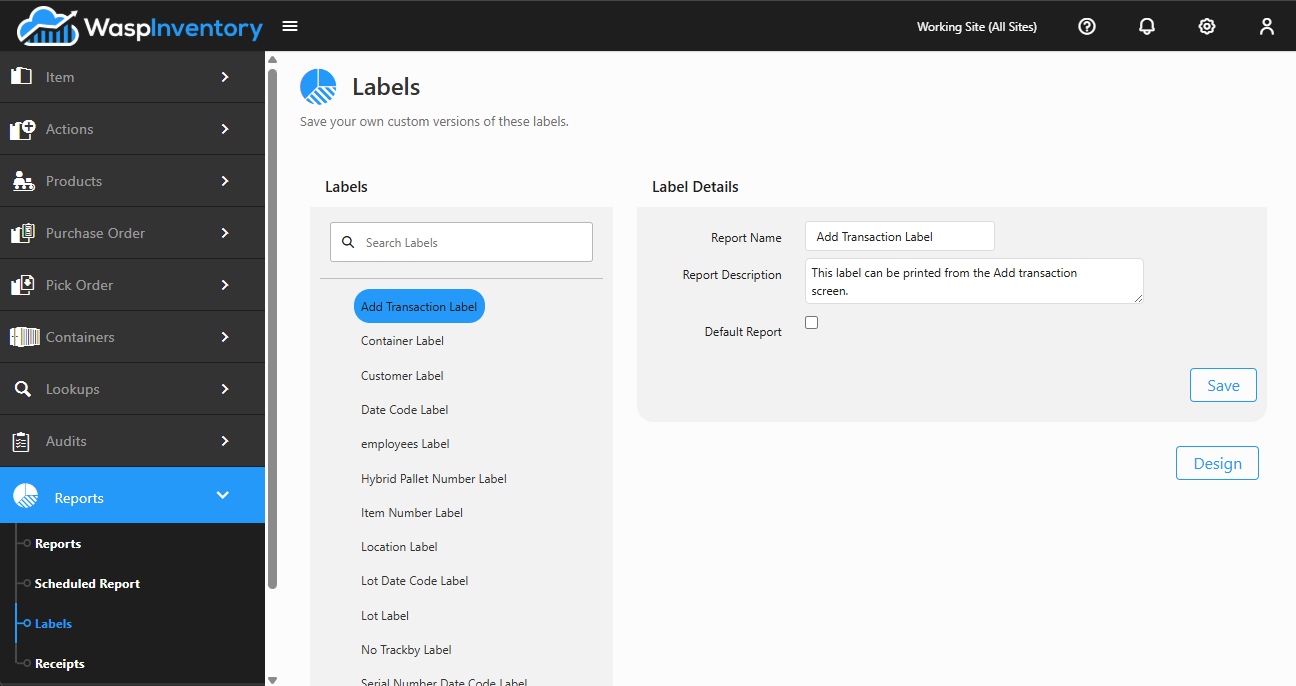
Section titled “Find a label”Open Labels from the Reports section of the left sidebar. The available label templates appear in a list on the left of the page:
- Browse the list to find the label you want.
- To search, type part of a label’s name in the search box and press Enter.
- Click a label to load its options on the right.
Wasp Inventory includes label templates for common needs such as item barcode labels, location and shelf labels, and asset tag labels.
Choose or customize a template
Section titled “Choose or customize a template”The label you select from the list determines the size and layout of what prints. Pick the template that matches your label stock.
If your edition includes the label designer, a Design button appears when you select a label, letting you adjust its layout (for example, which fields appear and where the barcode sits). Delete removes a label you created yourself.
Troubleshooting
Section titled “Troubleshooting”- Barcodes won’t scan. They were most likely printed to a standard printer, which can shrink or blur them. Reprint on a label printer with the correct stock for the template.
- Labels print off-center or the wrong size. The template must match your physical label stock. Pick the template built for your labels, or use Design to adjust margins and placement.
- Nothing opens when I generate. Labels open in a new tab; allow pop-ups for Wasp Inventory.
- The list is empty. Confirm your Working Site is set correctly: location and item labels depend on it.
Related
Section titled “Related”- Reports — run built-in and custom reports
- Receipts — printable records for transactions and orders
- Creating an item — the items you’ll print barcodes for
- Locations and zones — the locations you’ll label