
Item details & tabs
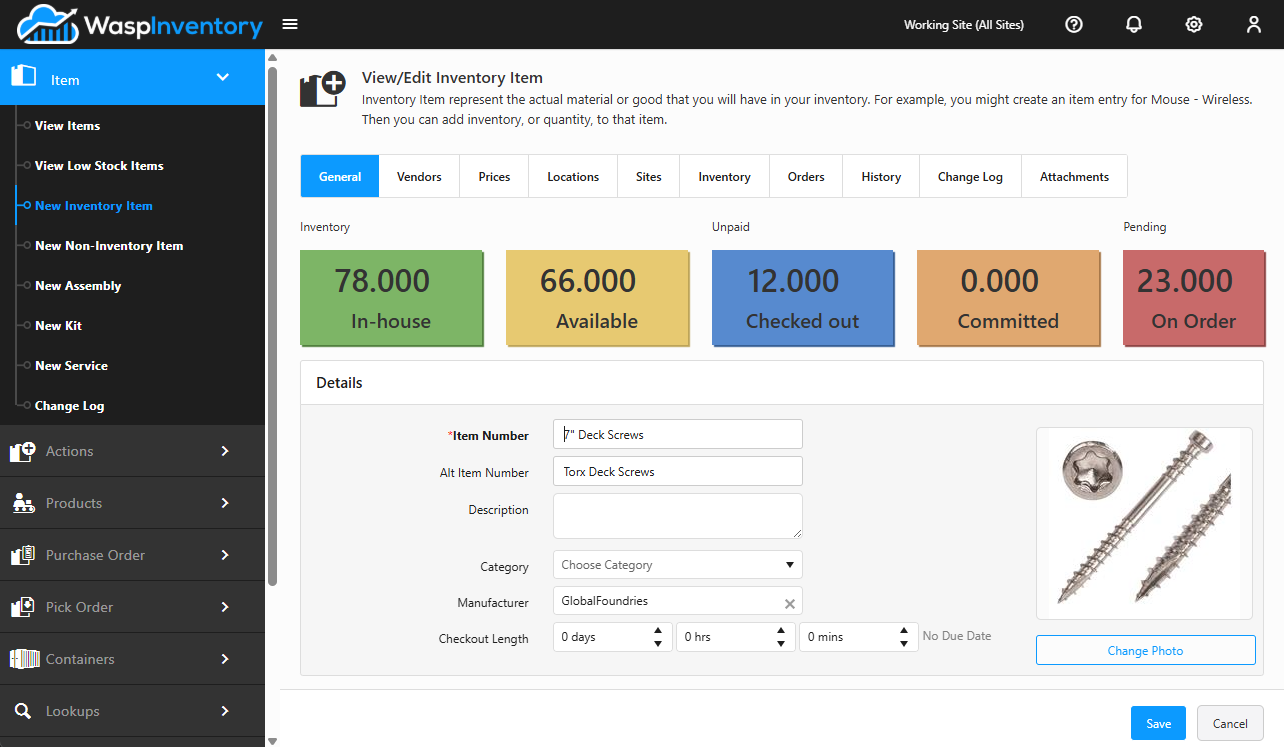
When you open an item from the Item Grid, its detail page organizes everything about that item into tabs across the top. Click a tab to switch to it. This page explains what each tab is for. You may not see every tab: which ones appear depends on the item’s type, your edition of Wasp Inventory, and your account’s permissions.
Before you begin
Section titled “Before you begin”- You need permission to view items to open a detail page, and edit permission to change anything on it. If fields are read-only, your role is view-only; an administrator can adjust this on the Roles page.
General
Section titled “General”The item’s core details: its Item Number, Description, Category, Manufacturer, unit of measure, Cost, and photo. This tab also carries the item’s Tracking options (serial number, lot, and date-code tracking) and its base pricing and dimensions.
For inventory items, the top of this tab shows live totals so you can read the item’s status at a glance:
- In House — the total quantity physically on hand.
- Available — how many are free to use right now.
- Checked Out — how many are currently out.
- Committed — how many are promised to open orders (Complete edition).
- On Order — how many are on the way in on purchase orders (Complete edition).
For an Assembly you’ll also see Buildable (how many you could build from the components you have), and for a Kit you’ll see Total Shippable.
Dimensions
Section titled “Dimensions”The item’s physical size and weight (length, width, height, weight, and volume) along with the units each is measured in. Useful for shipping, storage planning, and labeling.
Inventory
Section titled “Inventory”A breakdown of where this item’s stock actually sits and in what quantities. This is the tab to check when you want to see the real, current picture of an item across your locations.
Site and Location Levels
Section titled “Site and Location Levels”Shown as the Sites tab for setting stock levels per site, and Locations tab for setting stock levels per location, this sets the minimum and maximum quantities to keep on hand, per site or per location. When an item’s available quantity drops to or below its minimum quantity, it shows up in Finding low-stock items so you know it’s time to reorder.
There’s also an optional reorder quantity. It isn’t a threshold: it’s how many to buy by default once the item falls below its minimum, so restocking it doesn’t mean working out the amount each time.
Pricing
Section titled “Pricing”Set up pricing tiers: different prices for different customer groups or quantity breaks. (The item’s base Cost, List Price, and Sales Price are set on the General tab, not here.) The Pricing tab itself is available on the Complete edition only.
Vendors
Section titled “Vendors”The vendors you buy this item from, along with each vendor’s own part number and unit. Setting up vendors here makes creating purchase orders faster and more accurate. Once you’ve saved the item, this tab also shows each vendor’s last purchase order number, last received date, and received quantity, so you can see buying history at a glance.
Mark one vendor number as preferred to make it the default choice on new purchase orders. If another vendor number is already preferred, you’ll be asked to confirm before it’s switched.
Bill of Materials
Section titled “Bill of Materials”For Assembly and Kit items, this tab lists the component items (the recipe) that go into building one finished unit. See Assemblies, kits & services and Building & disassembling products.
Orders
Section titled “Orders”The purchase and pick orders that involve this item, so you can see what’s on the way in and what’s committed to go out without leaving the item.
History
Section titled “History”A record of the transactions that have affected this item over time (adds, removes, moves, check outs, check ins, and more) so you can trace how its stock got to where it is today.
Change Log
Section titled “Change Log”A record of changes made to the item’s own details (who changed what, and when). This tab is available on the Complete edition when change tracking is turned on in Settings.
Custom Fields
Section titled “Custom Fields”Any extra fields your company has added to capture information specific to your business. What appears here is entirely up to how your account is set up.
Troubleshooting
Section titled “Troubleshooting”- I don’t see a tab I expected. Tabs vary by item type, edition, and permissions. A Service item has no Inventory tab, for instance, and Bill of Materials only appears on assemblies and kits.
- My changes disappeared. Nothing on the detail page is saved until you click Save. If you navigated away or hit Cancel, unsaved edits are lost.
- A tab shows an error when I save. One of its fields needs attention. Open the flagged tab, fix the highlighted field, and save again.
- The item’s totals look wrong. Check the History tab: every add, remove, move, check out, and check in is recorded there, so it’s the first place to reconcile a count.
Related
Section titled “Related”- Viewing your items — the Item Grid you open items from.
- Adding a new item — how these fields get filled in.
- Finding low-stock items — driven by the minimum quantities on the Sites and Locations tabs, per site or per location.
- Custom fields — add your own fields to the Custom Fields tab.