
Moving inventory
Use Move when stock physically relocates but you still own the same amount: from one shelf to another, or from one site to another. You choose the item, where it’s coming from, where it’s going, and how much.
Before you begin
Section titled “Before you begin”- Your role needs access to Move. If Actions → Move is missing, an administrator can grant it on the Roles & permissions page.
- Both the from and to locations must already exist. If you’re moving between sites, your role needs access to both sites.
- There has to be stock at the source location to move: the page shows how much is Available.
- If an administrator has switched on Audit Mode Lockdown, Move is unavailable until they switch it back off. See Audit Mode Lockdown.
When to use Move
Section titled “When to use Move”Move is the right action any time stock changes place without changing quantity:
- Reorganizing a warehouse or consolidating shelves.
- Transferring stock between sites.
- Putting received goods away into their permanent spot.
Because a move doesn’t add or remove anything, your total on-hand stays the same. It just lives somewhere new afterward.
Move stock to a new location
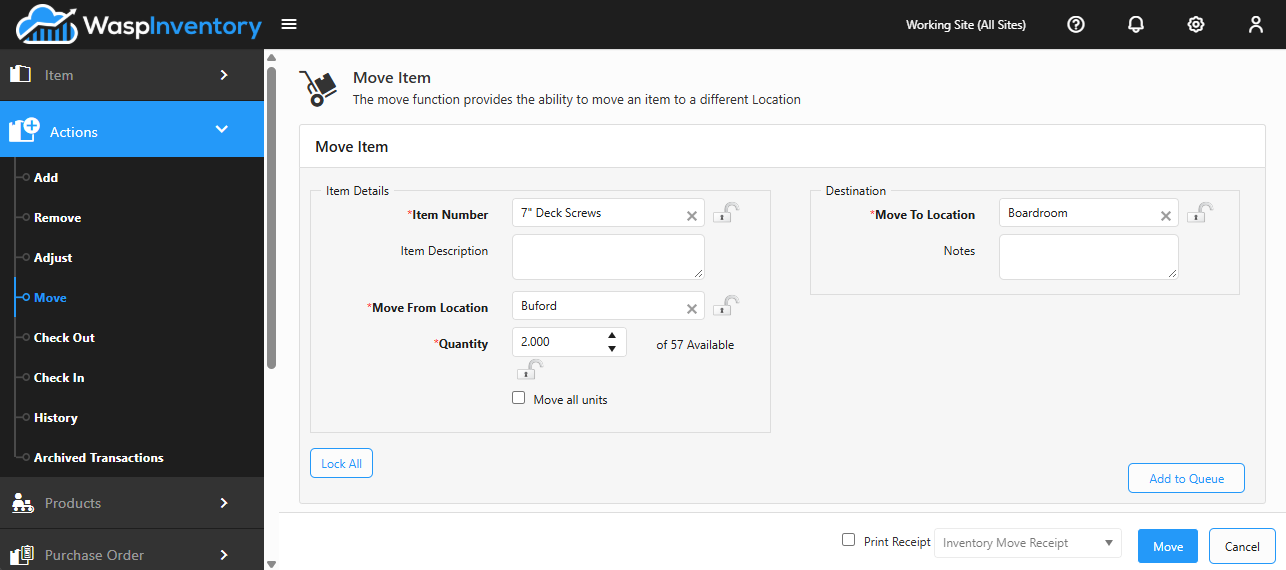
Section titled “Move stock to a new location”The Move page has two sides: Item Details on the left (what’s moving and from where) and Destination on the right (where it’s going).
- Open Actions → Move.
- In Item Number, type an item number or description and select the item.
- Under Move From, choose the Location the stock is currently in. The page shows how much is Available there.
- Enter the Quantity to move, or tick Move All Units to relocate everything at that location.
- On the Destination side, choose the Location the stock is moving to.
- Add Notes if you’d like a record of why.
- Click Add to Queue to stage the move, then repeat for any other items.
- When the list is complete, click Move to save.
Items that are tracked
Section titled “Items that are tracked”If the item is tracked by serial number, lot, or date code, use the Tracking Details button to pick exactly which tracked units are moving.
Troubleshooting
Section titled “Troubleshooting”- “From and To can’t be the same.” You’ve picked the same location on both sides. Choose a different destination.
- The destination site or location isn’t listed. It may not exist yet, or your role may not have access to that site. Set up the location or ask an administrator to widen your role’s site access.
- I can’t move the full amount. You can only move what’s Available at the source location. Check that you selected the location that actually holds the stock.