
Purchase orders
A purchase order (PO) is how you order stock from a vendor. It records what you’re buying, how much, at what cost, and where it should ship, then tracks the order from the moment you place it until every item has arrived. This page introduces the Purchase Orders grid and walks you through the life of an order.
Before you begin
Section titled “Before you begin”- Purchase orders aren’t available on the Basic edition: you’ll need Complete. If you don’t see the Purchase Order section in the sidebar, your edition or role may not include it.
- Your role needs permission to view, create, and receive purchase orders. If you don’t see the Purchase Order section in the sidebar, ask an administrator to grant it under Settings → Roles.
- Have your vendors set up first: every PO is placed with a vendor. You manage them under Vendors.
- Make sure the items you want to order already exist in your catalog, and that the site you’re ordering for is configured under Sites.
What a purchase order does
Section titled “What a purchase order does”When you need to restock an item, you create a purchase order and send it to the vendor you’re buying from. The PO captures the vendor, the items and quantities, the agreed cost, and shipping details. As the goods arrive you Receive them against the order, and Wasp Inventory keeps your on-hand counts and outstanding quantities up to date automatically.
Purchase orders live under the Purchase Order section in the left sidebar, which has two pages:
- Purchase Orders — the grid of every order, where you create and open POs.
- Receive — where you record stock as it arrives.
The Purchase Orders grid
Section titled “The Purchase Orders grid”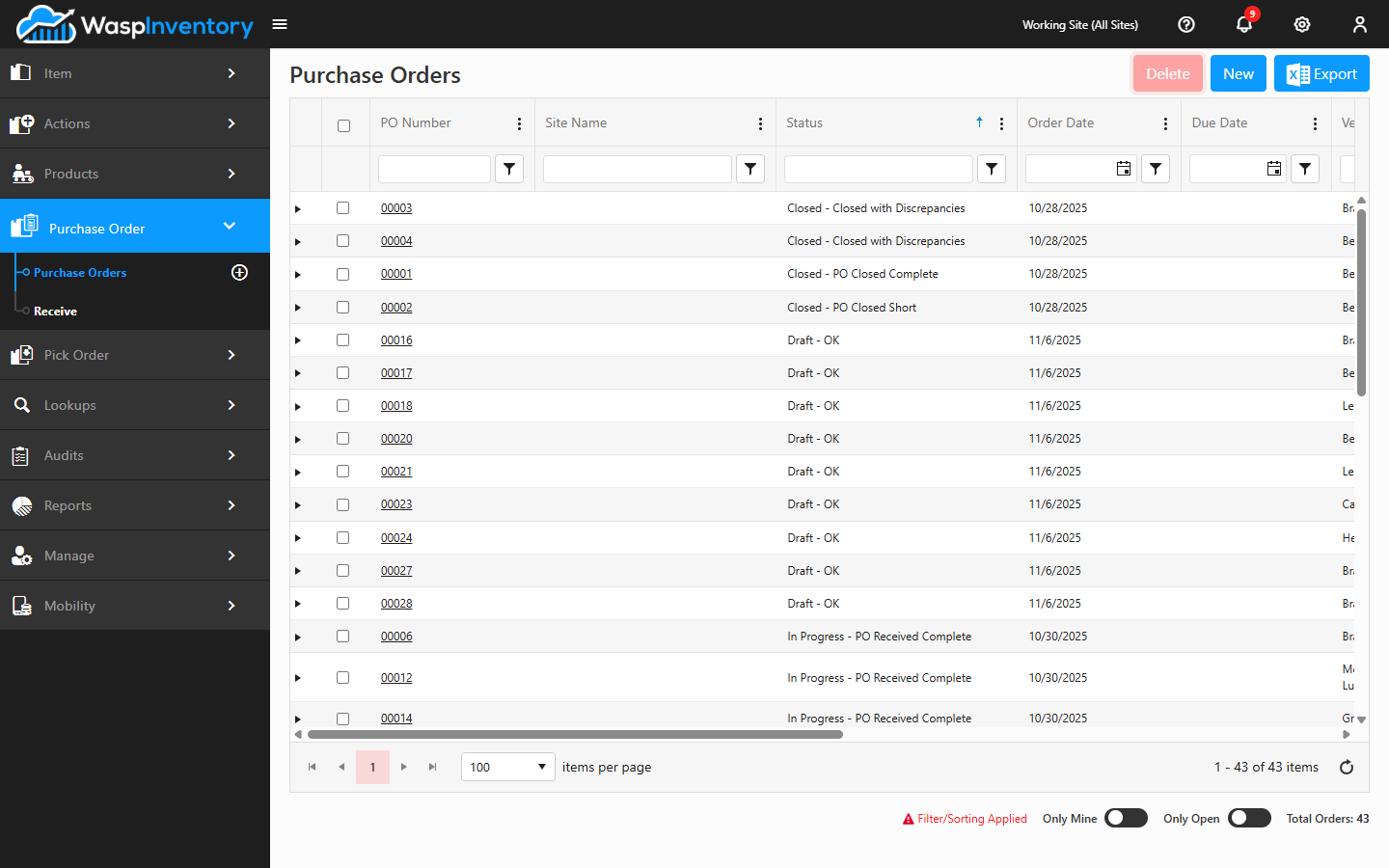
Open Purchase Order → Purchase Orders to see all of your orders. Each row shows the key details at a glance: the PO number, the vendor, dates, totals, and the order’s current status.
To find a specific order, use the search and column filters at the top of the grid. You can search by PO number or vendor and narrow the orders down to what you’re after. Click any row to open that order and view or edit its details.
Two toggles at the bottom of the grid give you a quick filter without setting up a column filter:
- Only Mine — shows just the orders you created.
- Only Open — hides Closed orders. It’s a broader filter than the name suggests: it keeps Draft, Open, In Progress, Complete, Rejected, and Cancelled orders too, not just orders literally in Open status.
To start a brand-new order, use the New button. See Creating a purchase order for the full walkthrough.
Act on selected orders
Section titled “Act on selected orders”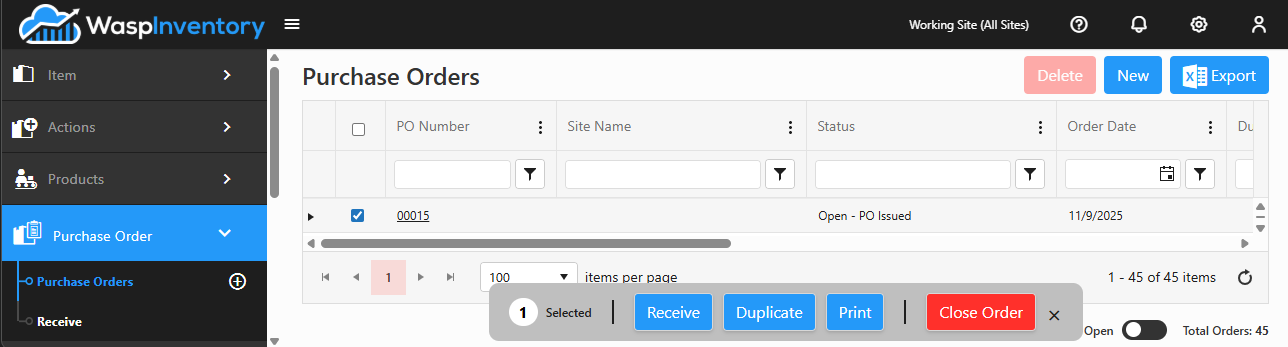
Tick the checkbox on one or more orders to reveal an action bar with more options:
- Receive — jump straight to receiving stock against the order.
- Duplicate — copy an existing order onto a new one.
- Print — print the order.
- Close Order — close out the selected order(s).
Delete, New, and Export stay available in the top-right corner regardless of selection; Delete only enables when at least one selected order is a Draft, since that’s the only status you’re allowed to remove.
Order statuses
Section titled “Order statuses”Every purchase order carries a status that tells you where it is in its life:
- Draft — saved but not yet sent to the vendor. You can keep editing it freely.
- Open — the order has been issued to the vendor and is awaiting delivery.
- In Progress — some of the ordered items have been received, but not all.
- Received / Complete — everything ordered has arrived.
- Closed — the order is finished and locked; no further receiving is expected.
The purchase order lifecycle
Section titled “The purchase order lifecycle”A purchase order generally moves through four stages:
- Create: choose the vendor, add the items and quantities, set costs, and save the order. See Creating a purchase order.
- Send: issue the order to the vendor. You can email or print it so they know what you need.
- Receive: as the shipment arrives, record the quantities received against the order. See Receiving stock.
- Close: once everything has arrived (or you decide the order is done), close it out.
Troubleshooting
Section titled “Troubleshooting”I can’t find an order in the grid. The grid may be filtered or showing only recent orders. Clear any column filters and search by PO number or vendor. Also confirm you’re looking at the right site if your view is scoped to one.
I opened an order but can’t change anything. The order is probably Closed, which makes it read-only. Closed orders are kept for history and can’t be edited. If you still expect stock against it, it should not have been closed. Create a new order for the remaining items.
A PO is stuck at In Progress. That’s expected while any ordered quantity is still outstanding. Finish receiving the remaining items, or close the order short if the rest isn’t coming.
The Purchase Order section is missing entirely. Purchase orders require the Complete edition and are also role-gated: check your edition and role permissions with an administrator.