
Adding a new item
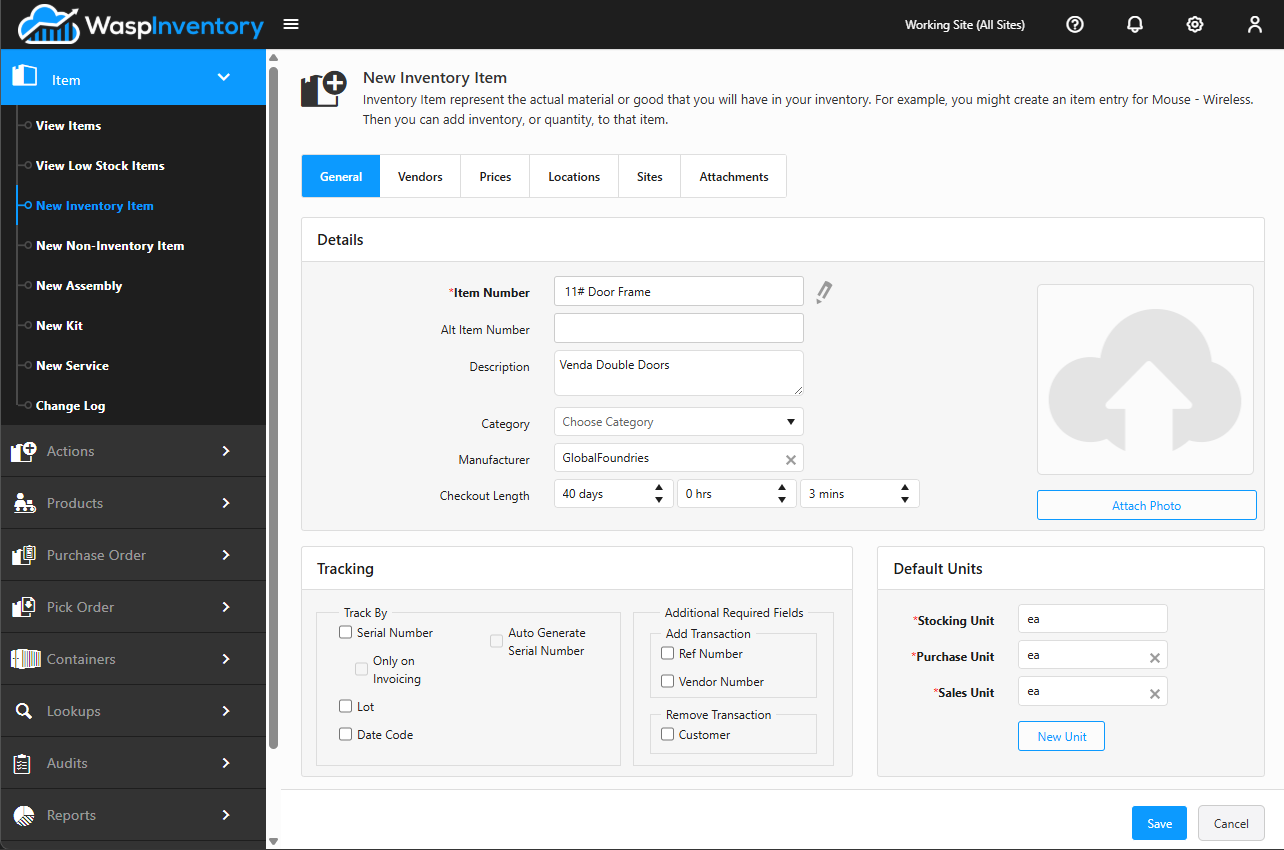
Creating an item adds a new product to your catalog so you can track it, stock it, and use it in orders. This page walks through creating a New Inventory Item (the most common type) and points out where the other item types differ. Start from Item → New Inventory Item in the left navigation.
Before you begin
Section titled “Before you begin”- You need permission to create items. If the menu option is missing or the page won’t open, ask an administrator to grant your role access on the Roles page.
- Decide the item’s type first; it’s set when you create the item and can’t be changed later.
- It helps to have your categories, manufacturers, and units of measure already set up, but you can add them as you go.
Fill in the General tab
Section titled “Fill in the General tab”The General tab holds the core details that identify your item. Fill these in first:
- Item Number: the unique number or code for the item. If your account is set up to number items automatically, this field shows Automatically Assigned and stays read-only; click the pencil icon if you want to type your own number instead.
- Description: a short description of what the item is.
- Category: start typing to choose a category from the list. Categories help you organize and filter your items.
- Manufacturer: start typing to choose who makes the item.
- Unit of measure: set the base unit the item is tracked in (each, box, case, and so on) so quantities and pricing add up correctly.
- Cost: the item’s unit cost, used for inventory valuation. This field is required.
Depending on your setup, you may also see an Alternate Item Number (a second code, such as a UPC or old part number) and a Check Out Length, a default loan period in days, hours, and minutes that pre-fills the due date when the item is checked out. Leave the length blank for no due date.
You can also attach a photo of the item from this tab.
Set up tracking (inventory & assembly items)
Section titled “Set up tracking (inventory & assembly items)”Below the general details, the Tracking options control how closely Wasp Inventory follows each unit and what it asks for during transactions:
- Track By — turn on Serial Number, Lot, or Date Code to track individual units, batches, or date-stamped stock. Serial-numbered items can optionally be captured only on invoicing, and you can have serial numbers auto-generated from a defined number series format.
- Additional required fields — require a Ref Number or Vendor when stock is added, and a Customer when stock is removed. Use these to enforce the detail your records need.
Work through the other tabs
Section titled “Work through the other tabs”The tabs across the top let you add as much or as little detail as you need. You don’t have to complete them all up front; you can come back and add more any time. Common tabs include Vendors, Prices, Locations, Sites, Inventory, and Attachments. For a full tour of what each one does, see Item details & tabs.
When you’re done, click Save at the bottom of the page. Your new item is added to the catalog and appears in your Item Grid. To leave without saving, click Cancel.
Creating other item types
Section titled “Creating other item types”The other entry points under the Item menu (New Non-Inventory Item, New Assembly, New Kit, and New Service) open the same kind of form, already set to that type. The available tabs and fields adjust to match: an assembly, for example, adds a Bill of Materials tab for its components. To understand which type to choose, see Understanding item types.
Troubleshooting
Section titled “Troubleshooting”- The Save button won’t complete. A required field is empty or a tab has an error. Look for the highlighted field or the tab flagged with an error, fill it in, and save again.
- I can’t change the unit of measure. Once vendors are attached to an item, you must remove all of its vendors before changing units. Wasp Inventory warns you when this applies. Note that stocking unit cannot be changed once quantity has been added to the item.
- The Item Number field is read-only. Your account assigns item numbers automatically. Click the pencil icon next to the field to type your own number instead.
- I picked the wrong type. An item’s type is fixed at creation. Create a new item of the correct type; see Understanding item types.
Related
Section titled “Related”- Understanding item types — choose the right type before you start.
- Item details & tabs — what each tab on the item does.
- Viewing your items — find your new item in the Item Grid.
- Assemblies, kits & services — for items you build or bundle.