
Adjusting inventory
Use Adjust when the count in Wasp Inventory doesn’t match what’s actually on the shelf. Instead of adding or removing stock, you’re correcting the record, and you’ll choose a reason so the change is documented.
Before you begin
Section titled “Before you begin”- Your role needs access to Adjust. If Actions → Adjust is missing, an administrator can grant it on the Roles & permissions page.
- At least one Adjust Reason should exist so you can explain the change. Reasons are managed under Lookups → Adjust Reason (other lookups).
- If you’re correcting many items at once after a count, consider an audit instead: it’s purpose-built for reconciling a whole site.
- If an administrator has switched on Audit Mode Lockdown, Adjust is unavailable until they switch it back off. See Audit Mode Lockdown.
When to use Adjust
Section titled “When to use Adjust”Reach for Adjust when a physical count and the system disagree:
- A spot check turned up a different number.
- Stock was miscounted when it first went in.
- You’re cleaning up records and need them to reflect reality.
Correct an item’s count
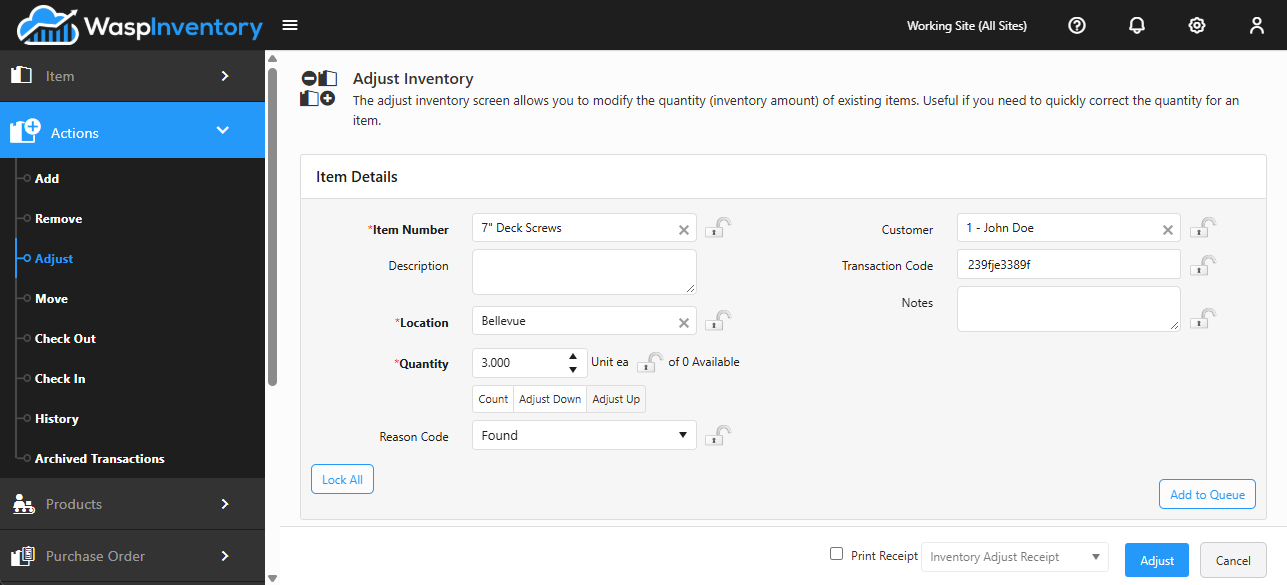
Section titled “Correct an item’s count”- Open Actions → Adjust.
- In Item Number, type an item number or description and select the item.
- Choose the Location you’re correcting. The page shows the current available quantity there.
- Choose how you want to adjust:
- Count — enter the actual number on the shelf and the system corrects to that figure.
- Adjust Down — reduce the count by an amount.
- Adjust Up — increase the count by an amount.
- Enter the Quantity for the option you chose.
- Pick a Reason Code to explain the adjustment. You can add a Customer, Transaction Code, or Notes if useful.
- Click Add to Queue to stage it, then repeat for other items.
- When the list is ready, click Adjust to save.
Choosing an adjust reason
Section titled “Choosing an adjust reason”The Reason Code keeps your adjustments accountable: it’s how anyone reviewing history later understands why a count changed. Your available reasons are set up under Lookups → Adjust Reason, so if you need a reason that isn’t in the list, an administrator can add it there.
Items that are tracked
Section titled “Items that are tracked”If the item is tracked by serial number, lot, or date code, use the Tracking Details button to specify which tracked units the correction applies to. The tracked quantity needs to match the adjustment quantity.
Troubleshooting
Section titled “Troubleshooting”- The Reason Code list is empty. No adjust reasons have been set up yet. An administrator can add them under Lookups → Adjust Reason (other lookups).
- I picked the wrong option (Count vs. Up/Down). Count sets the total to the number you type; Adjust Up/Down changes it by that amount. If a correction looks doubled or halved, you likely used the wrong one: re-adjust to the correct figure.
- Adjust won’t save. Make sure you’ve chosen a Reason Code, staged the item with Add to Queue, and filled any required field.
- Stock actually left, it wasn’t a miscount. Use Remove so the transaction reflects what really happened.