
Running an audit
Running an audit means setting the scope of what you’re counting, then opening the Audit page to record what you physically find. You can set that scope two ways: create an Audit Window first, or set the site, location, and dates directly on the Audit page without one. An audit window just formalizes those same parameters so you can reuse or share them; it isn’t a required step.
Before you begin
Section titled “Before you begin”- Creating and editing audit windows is permission-controlled. If the option to add a window is missing, your role may allow counting but not setup. Ask your administrator to review your role.
- Make sure the sites you want to count already exist; you’ll choose from them when you set the scope, whether or not you use an audit window.
Create an audit window (optional)
Section titled “Create an audit window (optional)”The audit window is a saved plan for your count: its name, its dates, and the sites it covers. Setting one up lets you (or a teammate) reuse the same scope later instead of retyping it, but you can skip this section entirely and set the scope directly on the Audit page instead.
- Open Audits → Audit Window and click to add a new window.
- Enter an Audit Window Name (required) and, optionally, a Description and Notes.
- Set the Start Date and End Date for the count. The end date must be on or after the start date.
- Under the site restriction, tick the site or sites this audit should cover. You must select at least one site to save.
- Click Save.
Open the audit and set the scope
Section titled “Open the audit and set the scope”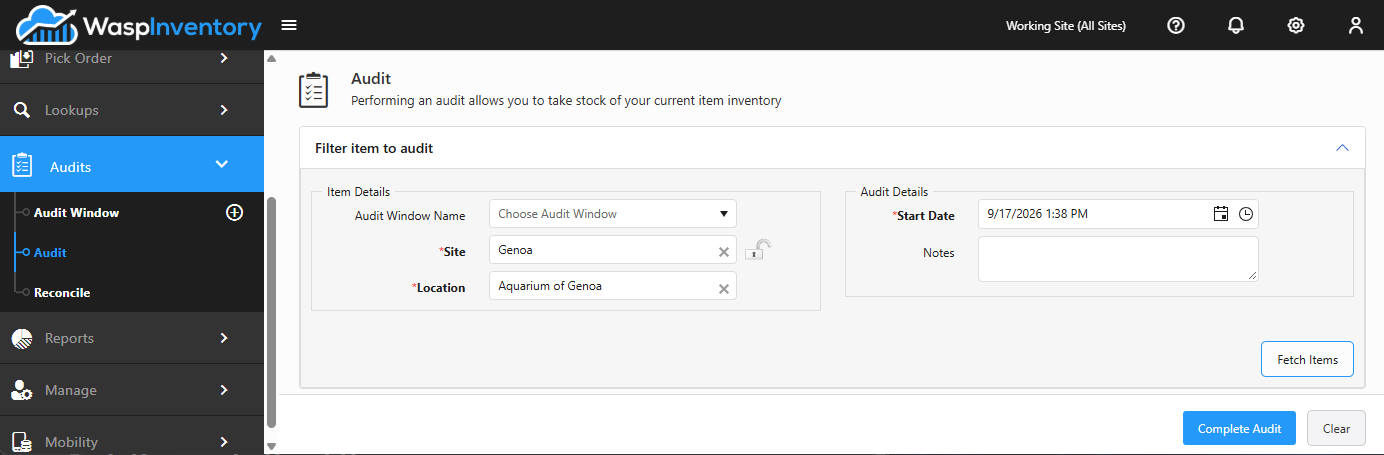
- Open Audits → Audit.
- Choose an Audit Window if you created one, or set the scope directly: pick the Site you’re counting (and optionally narrow to a specific Location) and the dates to count against.
- Click Fetch Items to pull in the items that fall within your scope.
Count the items
Section titled “Count the items”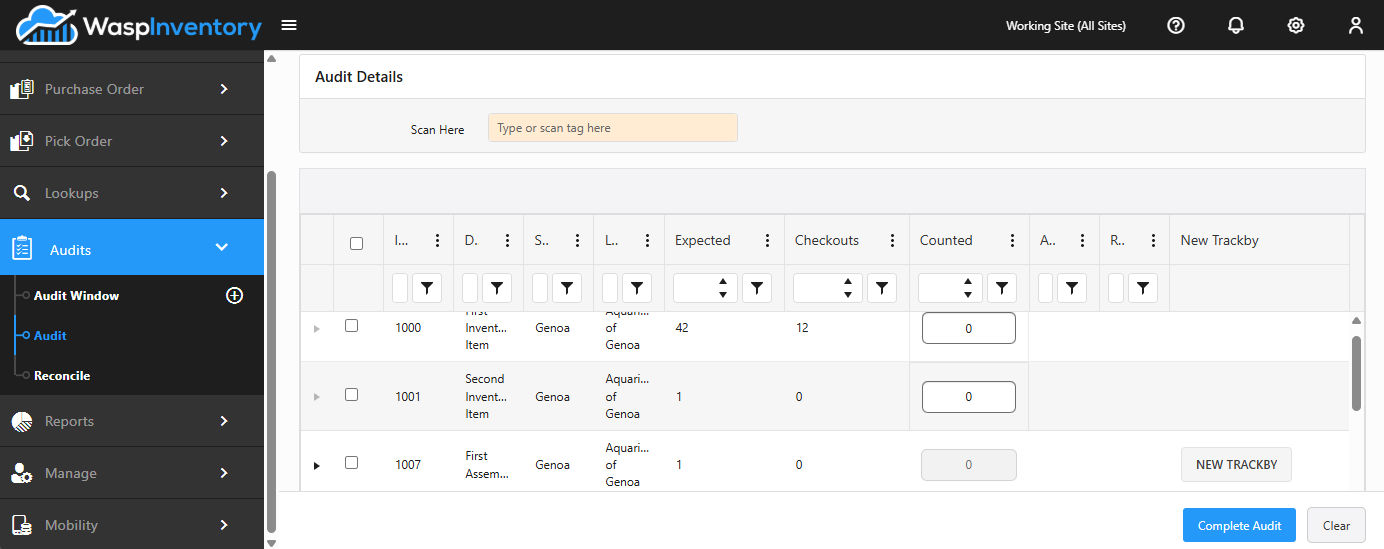
With items loaded, you record what you physically find:
- Scan or type an item into the scan box to jump to it quickly, or find it in the list below.
- In the grid, enter the number you counted in the Counted quantity column for each item.
- For items tracked by serial number, lot, or date code, expand the row to enter counts for each tracked detail.
The grid also shows helpful context as you go: the Expected quantity (unless it’s a blind count), how much is currently checked out, and when the item was last counted.
Troubleshooting
Section titled “Troubleshooting”- Fetch Items returns nothing. Check that your Audit Window, Site, and any Location filter actually contain stock, and that the site you picked is one the window covers. A location with no inventory has nothing to pull in.
- The window won’t save. The two usual causes are an empty Audit Window Name and no site selected: both are required. Also confirm the End Date isn’t earlier than the Start Date.
- I don’t see expected quantities while counting. That’s a blind audit, switched on by your administrator so the system’s number doesn’t sway your count. It’s working as intended.
- I miscounted an item. You can re-enter the counted quantity, or reset the item so it shows as not yet audited and count it again. Nothing is committed until you reconcile.
When you’ve finished counting, move on to Reconciling an audit to review the results and apply any adjustments.
Related
Section titled “Related”- Audits overview — how the three steps fit together
- Reconciling an audit — the final step
- Sites and Locations & zones — the scope of your count